


Webhooks Section in Orders
Overview
The Webhooks tab allows you to view all webhook events that have been triggered for a specific order. This feature is particularly useful for technical teams and customer support to track webhook delivery status, troubleshoot integration issues, and verify that webhook notifications have been successfully received by merchant endpoints.
Accessing the Feature
Log in to the Euler dashboard.
Navigate to the Orders module from the main menu.
From the List Orders page, click on the Order ID of the relevant order.
In the Show Order Details view, click on the Webhooks tab.
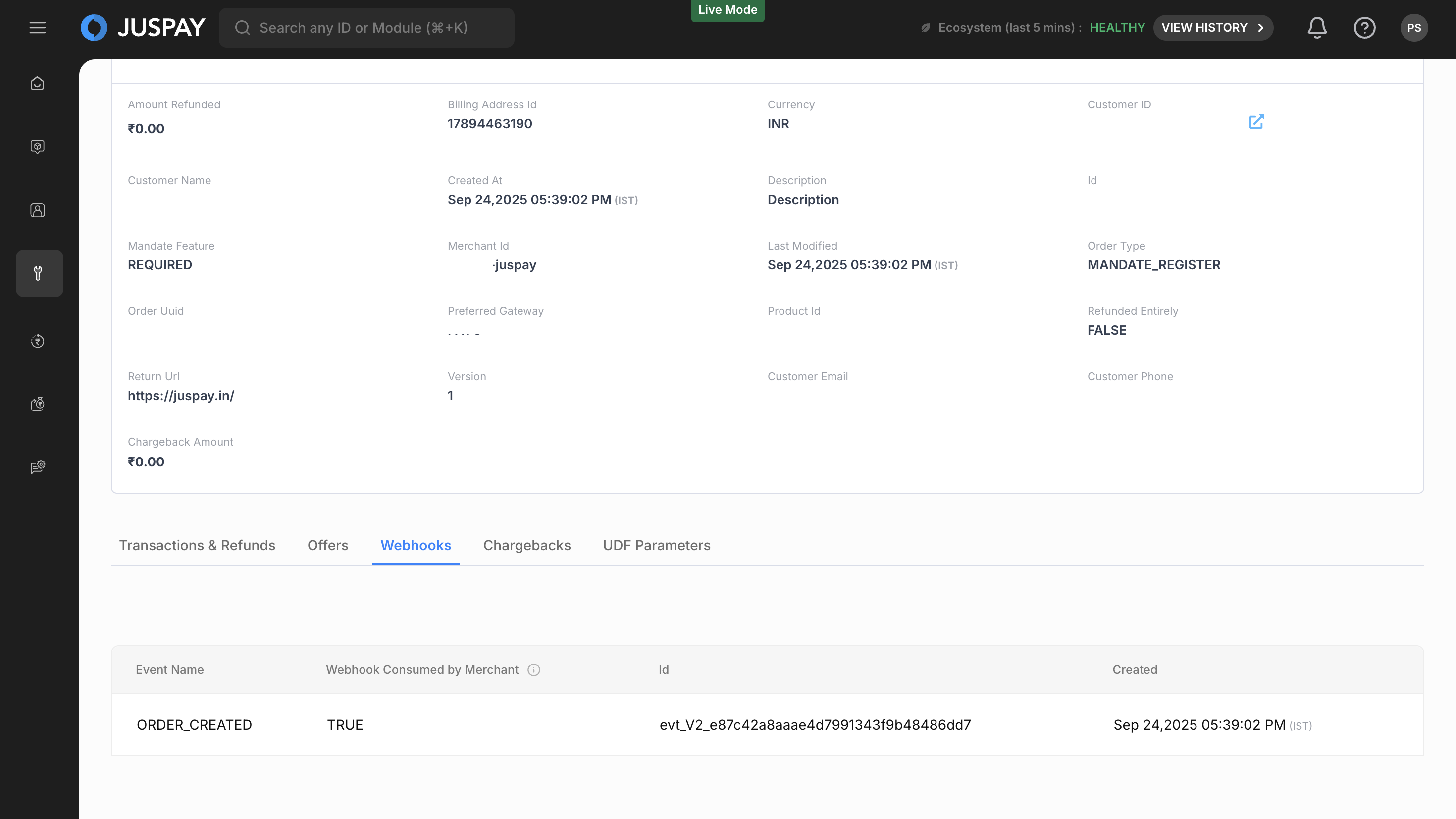
Webhooks Section in Orders Module
Step-by-Step Usage Instructions
Viewing Webhook Events
The Webhooks tab displays a table of all webhook events that were triggered for the order.
Each webhook event in the table will have the following details:
Event Name: The type of webhook event that was triggered (e.g., PAYMENTAUTHORIZED, PAYMENTCAPTURED, PAYMENT_FAILED).
Webhook Consumed by Merchant: Indicates whether the webhook was successfully consumed by the merchant's endpoint (TRUE/FALSE). A TRUE value means the webhook was consumed successfully, while FALSE indicates that a 4XX or 5XX response was received from the merchant's endpoint.
Id: The unique identifier for the webhook event.
Created: The timestamp when the webhook event was created and sent.
Table Features
Sorting: Click on column headers (Event Name, Webhook Consumed by Merchant, Created) to sort the data in ascending or descending order.
Pagination: The table displays 10 webhook events per page with navigation controls for multiple pages.
Serial Numbers: Each row is numbered for easy reference.
No Data Message: If no webhook events exist for the order, the tab displays "No webhooks data available".
Permissions and Roles
Access: To view the Webhooks tab, users need the orders permission with at least Read-Only access.