


Users
Users Module can be accessed from the Navigation bar under EC Operations section.
Here the following operations can be performed:
How to Create Users ?
Please refer to the below steps to create a new user on the Dashboard:
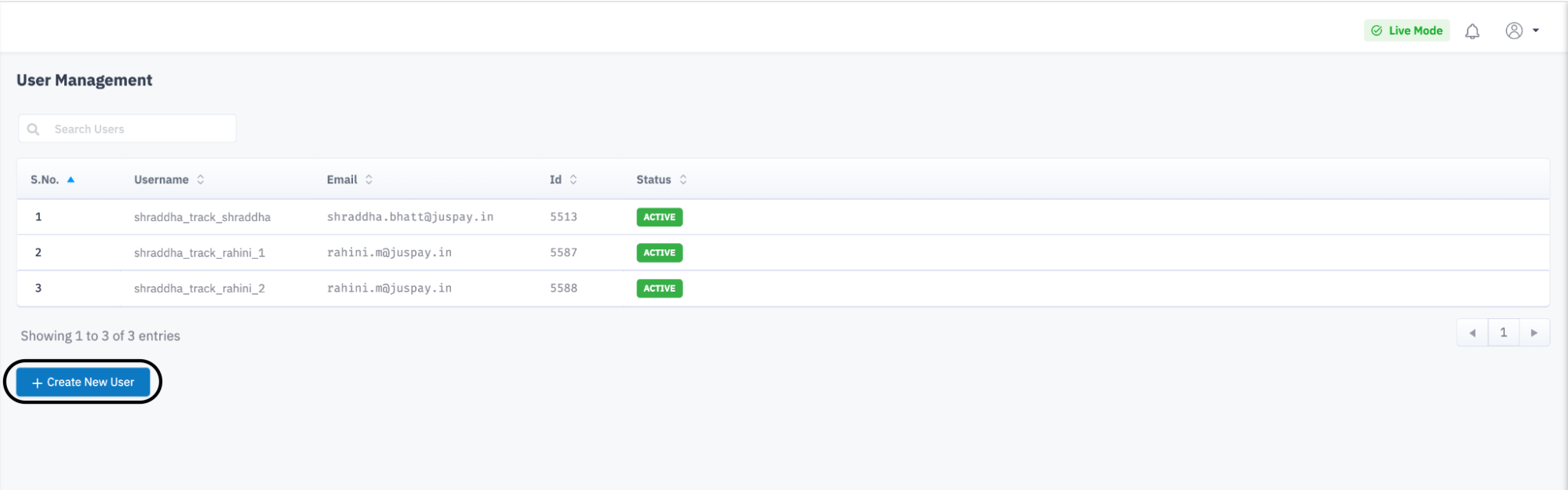
1. Under Users Module, click on the Create New User button.
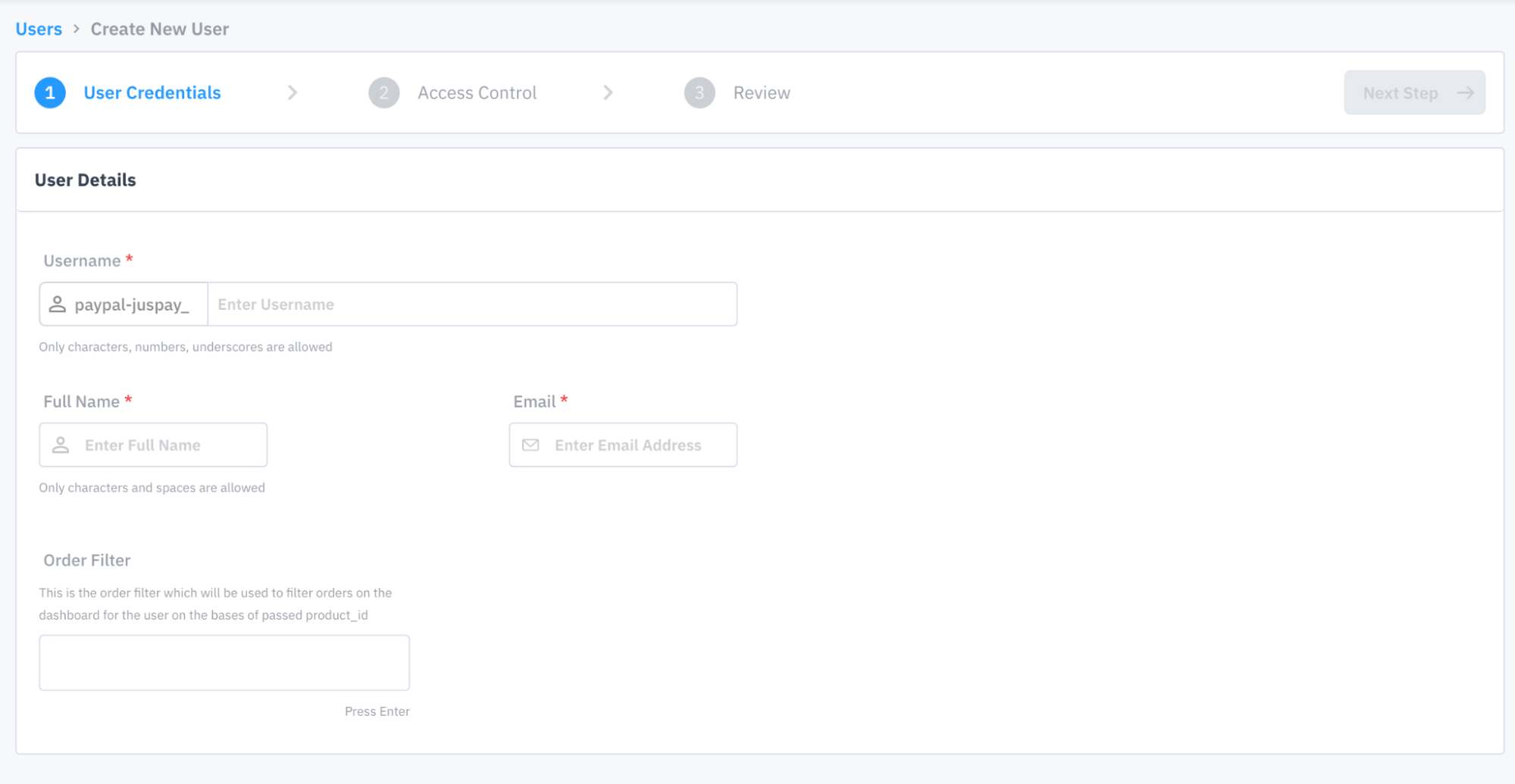
2. In the User Credentials page, fill in the user details of the user whose account is to be created and click on Next Step button.
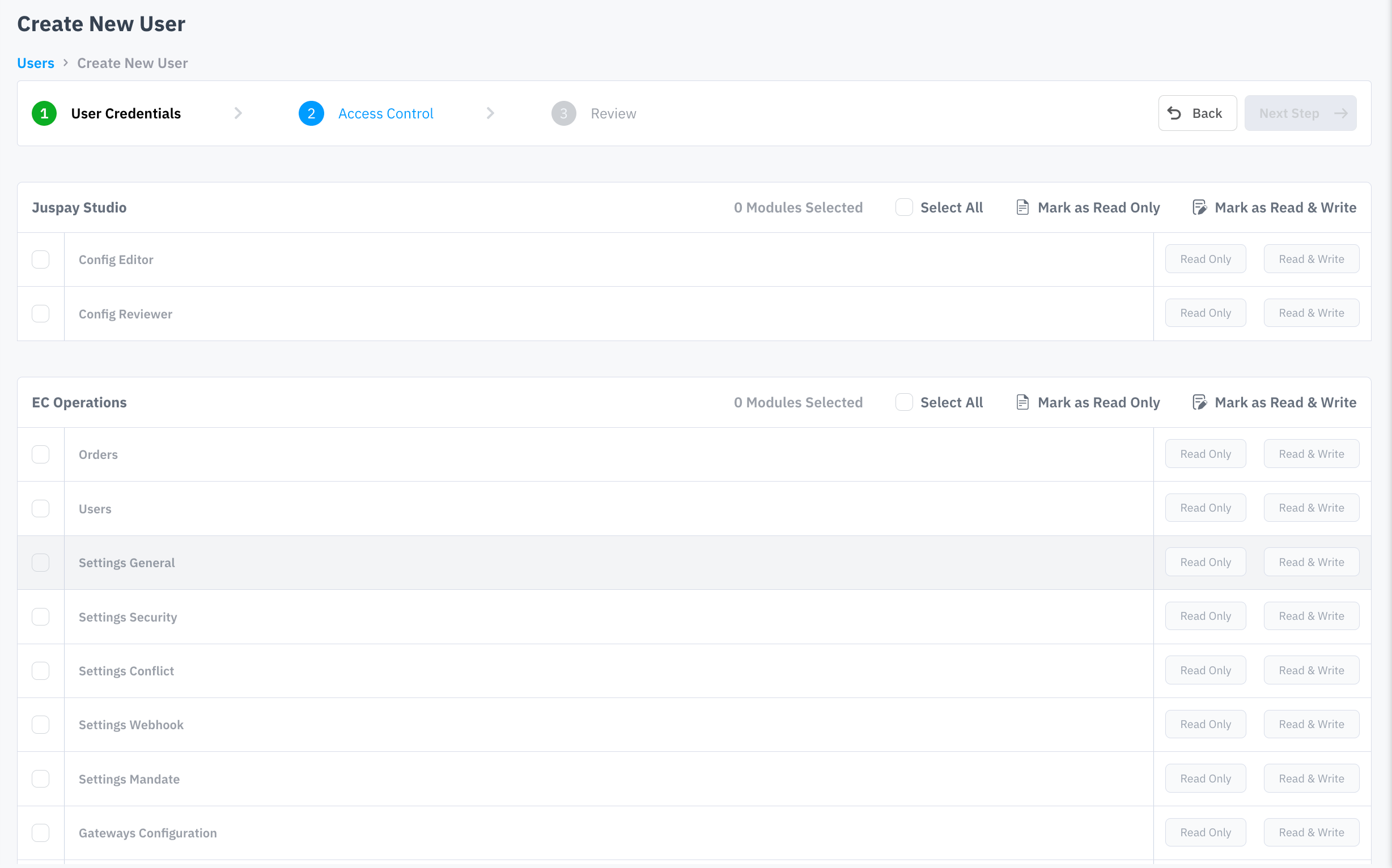
3. Select modules and access levels of the selected modules as per the access requirement of the user in the Access Control page and click on Next Step button. ( Please note that selected modules and access levels of the selected modules can be modified as per requirement after the creation of the user by clicking on Update Access button which is available on the particular user's User Details view being displayed after selecting the user row from the list view of the Users module. )
4. After Reviewing the previously entered information, click on Create User.
An email with the link to set password will be triggered to the provided Email ID of the user created. ( Post setting password and 2FA, the created user will be able to access the Analytics Dashboard )
How to Enable/Disable users ?
To enable/disable user:
1. In the User Details view, click on the Enable Account/Disable option available under the Account Enabled field.
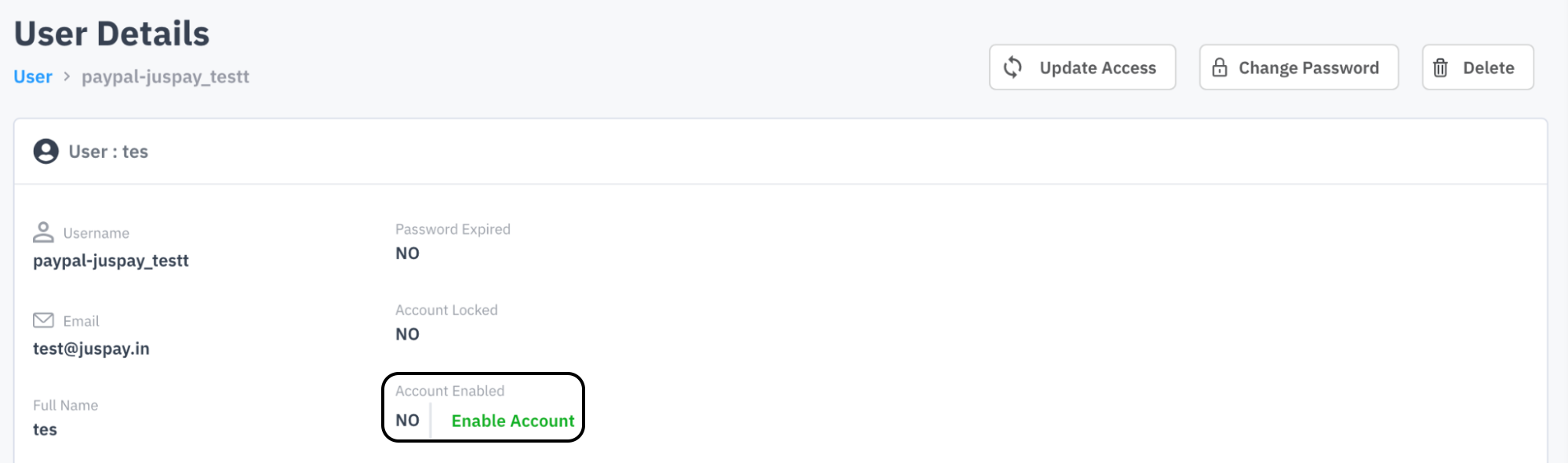
2. Select Yes, Enable/Yes,Disable button on the Enable/Disable User dialog box.
The user account will be enabled/disabled accordingly.
How to Delete Users ?
The steps to delete a user are:
1. Click on the user row in list view whose account is to be deleted.
2. In the User Details view, click on the Delete button on the left side of the page.

3. Select Yes, delete it button on the Delete User dialog box.
The user will be deleted, and a success message will be displayed on the screen.
How to Update Users ?
The steps to delete a user are:
1. Click on the user row in list view whose account is to be updated.
2. In the User Details view, click on the Update Access button on the left side of the page.

3. Select/ Deselect modules and their accesses (READ/ READ WRITE) as needed.
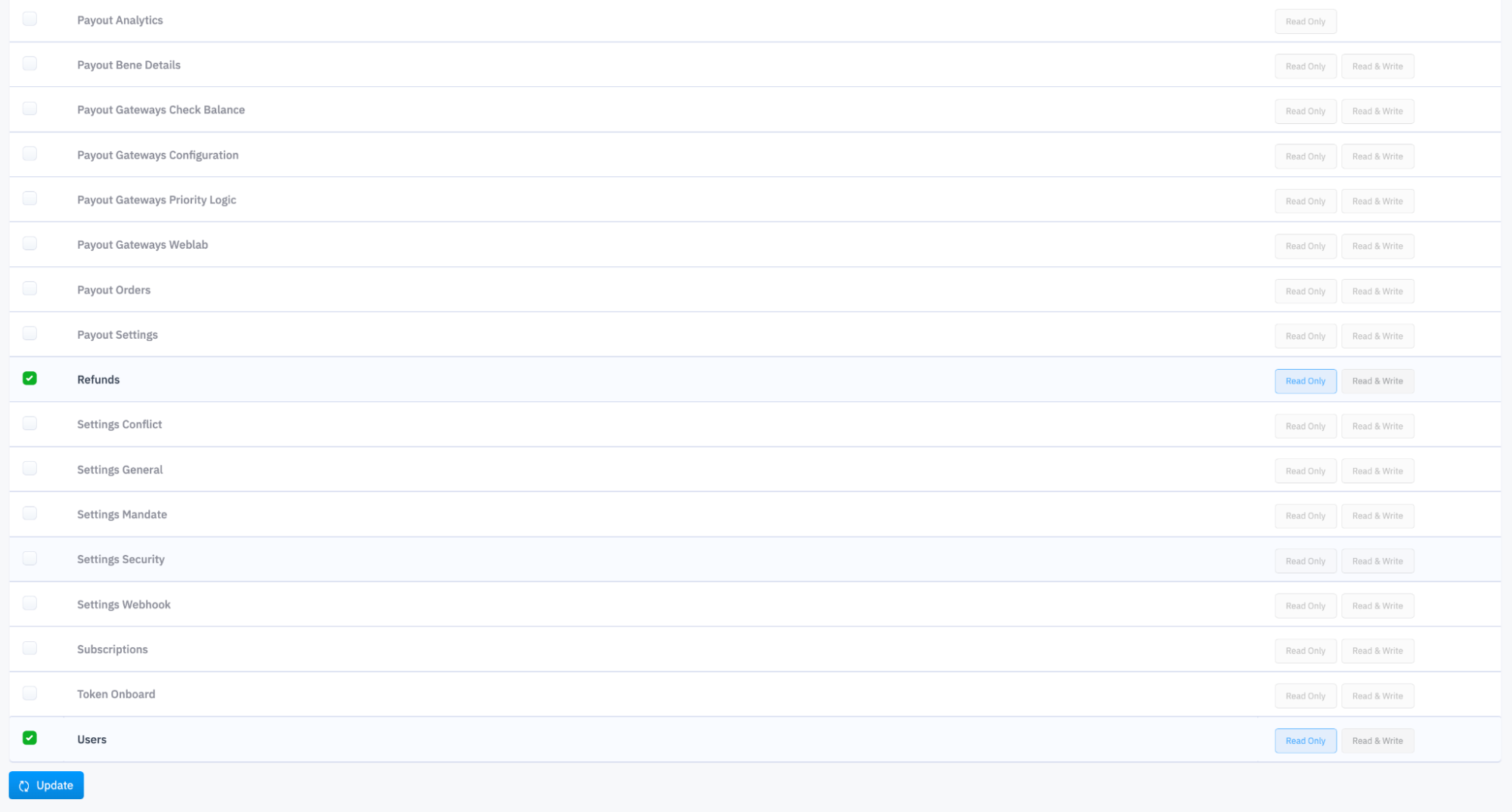
4. Scroll down to the end of the click and click on the Update button.
User access will be updated, and a success message will be displayed on the screen.
How to Unlock Users ?
To unlock a user:
1. In the User Details view, click on the Unlock Account button option available under the Account Locked field.
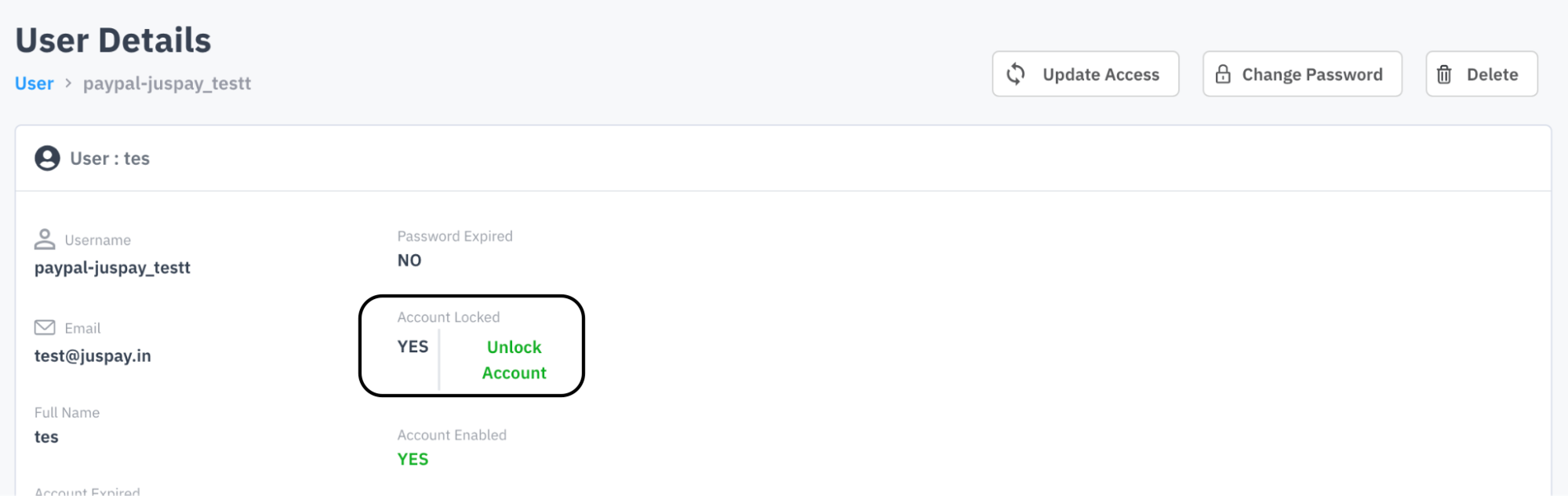
The user account will be unlocked, and a success message will be displayed on the screen.