


Batch Refunds Update
Overview
The Batch Refunds Update module provides comprehensive bulk refund status update capabilities for updating the status of existing refunds simultaneously through CSV file uploads. It offers real-time progress tracking, status monitoring, and detailed reporting for all refund status update operations processed through the Juspay payment platform.
This module is designed for a wide range of users, including:
Operations Teams: For updating large volumes of refund statuses efficiently and monitoring refund status update performance across different payment methods and gateways.
Finance Teams: For bulk refund status reconciliation, tracking refund status changes across multiple transactions with detailed audit trails.
Customer Support: To update customer refund statuses in bulk, track update progress, and provide accurate status updates to customers on refund processing.
Accessing the Module
Log in to the Juspay dashboard.
From the main navigation menu on the left, click on Payments.
Select Bulk Operations from the Payments submenu.
Click on the Refunds Update tab from the bulk operations navigation.
The navigation URL for this module is https://portal.juspay.in/batch/batch-refunds-updates
 .
.
Step-by-Step Usage Instructions
Creating Batch Refunds Update
Step 1: Access the Batch Refunds Update Interface
Navigate to the Batch Refunds Update module using the steps above.
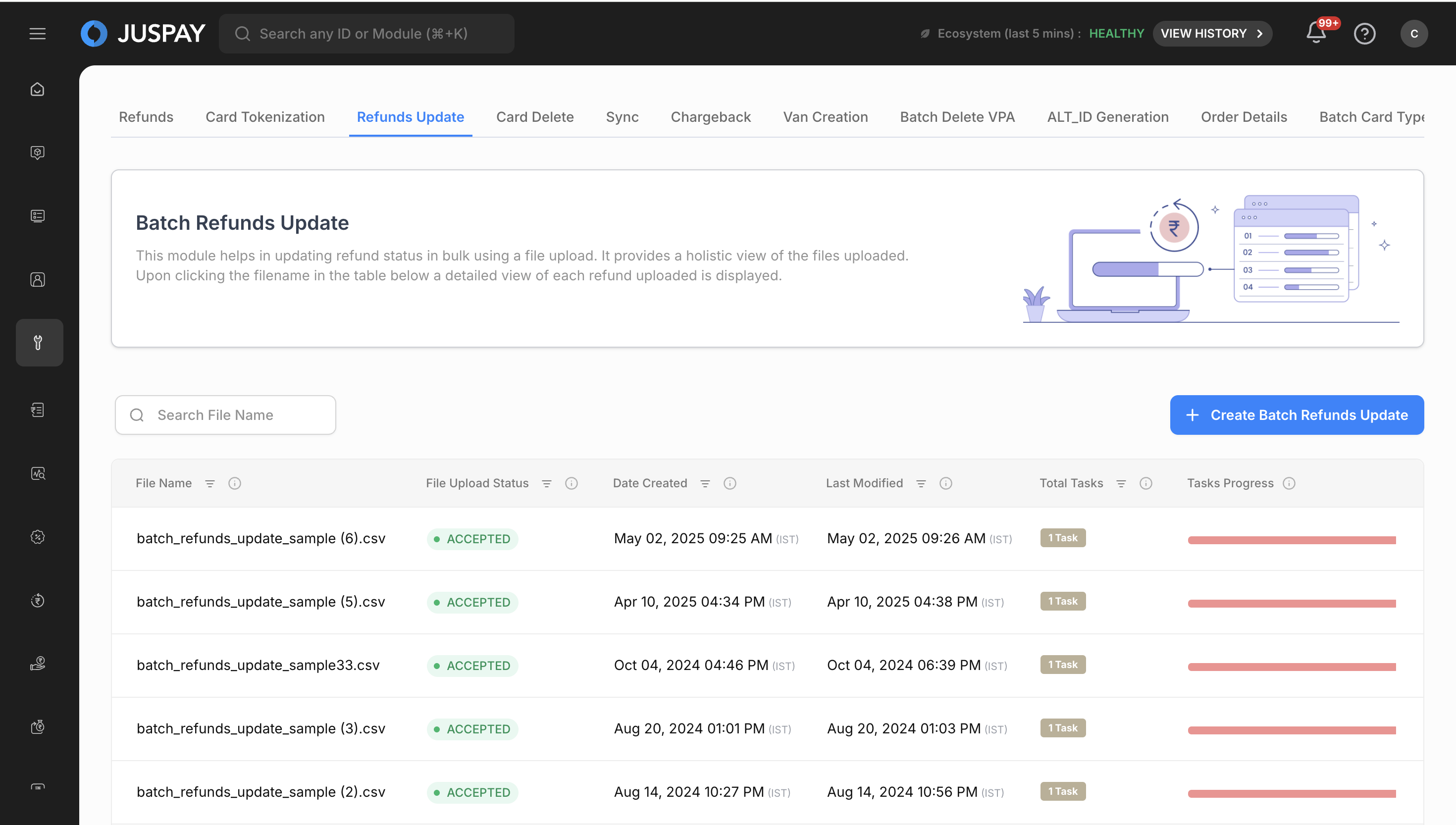
You will see the main dashboard with a description: "This module helps in updating refund status in bulk using a file upload. It provides a holistic view of the files uploaded. Upon clicking the filename in the table below a detailed view of each refund uploaded is displayed."
The interface displays any previously uploaded batch refund update files in a table format.
Step 2: Initiate New Batch Refunds Update Upload
Click the "Create Batch Refunds Update" button (visible only to users with appropriate permissions).
If maker-checker workflow is enabled for your account, you will first see a description modal:
Enter a description for the batch refund update request in the text field.
Click "Submit" to proceed to the file upload interface.
If maker-checker is not enabled, you will directly access the file upload interface.
Step 3: Prepare and Upload CSV File
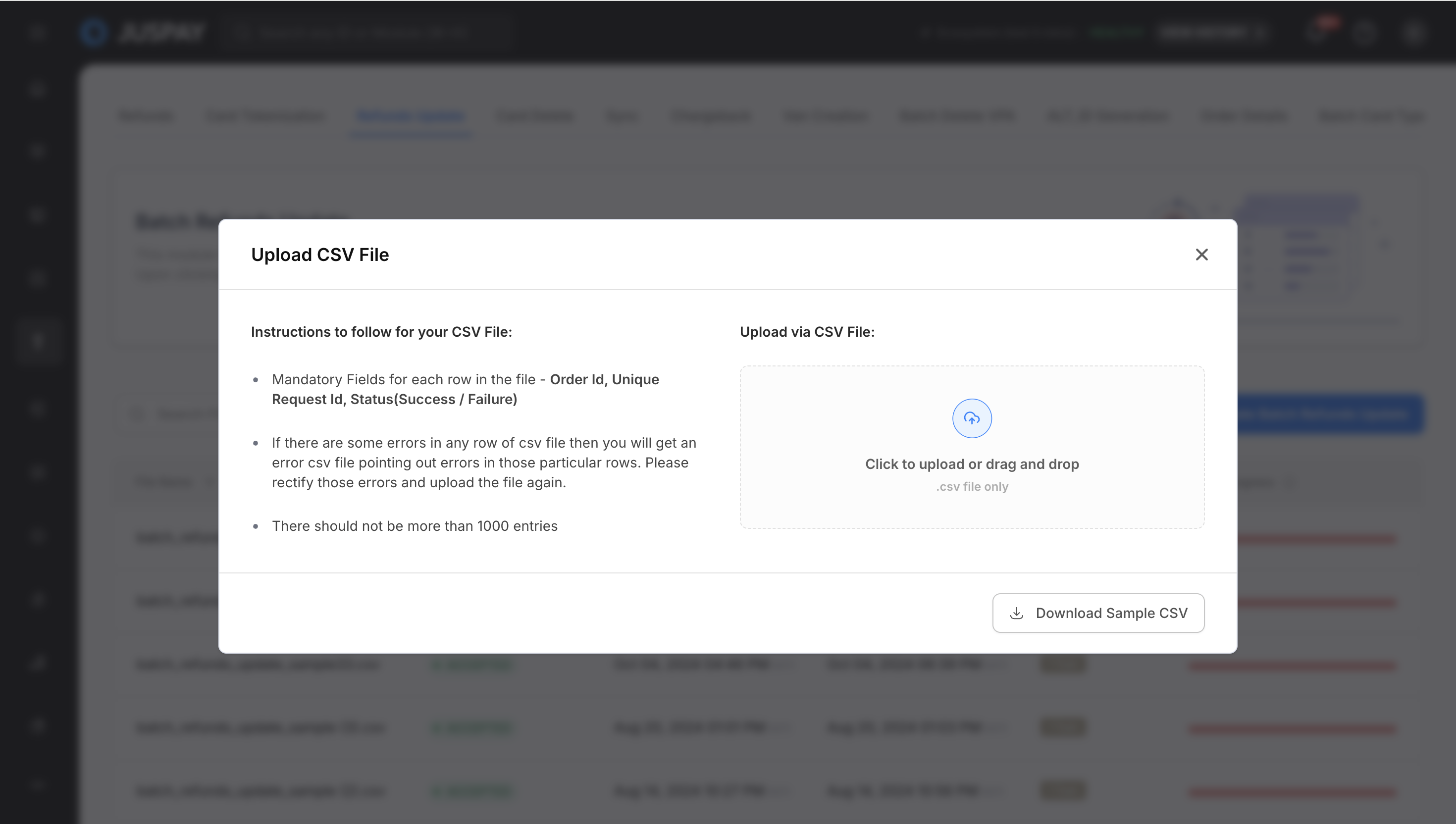
Download Sample File: Click on the sample file link to download the CSV template (
batch_refunds_update_sample.csv).Prepare Your Data: Fill in your refund status update data following the CSV field specifications (see table below).
File Limitations:
Maximum 1000 rows per file
CSV format only
File size limitations apply
Upload Process:
Click "Choose File" or drag and drop your CSV file
The system validates the file format and structure
Mandatory fields are checked (Order ID, Unique Request ID, and Status)
Column types are validated (all fields as String type)
Step 4: File Processing and Validation
File Validation: The system performs the following checks:
CSV format validation
Mandatory field presence (orderid, uniquerequest_id, status)
Data type validation for each column
Row count validation (maximum 1000 rows)
Status value validation (must be SUCCESS or FAILURE)
Error Handling: If validation fails, specific error messages are displayed:
Missing mandatory fields
Invalid data types
File format errors
Row limit exceeded
Invalid status values
Successful Upload: Upon successful validation:
File is queued for processing
Batch ID is generated
Initial status is set to processing
Status values are automatically converted to uppercase
Step 5: Monitor Processing Status
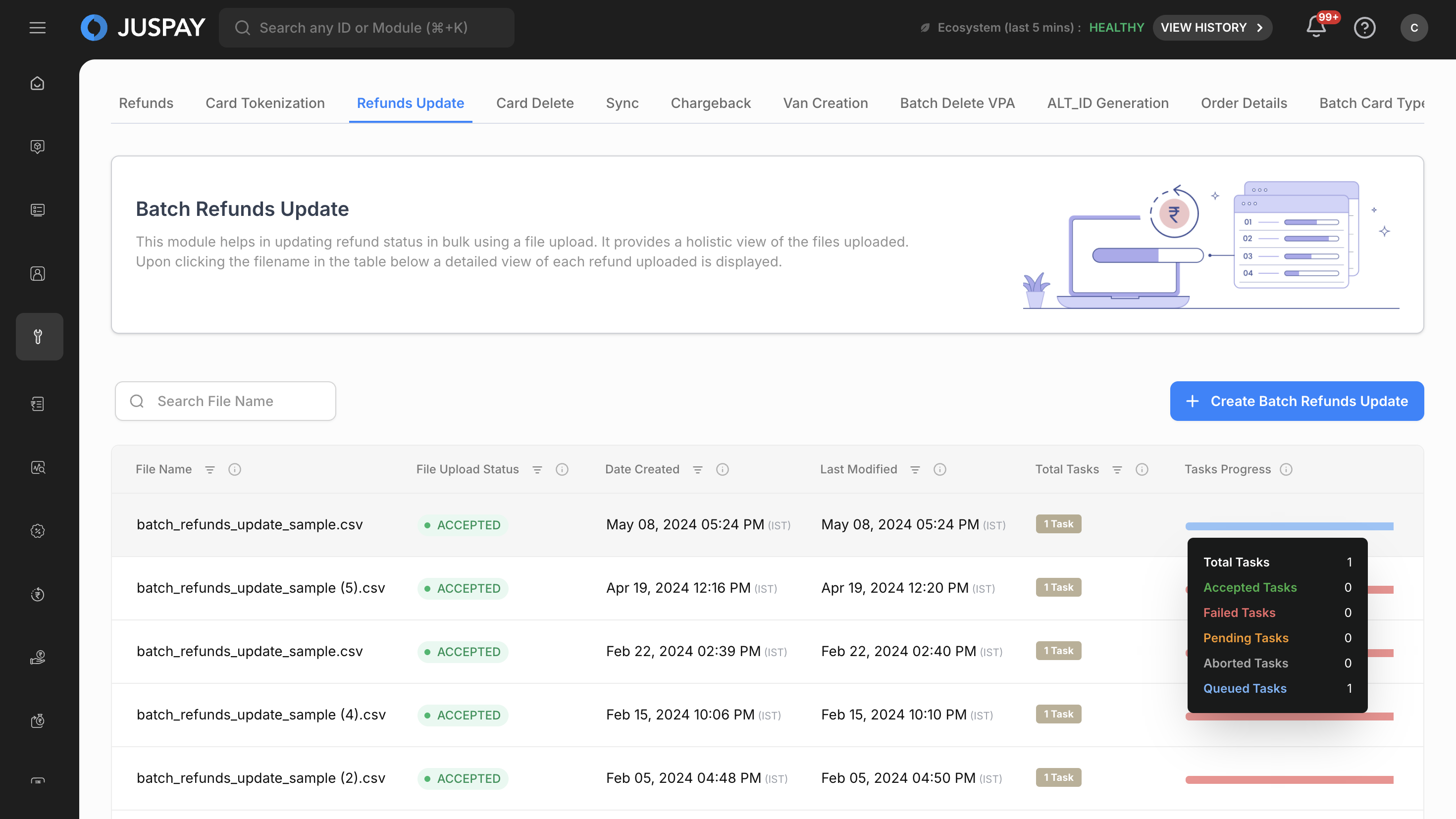
Status Indicators:
ACCEPTED: Successfully processed refund updates (Green indicator)
FAILED: Failed refund update attempts (Red indicator)
QUEUED: Refund updates waiting in processing queue (Blue indicator)
Monitoring and Managing Batch Refunds Update
Viewing Batch Refunds Update Details
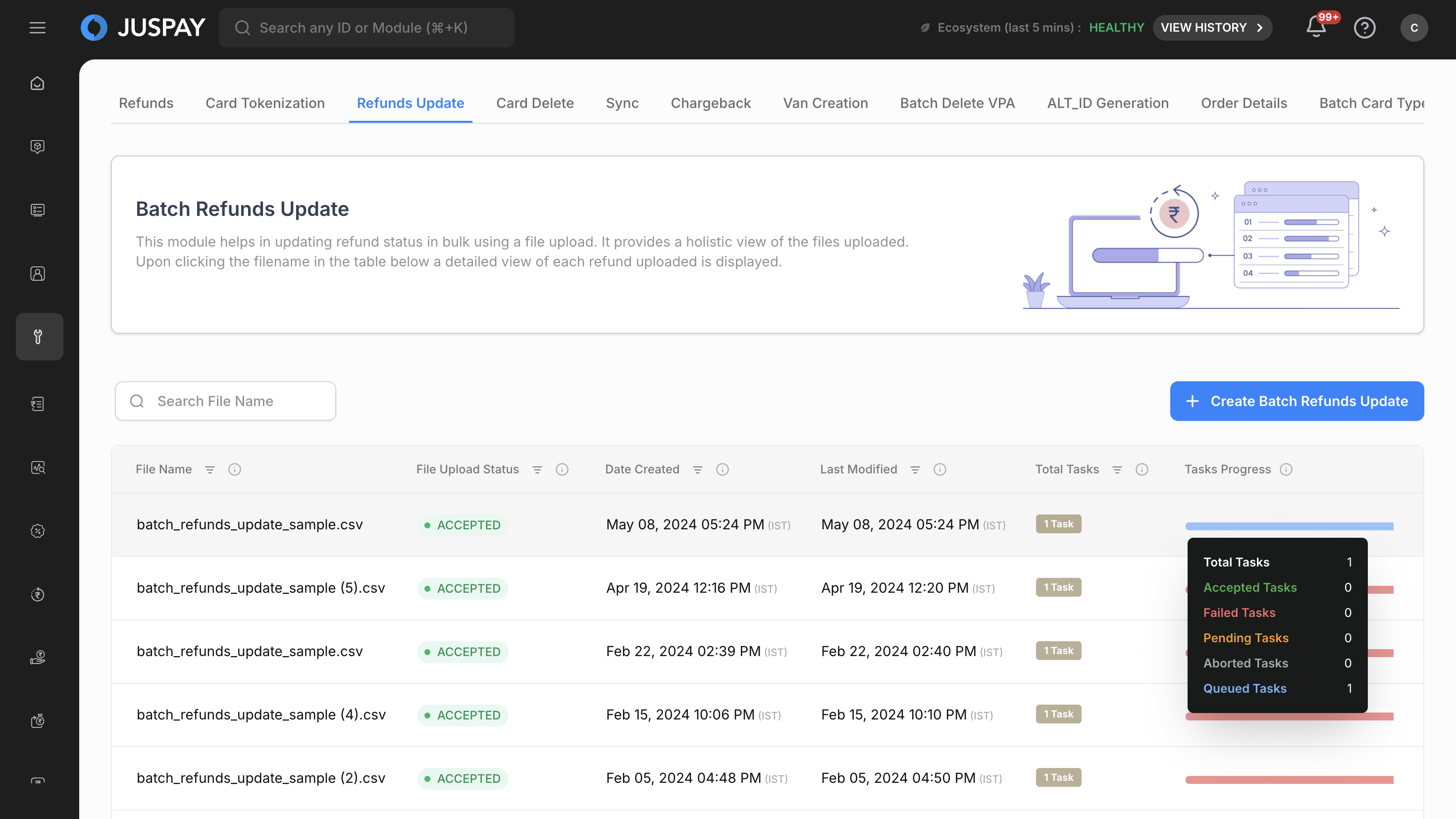
Table View: The main interface displays all uploaded batch files with:
File Name: Name of the uploaded CSV file
File Upload Status: Current processing status with color-coded labels
Date Created: File upload timestamp
Last Modified: Last update timestamp
Total Tasks: Number of refund update requests in the file
Tasks Progress: Visual progress bar showing completion status
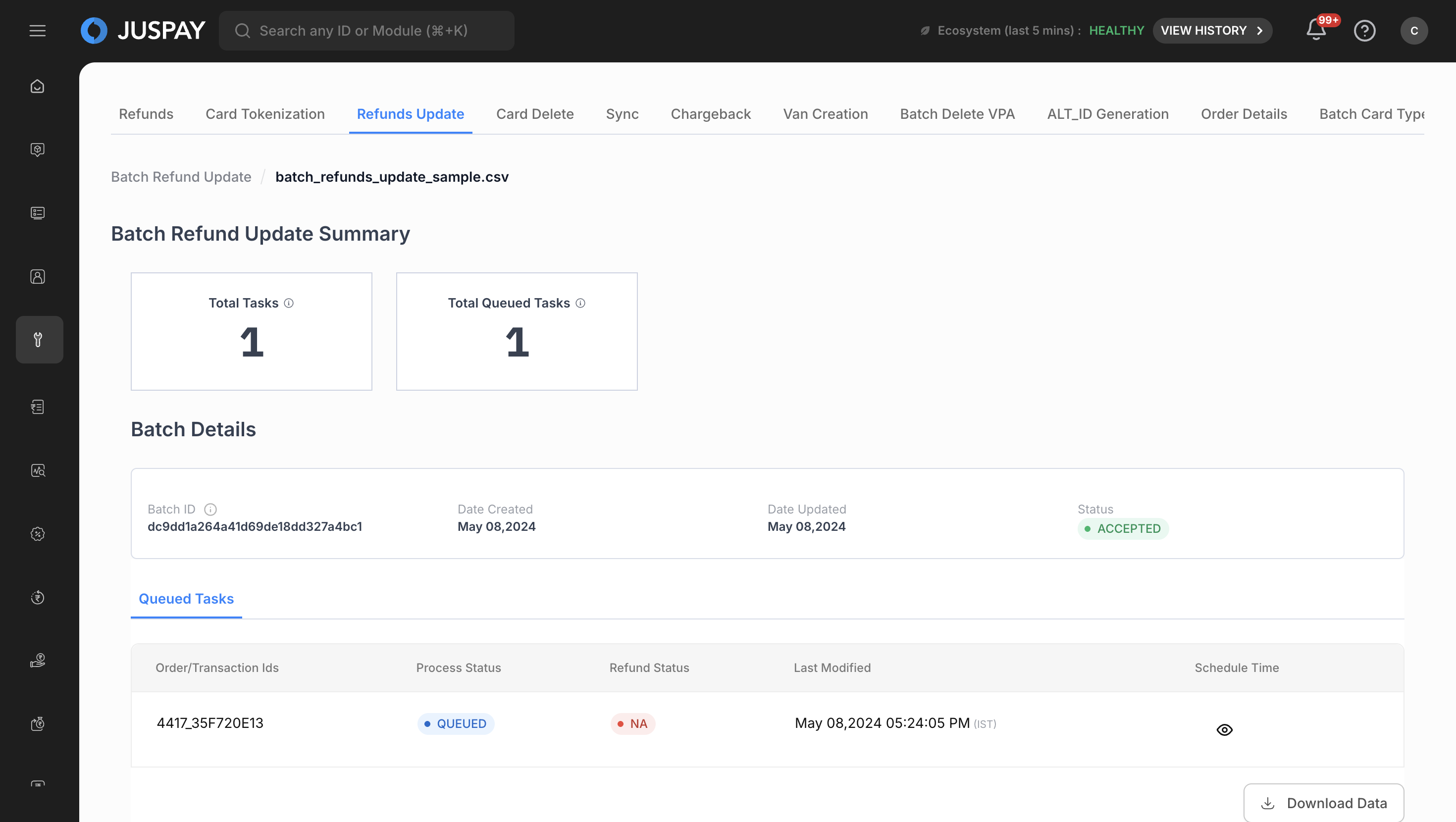
Detailed View: Click on any filename to access detailed information:
Batch Details Card: Expandable/collapsible interface showing:
Batch ID: Unique identifier for the uploaded file
Date Created and Date Updated timestamps
Current status with color-coded indicators
Progress Statistics: Individual task counts for:
Total Accepted Tasks: Successfully processed refund updates
Total Rejected Tasks: Failed refund update attempts
Total Queued Tasks: Refund updates in processing queue
Search and Filter Capabilities
File Name Search:
Use the search input field with search icon
Enter filename to filter results
Search is case-sensitive and supports partial matches
Clear search using the cross icon
Table Sorting:
Click column headers to sort data
Available sorting for: File Name, Status, Date Created, Last Modified, Total Tasks
Toggle between ascending and descending order
CSV File Upload Specifications
CSV Field Requirements
|
Field Name
|
Mandatory/Optional
|
Data Type
|
Description
|
Sample Value
|
Validation Rules
|
|---|---|---|---|---|---|
order_id
| Mandatory
| String
| Unique order identifier for the refund to be updated
| "ORD_123456789"
| Must be a valid string, cannot be empty
|
unique_request_id
| Mandatory
| String
| Unique request identifier for the refund update operation
| "REQ_987654321"
| Must be a valid string, cannot be empty
|
status
| Mandatory
| String
| New status for the refund (SUCCESS or FAILURE)
| "SUCCESS"
| Must be SUCCESS or FAILURE (case-insensitive, automatically converted to uppercase)
|
CSV Format Examples
Complete CSV Format with Sample Data:
File Upload Constraints
Maximum Rows: 1000 rows per CSV file
File Format: CSV (Comma Separated Values) only
Encoding: UTF-8 encoding recommended
File Size: Standard file size limitations apply
Column Order: Must match the specified header format (orderid, uniquerequest_id, status)
Required Fields: All three fields (orderid, uniquerequest_id, status) are mandatory
Status Values: Only SUCCESS and FAILURE are accepted (case-insensitive)
Status Field Processing
The status field undergoes automatic transformation during processing:
Input: Any case variation of SUCCESS or FAILURE
Processing: Automatically converted to uppercase
Output: Always stored as "SUCCESS" or "FAILURE"
Validation: Only these two values are accepted
Use Cases
Bulk Refund Status Reconciliation
Export refund data requiring status updates from transaction reports
Prepare CSV file with order IDs, unique request IDs, and new status values
Upload file through Batch Refunds Update interface
Monitor processing status for completion
Payment Gateway Status Synchronization
Receive status updates from external payment gateways
Create CSV with order identifiers and corresponding status updates
Track individual refund status update progress
Monthly Refund Status Cleanup
Compile monthly refund status corrections from customer support
Create CSV with order IDs, request IDs, and corrected status values
Process bulk status updates for financial reconciliation
Monitor completion for audit trail purposes
Troubleshooting
File Upload Validation Errors:
"Invalid file format": Ensure file is in CSV format with proper comma separation
"Missing mandatory fields": Verify that orderid, uniquerequest_id, and status columns are present and not empty
"Row limit exceeded": Reduce file size to maximum 1000 rows per upload
"Invalid data type": Check that all fields contain valid string values
"Invalid status value": Ensure status field contains only SUCCESS or FAILURE values
Permissions and Roles
Access to the Batch Refunds Update module is controlled by the following permissions:
Refunds Module Access: Required for accessing the batch refunds update interface (ACL:
refunds)Refunds Write Permission: Required for creating and uploading batch refund update files (ACL:
refundswith ReadWrite access)Refunds Read Permission: Needed to view batch refund update status and monitor processing progress (ACL:
refunds)