


Route Settings: A Comprehensive Guide
Overview
The Route Settings module provides intelligent gateway routing and switching configuration capabilities within the PG Control Center of the Juspay payment platform. It offers automated gateway downtime detection and switching mechanisms, along with advanced routing options for complex merchant configurations, ensuring optimal payment success rates and minimal transaction disruptions.
Accessing the Module
1. Log in to the Juspay dashboard.
2. From the main navigation menu, navigate to PG Control Center.
3. Select Route Settings from the PG Control Center tab navigation (5th tab in the navigation bar).
4. The navigation URL for this module is https://portal.juspay.in/gateways/route-settings .
.
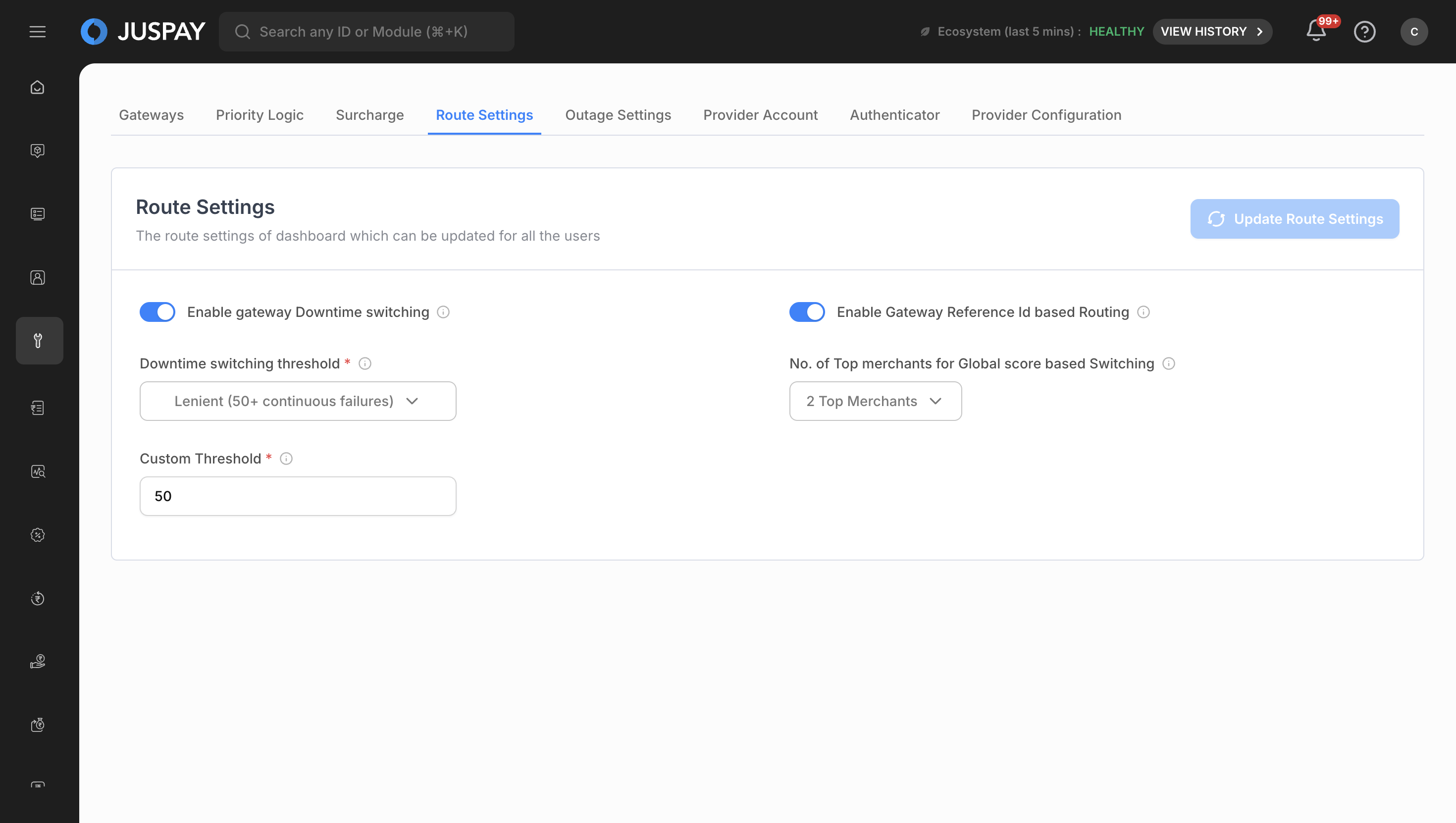
Step-by-Step Usage Instructions
Initial Access and Overview
1. Navigate to Route Settings: Click on the "Route Settings" tab within the PG Control Center navigation.
2. Verify Access: Ensure you have the appropriate permissions (`gateways_configuration` ACL) to view and modify route settings.
3. Review Current Configuration: The page displays the current route settings configuration with all available options.
Configuring Gateway Downtime Switching
Step 1: Enable Gateway Downtime Switching
1. Locate the Toggle: Find the "Enable gateway Downtime switching" toggle switch on the Route Settings page.
2. Review Description: The toggle includes a description explaining that this feature enables dynamic gateway switching when a gateway is facing downtime.
3. Check Tenant Restrictions: If the setting is locked at tenant level, you will see a disabled toggle with the message: "This setting cannot be edited by merchant. If you have a specific use case, please reach out to support@juspay.in for assistance."
4. Enable the Feature: Click the toggle to enable gateway downtime switching if it's not locked.
5. Observe Conditional Fields: When enabled, additional configuration options will appear below the toggle.
Step 2: Configure Downtime Switching Threshold
1. Locate Threshold Dropdown: Find the "Downtime switching threshold" dropdown that appears when downtime switching is enabled.
2. Review Available Options: The dropdown contains four predefined options:
- Aggressive (5+ continuous failures): Most responsive to gateway issues, switches after 5 continuous transaction failures
- Default (20+ continuous failures): Balanced approach between responsiveness and stability, recommended for most merchants
- Lenient (50+ continuous failures): Less sensitive to temporary gateway issues, suitable for stable gateway environments
- Custom (range from 2 to 75 txns): Allows manual specification of failure threshold for maximum flexibility
3. Select Appropriate Threshold: Choose the option that best fits your business requirements and gateway stability expectations.
4. Understand Impact: Lower values result in more aggressive switching, while higher values provide more conservative behavior.
Step 3: Configure Custom Threshold (if selected)
1. Custom Option Selection: If you selected "Custom (range from 2 to 75 txns)" in the previous step, a numeric input field will appear.
2. Enter Custom Value: Input a number between 2 and 75 in the "Custom Threshold" field.
3. Real-time Validation: The system validates your input in real-time and displays error messages if the value is outside the valid range.
4. Error Handling: If you enter an invalid value, you'll see the error message "Please enter number between 2 to 75".
5. Field Description: The field includes a description explaining that you should enter a value between 2 and 75 for the number of failed transactions that trigger downtime switching.
Step 4: Configure Top Merchants for Global Score Switching
1. Locate Merchants Dropdown: Find the "No. of Top merchants for Global score based Switching" dropdown that appears when downtime switching is enabled.
2. Review Options: The dropdown contains five options:
- 5 Top Merchants
- 4 Top Merchants
- 3 Top Merchants (Default selection)
- 2 Top Merchants
- 1 Top Merchants
3. Understand Purpose: This setting determines how many top merchants by volume are used to calculate aggregated global scores for gateway switching decisions.
4. Select Merchant Count: Choose the number that best represents your merchant volume distribution and switching sensitivity requirements.
5. Consider Impact: More merchants provide broader performance averaging, while fewer merchants make switching more sensitive to individual merchant performance.
Configuring Gateway Reference ID Based Routing
Locate the Toggle: Find the "Enable Gateway Reference Id based Routing" toggle switch on the Route Settings page.
Understand the Feature: This toggle controls how the system selects gateways for transactions.
When Enabled: The routing engine uses gateway reference IDs from order metadata to match transactions with specific gateway configurations
When Disabled: Standard gateway selection applies to all eligible gateways
Key Benefits:
Precise Control: Route different transaction types to specific gateway accounts using Gateway Reference IDs as identifiers
Multi-Entity Support: Essential for businesses with multiple business units, complex organizational structures, or multiple gateway accounts for the same gateway provider
Custom Routing Rules: Implement sophisticated routing logic based on business requirements
When to Enable:
Multiple gateway accounts for the same payment provider
Different business units requiring separate gateway routing
Complex routing requirements beyond standard selection
No Additional Configuration: This toggle does not reveal additional fields when enabled, as reference IDs are configured at the transaction level through your integration.
Saving Configuration Changes
Step 1: Review Changes
1. Verify Settings: Review all your configuration changes to ensure they meet your business requirements.
2. Check Form State: The "Update Route Settings" button will only be enabled when you have made changes to the form.
3. Validate Inputs: Ensure all validation requirements are met, particularly for custom threshold values.
Step 2: Submit Changes
1. Click Update Button: Click the "Update Route Settings" button to save your configuration changes.
2. Permission Verification: The system verifies that you have ReadWrite access to the gateways_configuration ACL before allowing submission.
3. Maker-Checker Process: If you're an admin account with maker-checker enabled, your changes will require approval before taking effect.
4. Processing Feedback: The system provides visual feedback during the submission process.
Use Cases
High-Volume E-commerce Platform Downtime Protection
Scenario: A large e-commerce platform processing thousands of transactions per hour needs to ensure maximum uptime and payment success rates during gateway outages.
Expected Outcome: The system will automatically switch to backup gateways after just 5 continuous failures, minimizing transaction disruption and maintaining high success rates during peak traffic periods. The broad merchant base (5 merchants) ensures switching decisions are based on comprehensive performance data.
Business Impact: Reduced revenue loss during gateway outages, improved customer experience, and maintained business continuity during high-traffic periods like sales events or holiday shopping.
Multi-Gateway Performance Optimization for Financial Services
Scenario: A financial services company with multiple payment gateways wants to optimize performance while maintaining stability and avoiding unnecessary switching during temporary gateway fluctuations.
Expected Outcome: The system will switch gateways after 20 continuous failures, providing protection against significant outages while avoiding unnecessary switches during minor performance fluctuations. The moderate merchant base ensures reliable performance assessment without over-sensitivity.
Business Impact: Improved payment success rates, reduced false positive switching, optimized gateway utilization, and enhanced overall payment processing reliability for financial transactions.
Enterprise Multi-MID Routing Configuration
Scenario: A large enterprise with multiple business units, each requiring different merchant IDs and routing configurations, needs to implement sophisticated routing logic for different subsidiaries and geographic regions.
Expected Outcome: The system will support complex routing decisions based on gateway reference IDs while maintaining conservative switching behavior (50 failures) to avoid disrupting multi-MID setups. The focused merchant assessment ensures switching decisions are based on the most relevant performance data.
Business Impact: Enhanced routing flexibility for complex enterprise structures, improved support for subsidiary-specific payment processing, reduced operational complexity, and better alignment with enterprise governance requirements.