


Monitoring Alerts
Overview
The Monitoring Alerts module provides comprehensive alert management capabilities for monitoring system events, transaction anomalies, and operational issues within the Juspay payment platform. It offers real-time alert configuration, status monitoring, and detailed alert management with comprehensive notification and threshold management capabilities.
This module is designed for a wide range of users, including:
Operations Teams: For creating and managing transaction monitoring alerts, setting up threshold-based notifications, and tracking system performance across different payment methods and gateways.
Finance Teams: For monitoring financial metrics, setting up alerts for transaction volume changes, success rate variations, and revenue impact assessment across multiple business dimensions.
Compliance Teams: For creating regulatory compliance alerts, tracking audit trail requirements, and maintaining comprehensive monitoring for compliance and regulatory reporting.
Accessing the Module
Log in to the Juspay dashboard.
From the main navigation menu on the left, click on Payments.
Select Monitoring from the Payments submenu.
Click on Alerts from the monitoring navigation options.
The navigation URL for this module is https://portal.juspay.in/alerts
 .
.
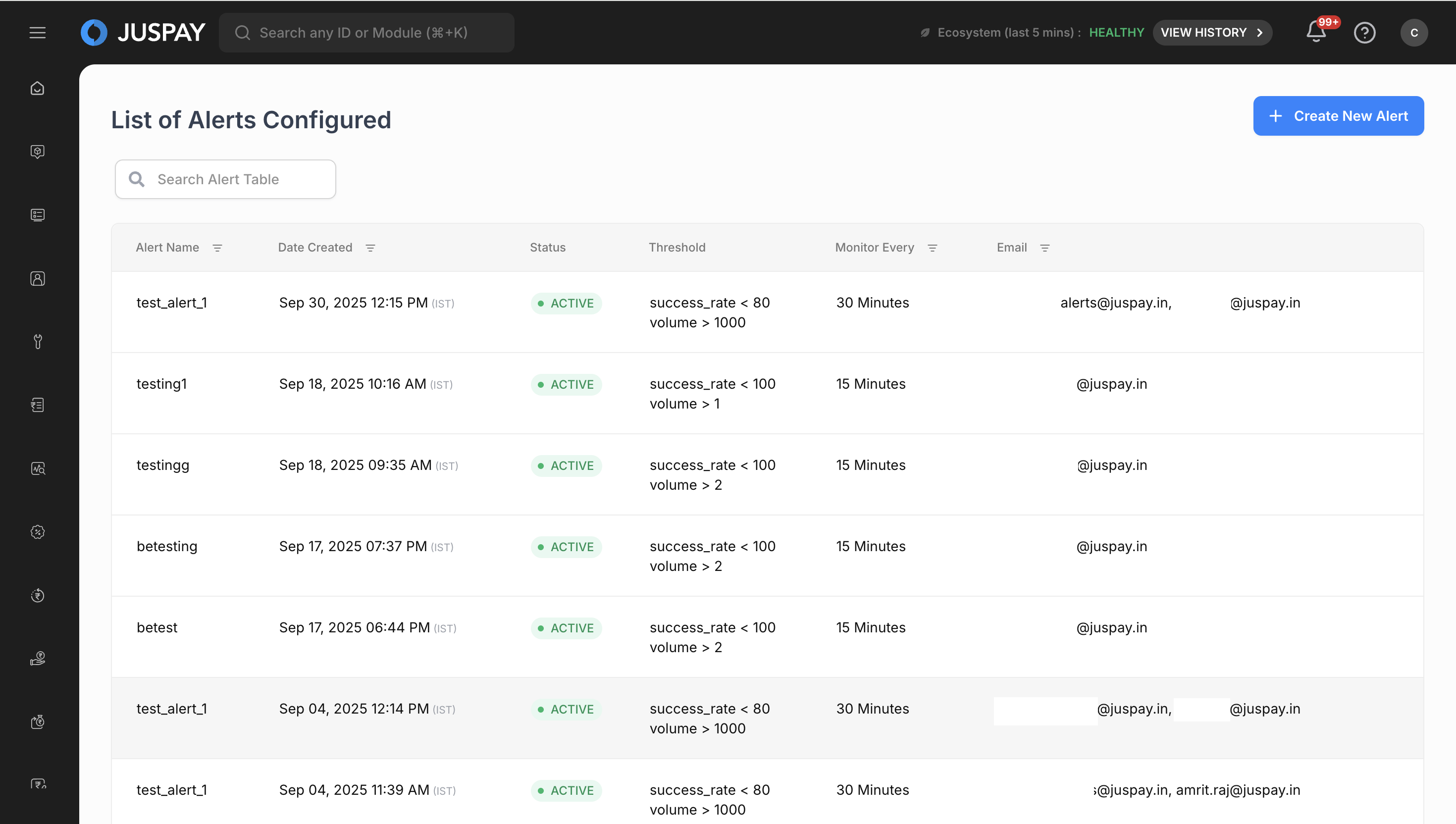
Dashboard Overview
The Monitoring Alerts module is built on the AlertsWrapperUI framework, which provides a consistent interface for all alert-related operations. The system uses EntityScaffold framework to ensure standard navigation and operation patterns across all alert management functions.
Alert List Interface
The main alerts interface displays all configured alerts in a comprehensive table format:
Table Columns:
Alert Name: The name of your configured alert
Date Created: When the alert was originally created
Status: Current alert status with color-coded indicators:
ACTIVE (Green): Alert is currently monitoring and active
INACTIVE (Red): Alert is disabled or deactivated
Threshold: Alert trigger conditions and metric thresholds
Monitor Every: Frequency of alert evaluation (15 Minutes, 30 Minutes, 1 Hour, 3 Hours, 6 Hours, 1 Day, 1 Week, 1 Month)
Email: Email recipients configured for alert notifications
Table Features:
Search Functionality: Search alerts by name, status, threshold, or email recipients
Sortable Columns: Click column headers to sort alerts by different criteria
Row Navigation: Click any alert row to view detailed alert information
Step-by-Step Usage Instructions
Viewing and Managing Alert Lists
Accessing the Alert List
Navigate to the alerts section using the access steps above to reach the main alerts dashboard.
View all configured alerts in the comprehensive table showing alert names, creation dates, current status, and key configuration details.
Use the search functionality to quickly locate specific alerts by typing in the search box labeled "Search Alert Table".
Sort alerts by clicking on column headers to arrange by Alert Name, Date Created, Status, Threshold, Monitor Every, or Email.
Click on any alert row to navigate to the detailed alert view for comprehensive information.
Alert Status Indicators
Status Display:
ACTIVE alerts appear with green status labels indicating the alert is currently monitoring
INACTIVE alerts appear with red status labels indicating the alert is disabled
Threshold information shows the specific conditions that trigger the alert
Monitor frequency displays how often the alert evaluates conditions
Creating New Alerts
Alert Creation Process
Click "Create New Alert" button to start the alert creation process.
Configure Alert Source by selecting the data source for monitoring:
Transaction: Monitor transaction-level data
Refund: Monitor refund-related metrics
Payout: Monitor payout fulfillment data (when available)
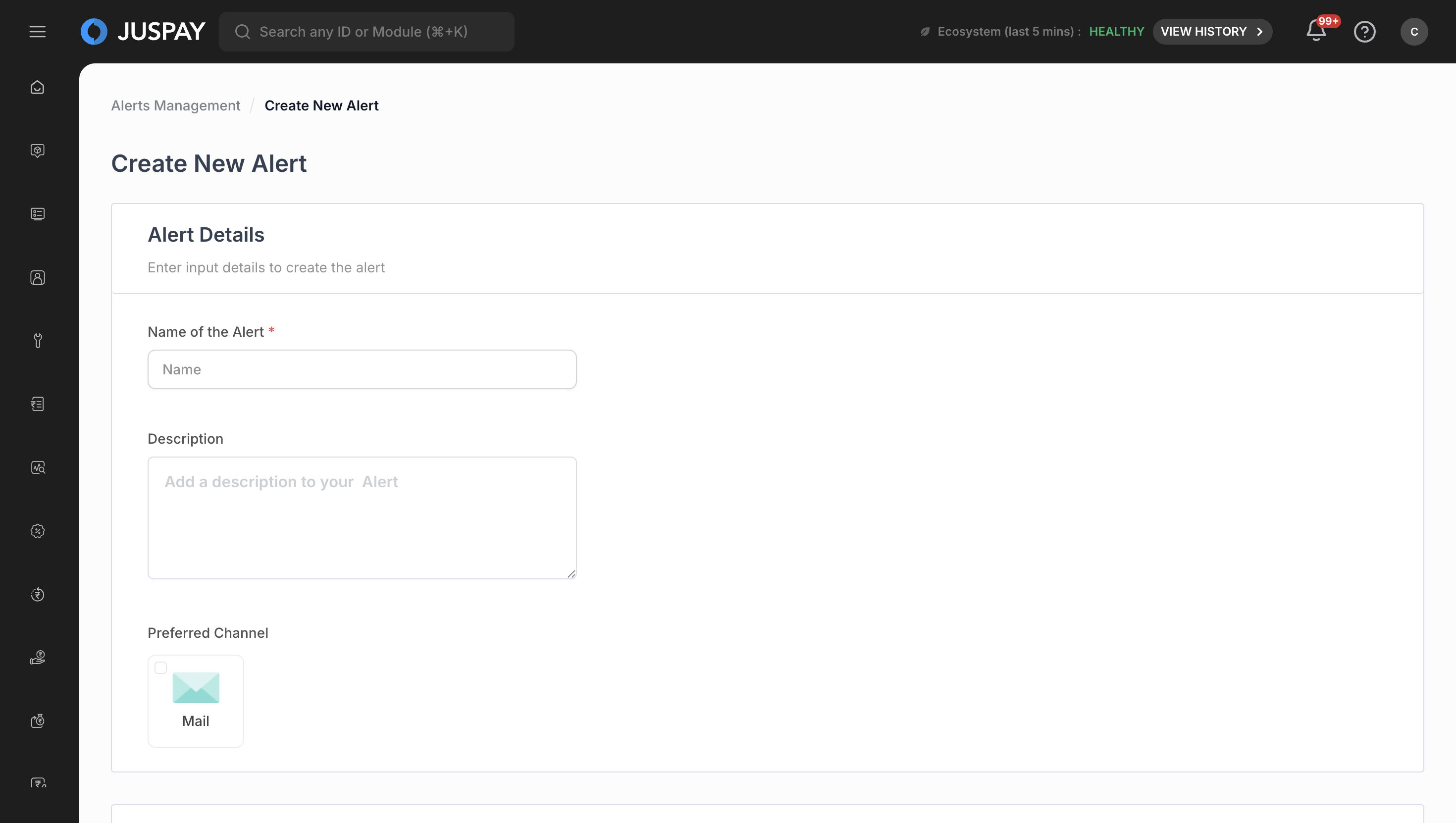
Monitoring Alerts Select Alert Dimensions (Required):
Choose up to 6 dimensions for alert monitoring
Use the "Select Alert Dimension" dropdown with search functionality
Validation: Must select at least 1 dimension or receive "Please Select Alert Dimension" error
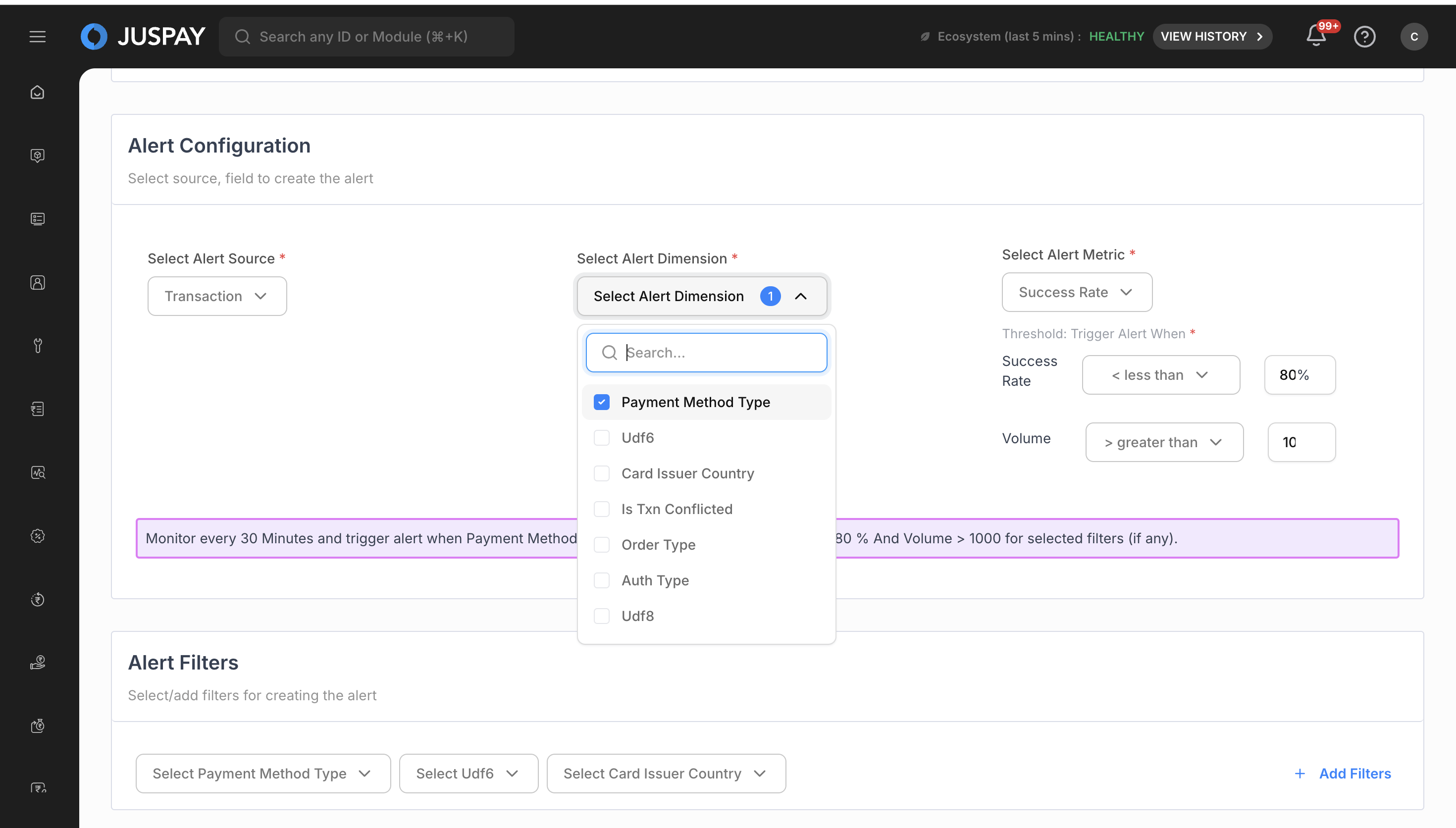
Monitoring Alerts Choose Alert Metrics (Required):
Select from available metrics: Success Rate, Total Volume, Success Volume, Total Amount
Use "Select Alert Metric" dropdown for metric selection
Configure Alert Thresholds:
Set numeric threshold values for triggering alerts
Define whether alerts trigger when metrics are above or below thresholds
Configure multiple threshold conditions for different metrics
Alert Details Configuration
Enter Alert Name (Required):
Provide a descriptive name (maximum 50 characters)
Validation: Cannot be empty or receive "Please Enter Alert Name" error
Length validation: Must be under 50 characters or receive "Alert Name should be less than 50 characters" error
Add Description (Optional):
Use the multi-line text input to describe the alert purpose
Placeholder text guides you to "Add a description to your Alert"
Configure Email Recipients (Required):
Enter email addresses for alert notifications
Validation rules:
Cannot be empty: "Please Enter Mail ID(s)" error
Valid email format required: "Enter valid email address" error
Maximum 5 emails allowed when email limiting is enabled
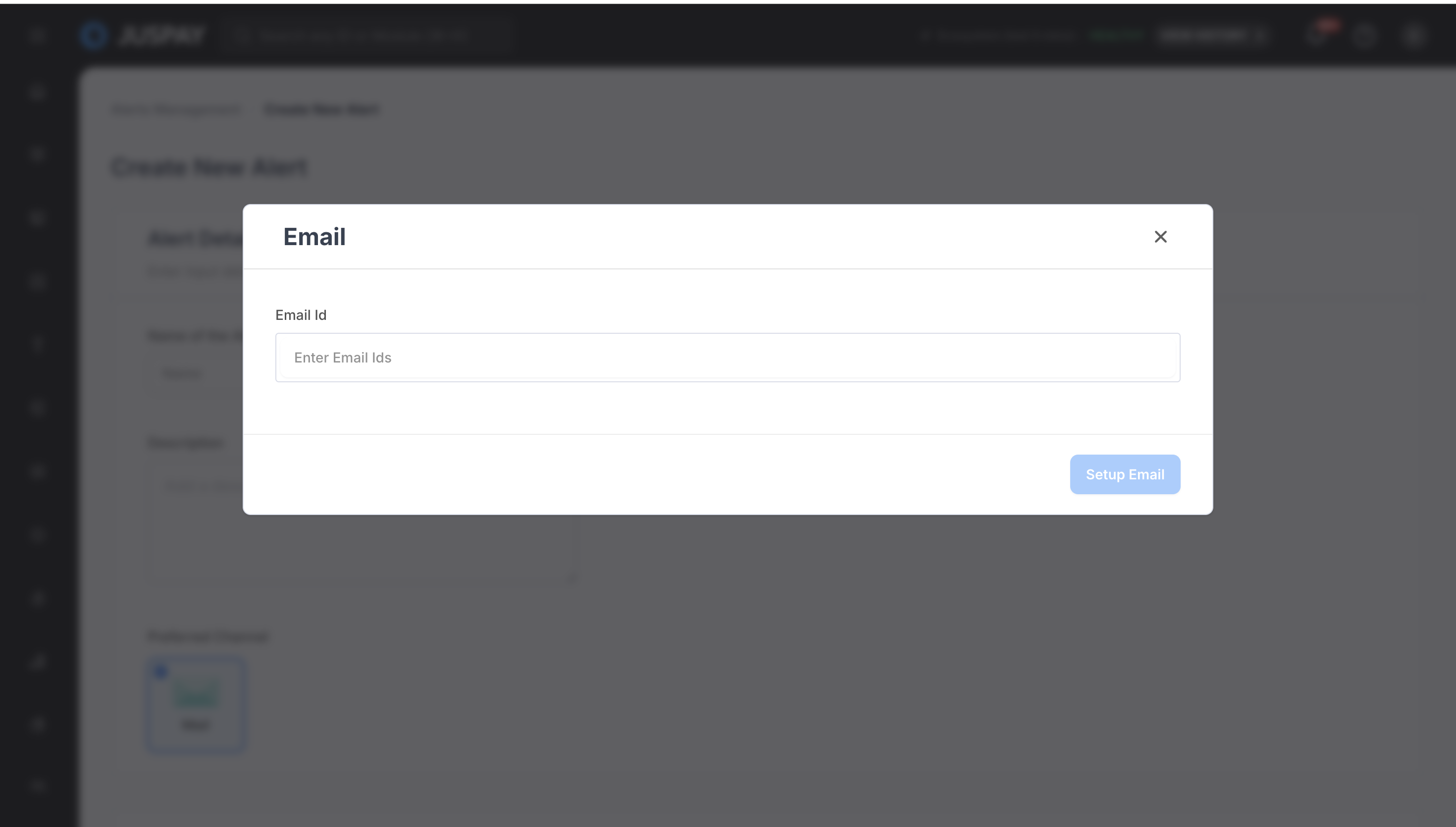
Monitoring Alerts Set Alert Schedule:
Frequency: Choose from Daily, Weekly, or Monthly alert evaluation
Time: Select specific time for alert evaluation from available time slots
Day/Date: For weekly alerts, choose specific day; for monthly alerts, choose specific date
Viewing Alert Details
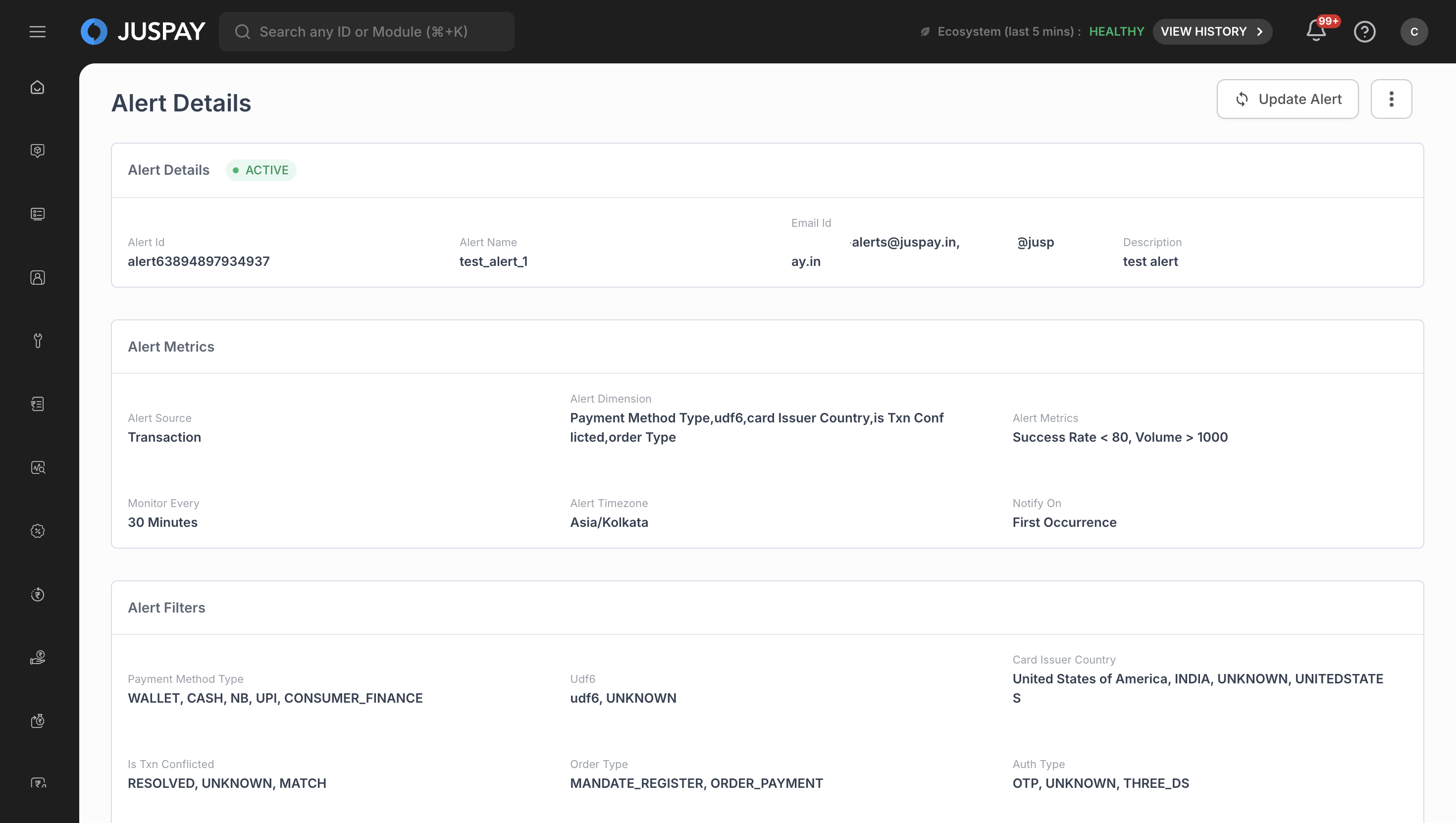
Alert Detail View
Click on any alert from the alerts list to open the detailed view.
Review complete alert configuration including:
Alert name, description, and creation date
Data source and selected dimensions
Configured metrics and threshold conditions
Email recipients and notification settings
Schedule frequency and timing
Monitor alert status showing current active/inactive state.
View threshold configuration with specific metric conditions and trigger values.
Check email notification settings including all configured recipients.
Review schedule information showing when the alert evaluates conditions.
Editing and Updating Alerts
Alert Modification Process
Navigate to alert details by clicking on an alert from the list.
Click "Update Alert" button to enter edit mode.
Modify alert configuration:
Update alert dimensions (maximum 6 for alerts)
Change threshold values and conditions
Modify email recipient lists
Adjust schedule frequency and timing
Update alert details:
Change alert name (subject to same validation rules)
Modify description text
Update notification preferences
Save changes by clicking "Update Alert" button.
Confirm updates in the popup dialog to apply changes.
Alert Status Management
Activating/Deactivating Alerts:
Toggle alert status between ACTIVE and INACTIVE states
Active alerts continuously monitor configured conditions
Inactive alerts stop monitoring but retain configuration
Alert Validation:
System validates all alert parameters before saving
Checks for required fields and proper configuration
Ensures threshold values are properly formatted
Validates email addresses and recipient limits
Alert Configuration Options
Data Sources
Available Sources:
Transaction (txn): Monitor transaction-level metrics and performance
Refund: Track refund patterns and success rates
Payout (fulfillment-txn): Monitor payout fulfillment when available
Alert Metrics
Standard Metrics:
Success Rate: Percentage of successful transactions/operations
Total Volume: Total number of transactions/operations
Success Volume: Number of successful transactions/operations
Total Amount: Monetary value of transactions/operations
Monitoring Frequencies
Available Intervals:
15 Minutes: High-frequency monitoring for critical metrics
30 Minutes: Regular monitoring for important metrics
1 Hour: Standard monitoring frequency
3 Hours: Reduced frequency monitoring
6 Hours: Low-frequency monitoring
1 Day: Daily evaluation
1 Week: Weekly evaluation
1 Month: Monthly evaluation
Schedule Configuration
Daily Alerts:
Run at specified time each day
Time selection from available slots (12:00 AM to 11:30 PM in 30-minute intervals)
Weekly Alerts:
Run on specified day of the week
Choose from Monday through Sunday
Set specific time for evaluation
Monthly Alerts:
Run on specified date of the month
Choose date from 1st through 30th
Set specific time for evaluation
Use Cases
Transaction Performance Monitoring: Create alerts for transaction success rate drops or volume changes
System Health Monitoring: Set up alerts for critical system metrics and performance indicators
Business Metrics Tracking: Monitor key business metrics with automated notifications
Troubleshooting
Form Validation Errors
Alert Configuration Errors:
"Please Enter Alert Name": Alert name field cannot be empty
"Alert Name should be less than 50 characters": Reduce alert name length
"Please Select Alert Dimension": Must select at least one dimension for monitoring
"Maximum 6 Dimensions are Allowed": Reduce dimension selection to 6 or fewer
Email Configuration Errors:
"Please Enter Mail ID(s)": At least one email address is required
"Enter valid email address": Check email format and ensure proper syntax (user@domain.com)
"Maximum 5 emails are allowed": Remove excess email addresses when email limiting is enabled
Permissions and Roles
Access to the Monitoring Alerts module is controlled by the following permissions:
Required Access Control Lists (ACLs)
Monitoring Module Access: Required for accessing the monitoring alerts interface (ACL:
monitoring)Admin Monitoring Access: Required for administrative alert management functions (ACL:
admin_monitoring)Combined ACL Requirement: System requires either
monitoringoradmin_monitoringpermissions (ACL String:"monitoring,admin_monitoring")Parent ACL Verification: Access control based on
parentAclInfo.acl.monitoringfor hierarchical permission management