


📘 Slack Integration Guide for Merchants
Follow these simple steps to integrate Slack with your dashboard and start receiving alerts and notifications directly in your Slack channels (including private ones).
🔹 Step 1: Connect Slack from Dashboard
Go to Dashboard → My Account → Profile Settings. (https://portal.juspay.in/my-account/time-units
 )
)Under Slack Integration, click on ‘Connect Now’.
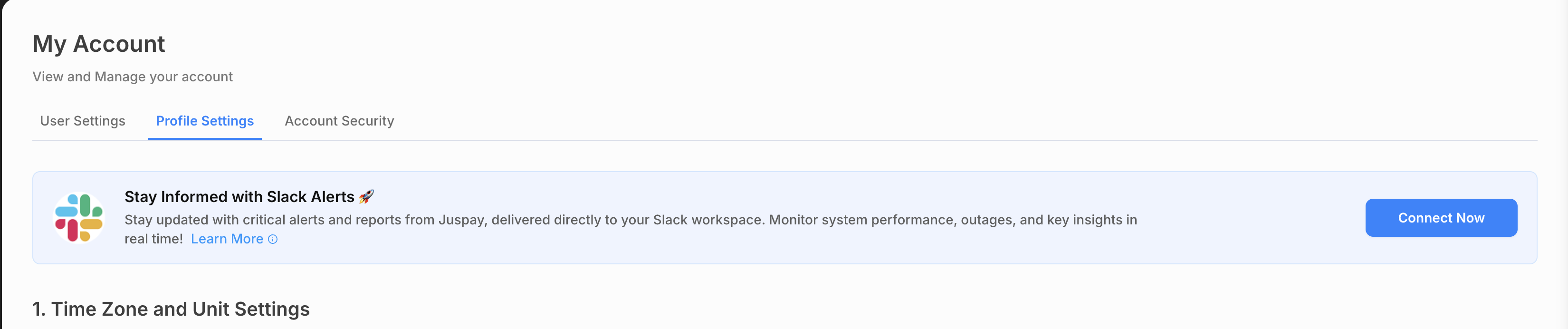
Connect Now with Slack Make sure you are already logged into Slack in your browser
🔹 Special Case: If Admin Approval is Required
If you don’t have permission to install apps in your Slack workspace, you may see this message:
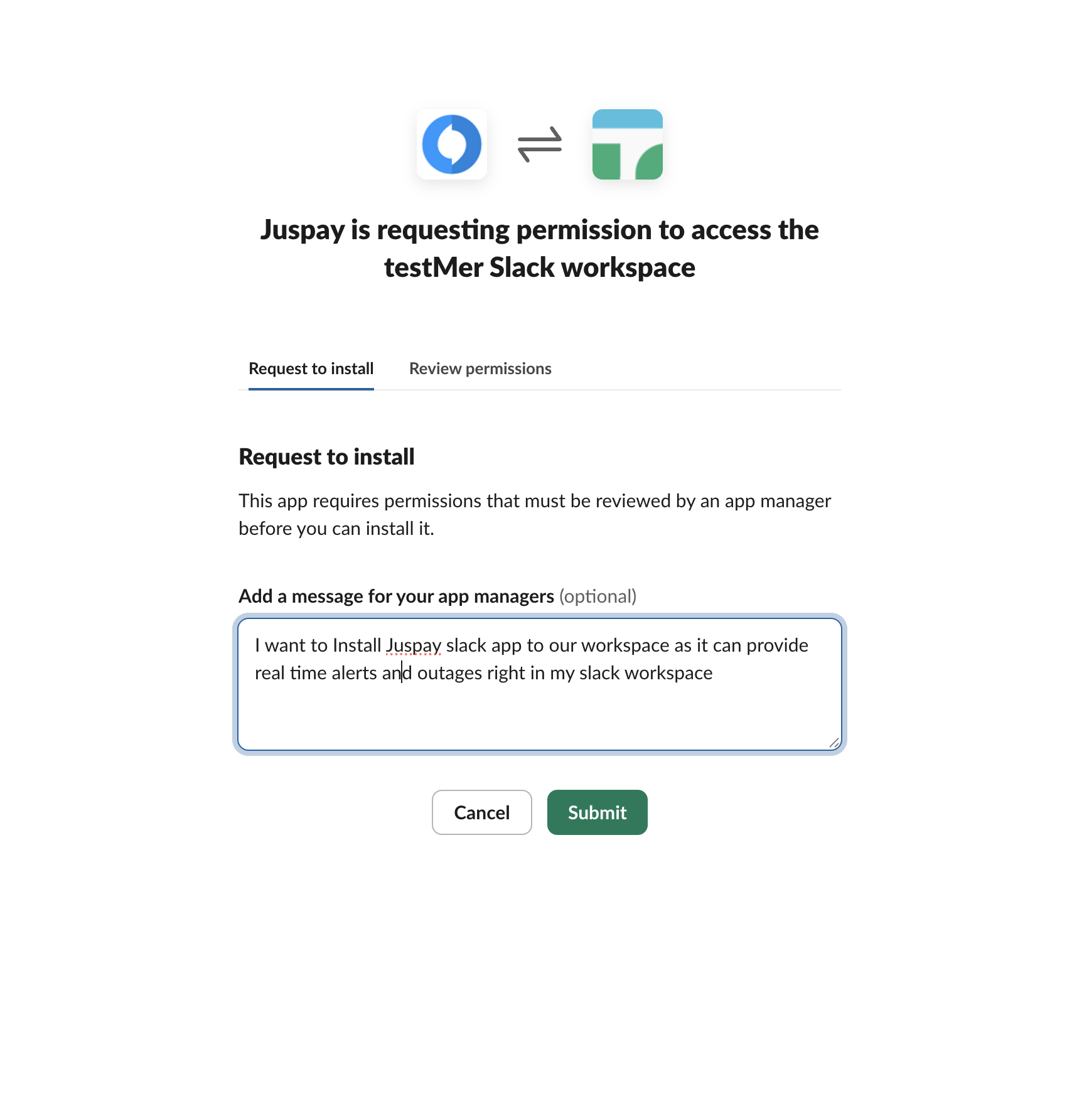
Request Admin for Approval You need admin approval to install this app.In such cases:
‘Request Approval’ on the Slack authorization page.
Your Slack workspace admin will receive a notification to approve the app.
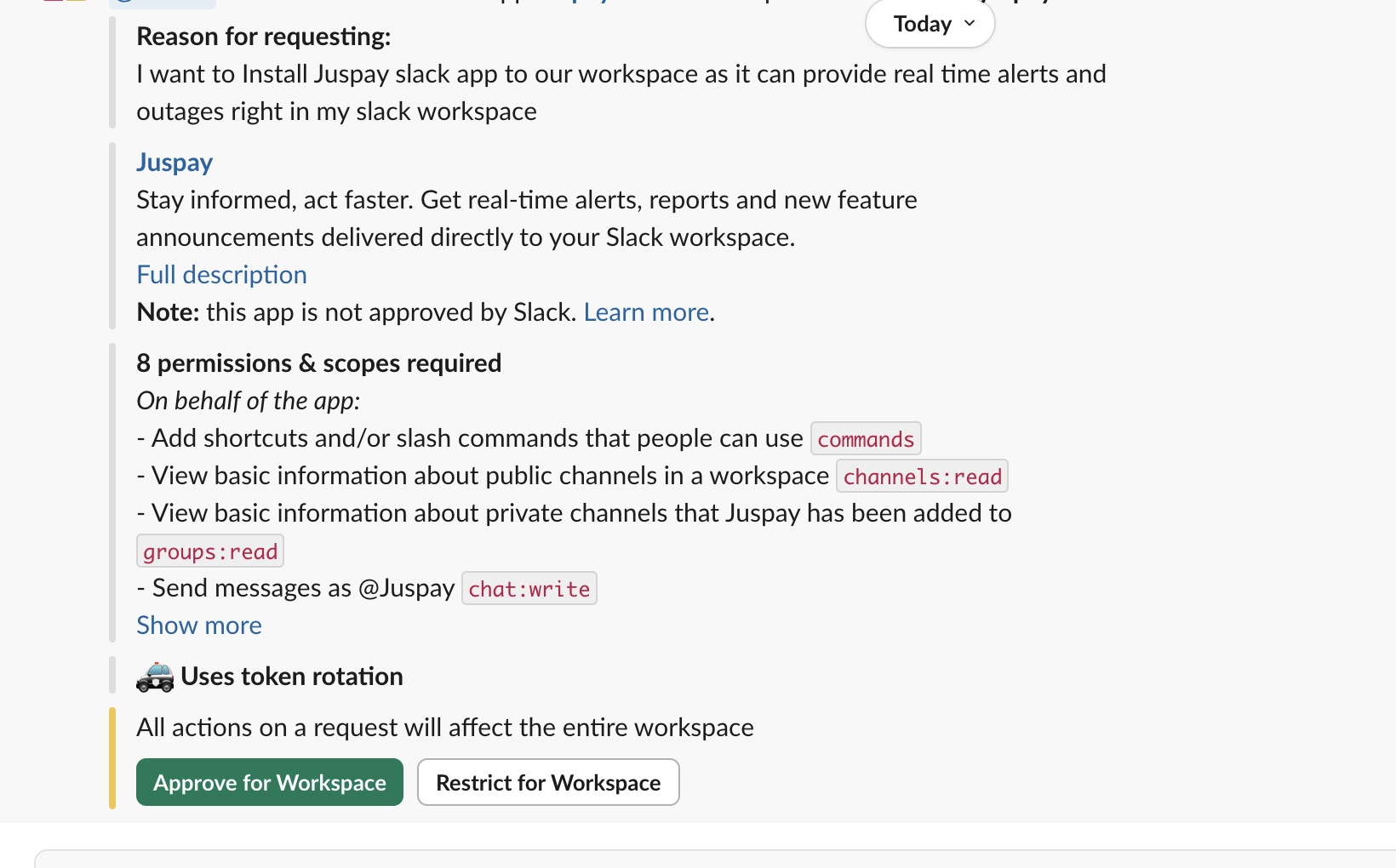
Admin View for Approval Once the admin approves:
You will receive an approval confirmation via Slack/email.

Succesful Approval from Admin Click on Go to Slack Marketplace
Click on Add to Slack
You will be landed on Dashboard → My Account → Profile Settings and click ‘Connect Now’ again to complete the setup and follow below steps
You will be redirected to Slack’s authorization page:
Choose the Slack workspace where you want to receive messages.
Approve the requested permissions.
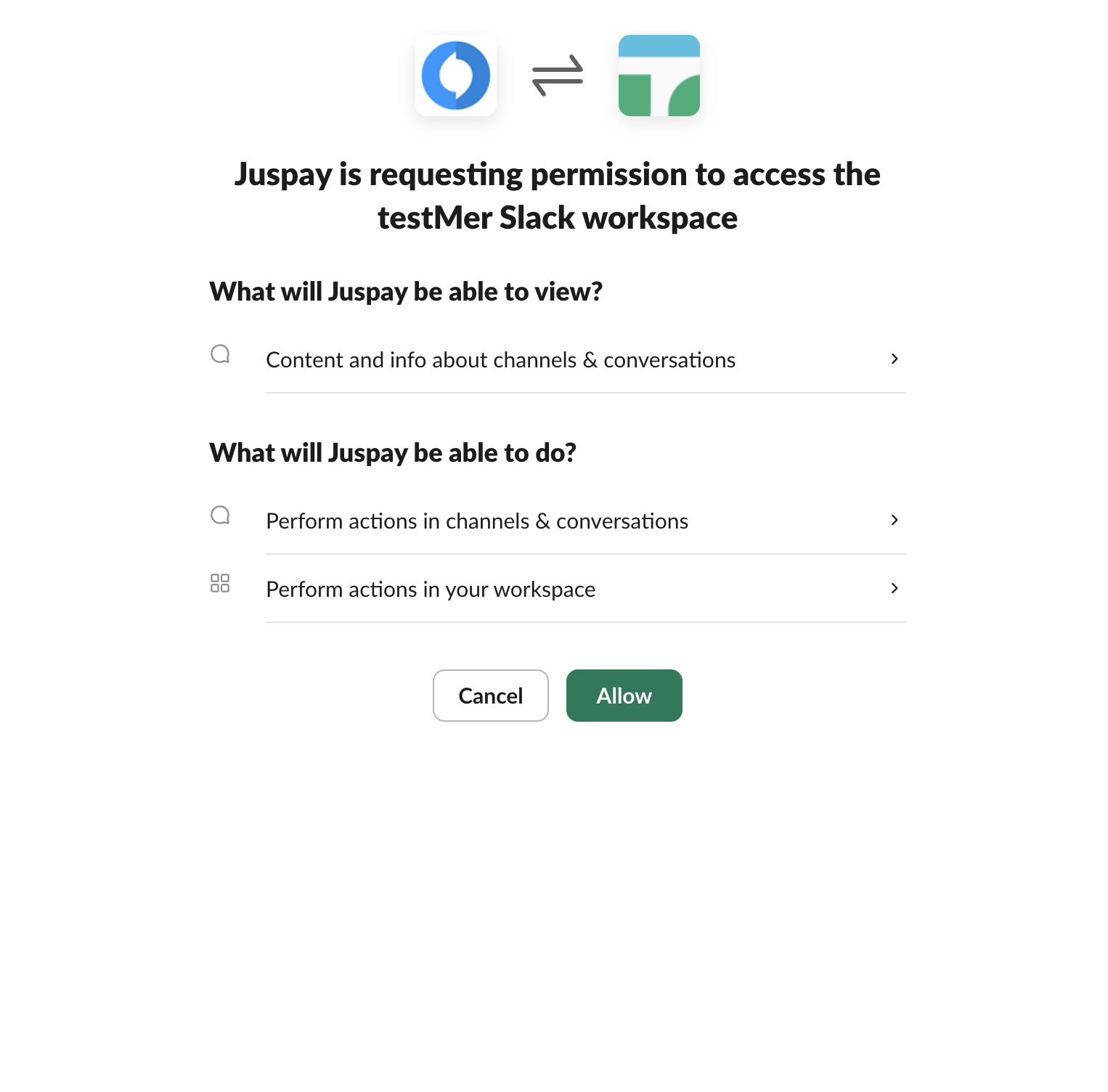
Slack Authorization Page
After successful authorization, you will be redirected back to the Dashboard.
In your slack workspace under Apps you will see the Juspay app that is succesfully Integrated
🔹 Step 2: Select the Slack Channel
Once Slack is connected, go to Dashboard → Monitoring → Alerts / Reports (https://portal.juspay.in/alerts/new
)Select the Slack channel (public or private) where you wish to receive notifications.
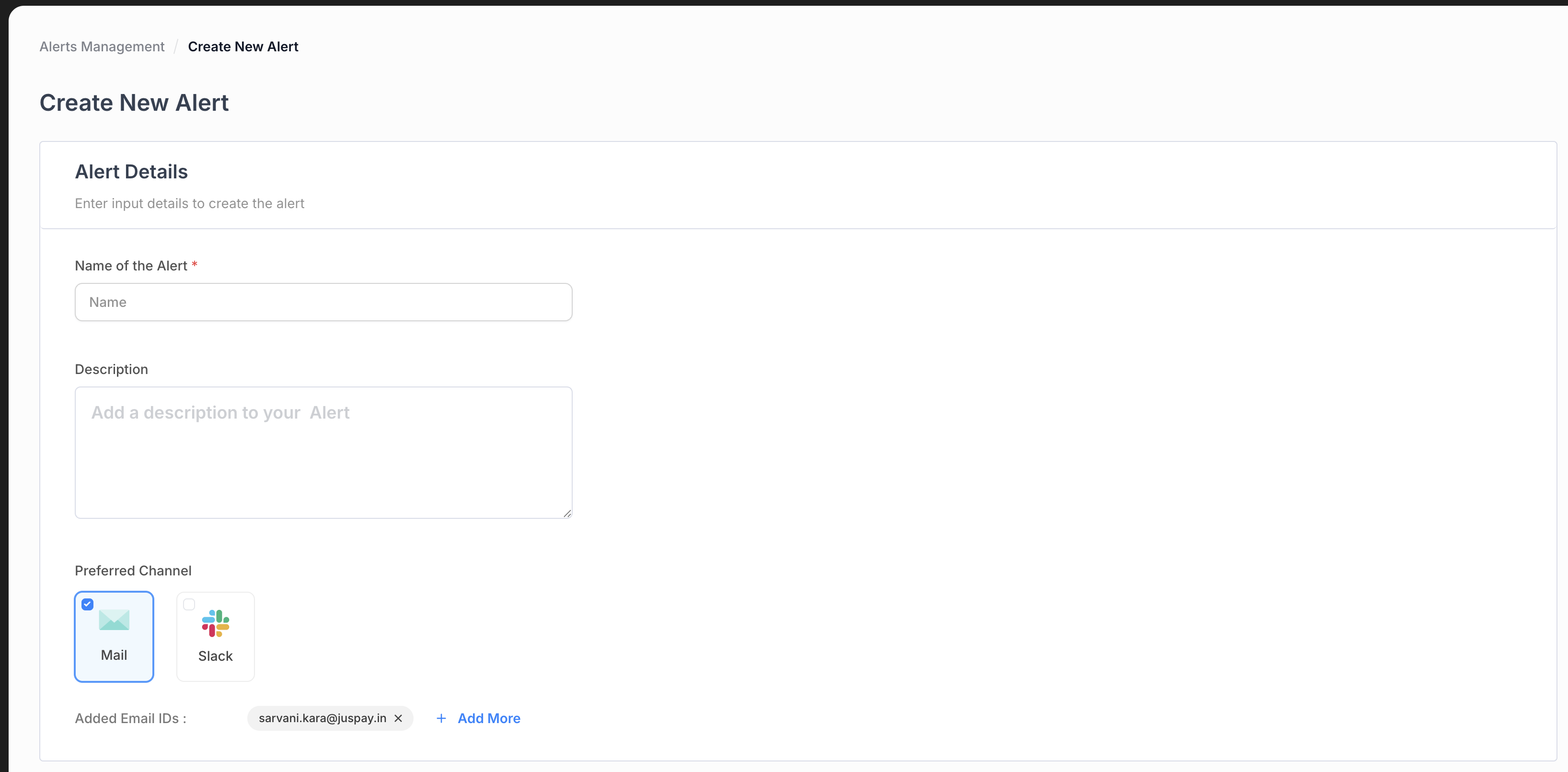
Alerts Page
🔹 Step 3: For Private Channels – Important!
To receive notifications in a private Slack channel, you must add our app to that channel manually:
Open the private channel in Slack.
Click on the channel name and a settings modal opens up . Click on Integrations → Add App → Juspay
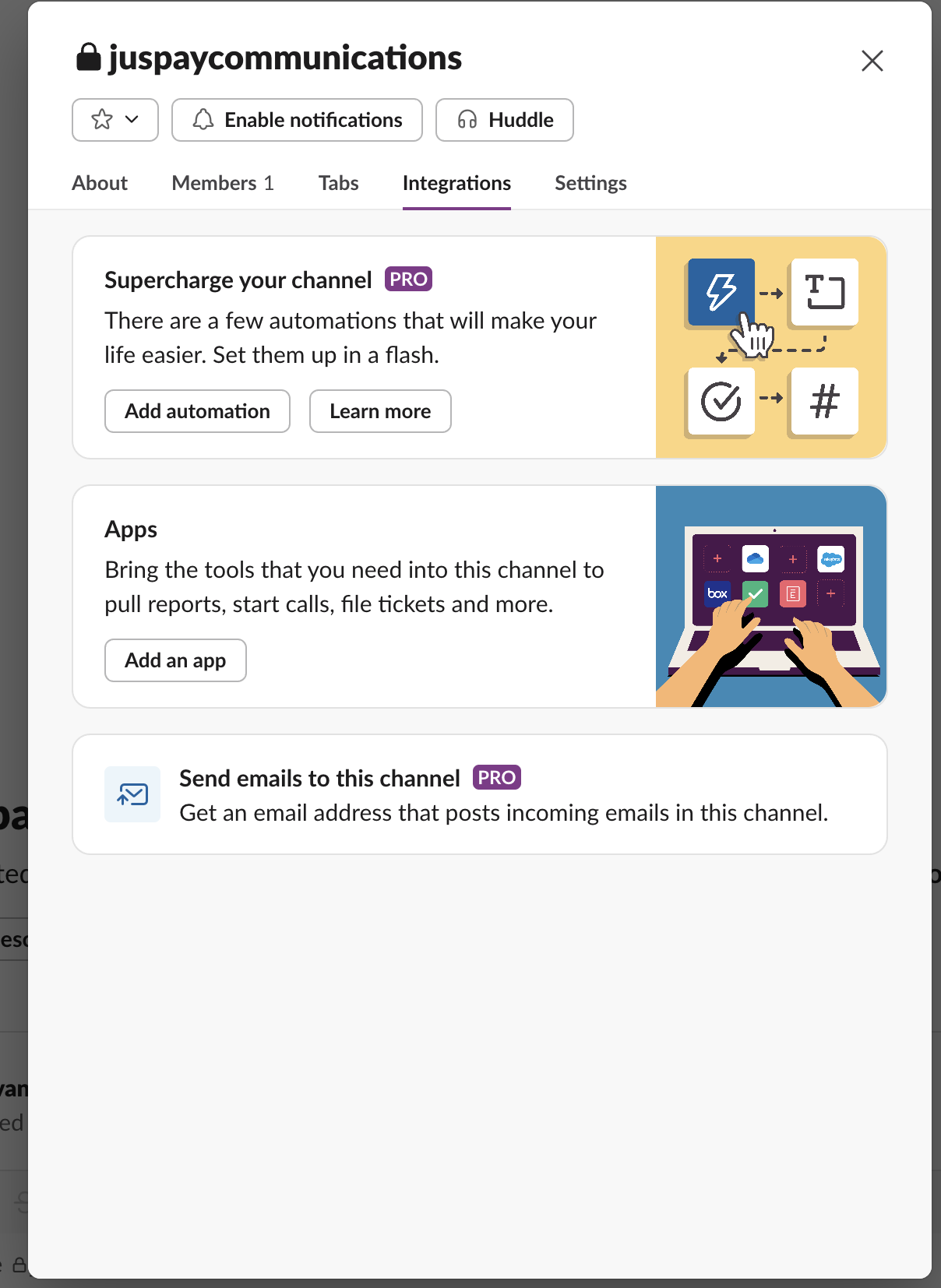
Add App to Private Channel 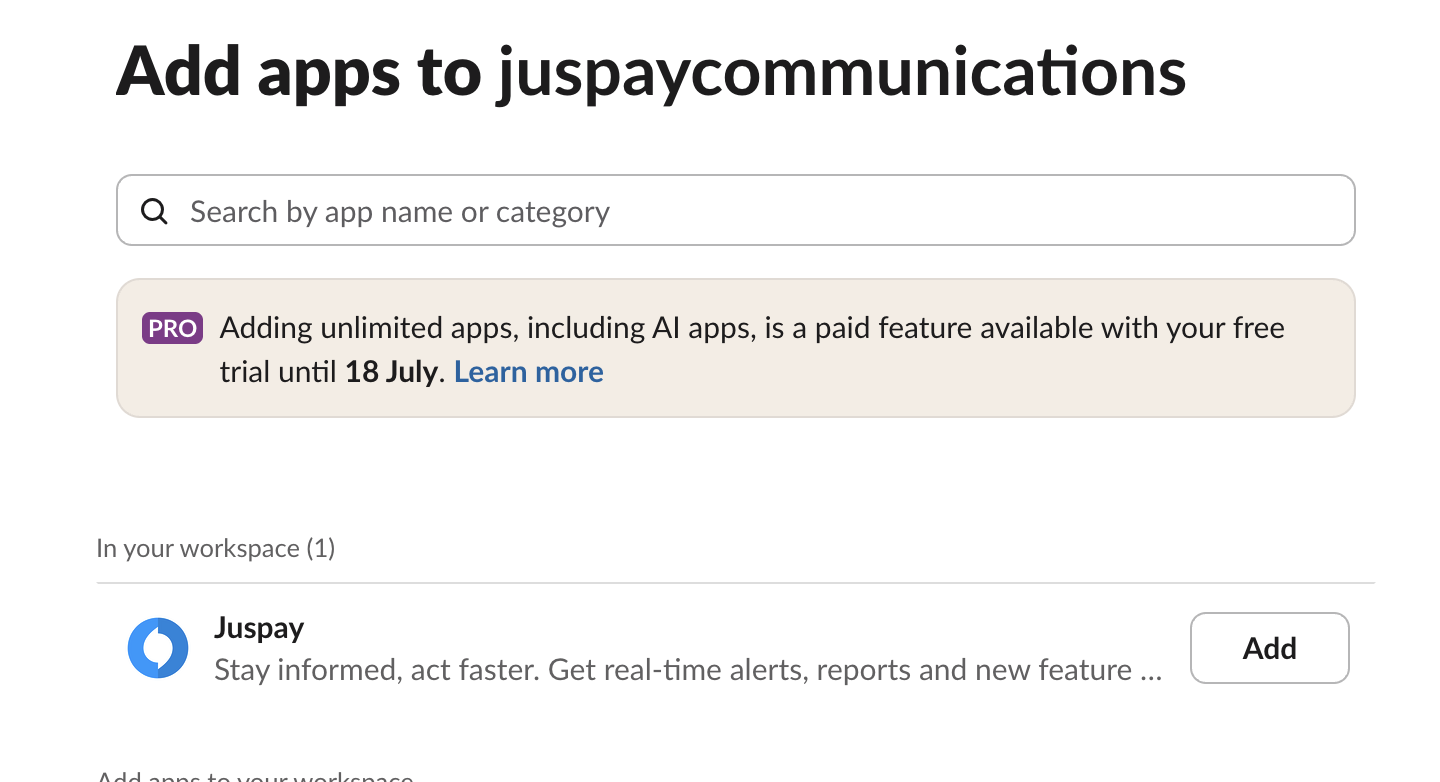
Add Juspay to Private Channel Click on Add.
Now our app is allowed to send notifications to Slack on the private channel where our app is added
❗Troubleshooting Tips
Issue Resolution Not receiving messages in private channel Make sure the app is invited using step 3 mentioned above.
Slack channel not showing in Dashboard Ensure the app has the required permissions in Slack. Authorization failed Ensure you are logged into the correct Slack workspace.
🔹 Need Help?
Reach out to our support team at: [support@juspay.in]
Or use Dashboard → Help & Support.