


Feature: Inspect Order Details
Overview
The Show Order Details page provides a 360-degree view of a single order. It is the central place for in-depth investigation, offering detailed information about the order, customer, payment, and related activities. This view is crucial for customer support, operations, and finance teams.
Back to Orders Module Overview: Orders Module Overview
Accessing the Feature
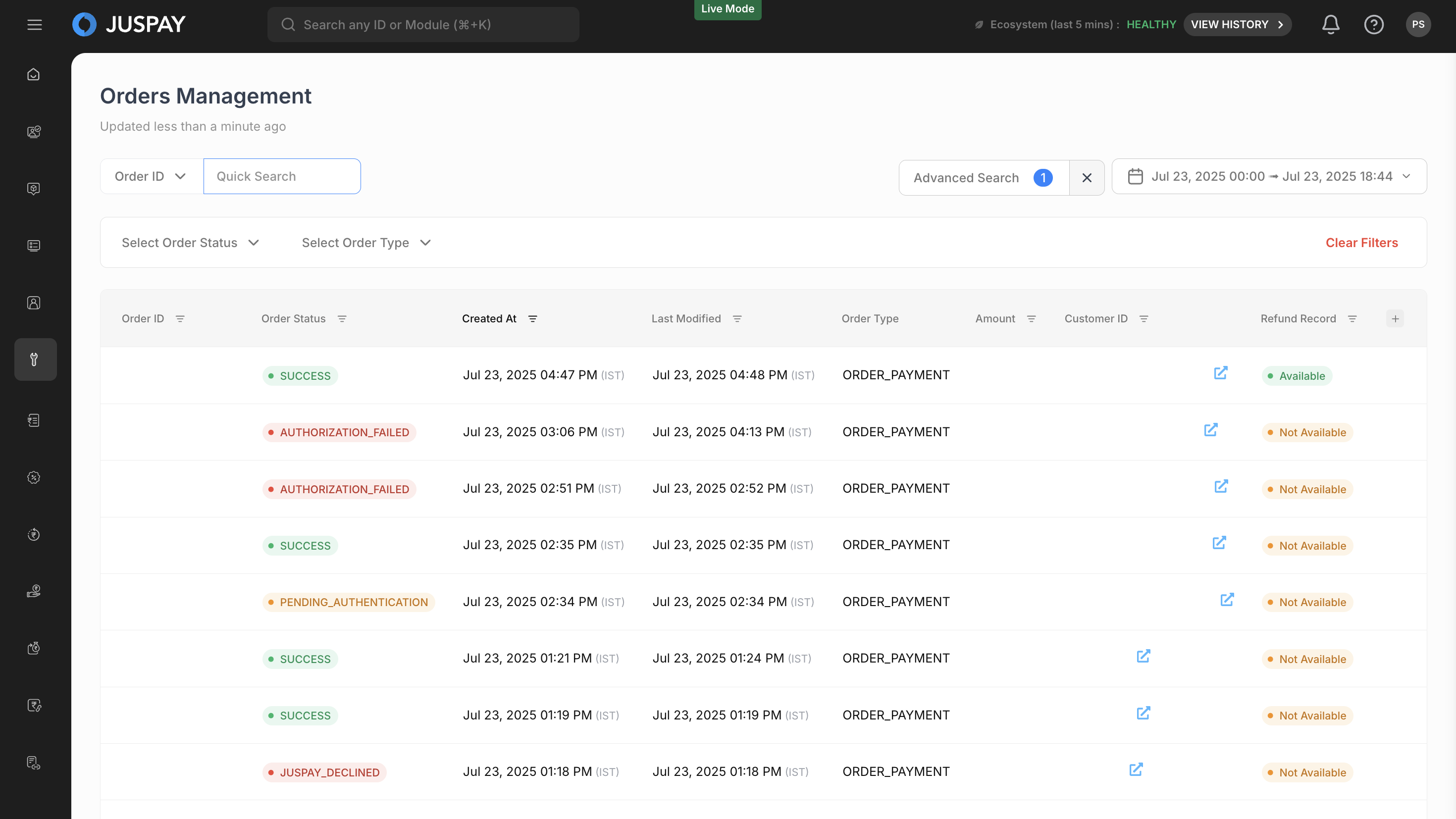
From the List Orders
page, click on the Order ID of the order you wish to view.This will navigate you to the detailed view for that specific order.
The navigation URL will be in the format
/orders/<orderID>.
Step-by-Step Usage Instructions
Order Information Section
This section provides a comprehensive summary of the order's core details.
Order ID: A unique identifier for the order within the system.
Status: The current status of the order. Common statuses include:
SUCCESS: Successful/ Charged Transaction.
NEW: Newly created order. This is the status if transaction is not triggered for an order.
AUTHENTICATION_FAILED: User didn't complete the transaction.
AUTHORIZATION_FAILED: User completed transaction but the bank refused.
PENDING_AUTHENTICATION: Authentication in progress (status is not confirmed yet).
AUTO_REFUNDED: Transaction is automatically refunded.
PARTIAL_CHARGED: The order has been partially charged.
JUSPAY_DECLINED: User input is not accepted by underlying PG.
COD_INITIATED: User has Cash on Delivery as payment mode.
VOID_INITIATED: Void pending for the pre-authorized transaction.
VOIDED: Void is successful for the pre-authorized transaction.
AUTHORIZED: Transaction is Authorised but not captured.
AUTHORIZING: Transaction status is pending from bank.
TO_BE_CHARGED: Amount to be debited by the merchant.
Amount: The total monetary value of the order.
Amount Refunded: The total amount that has been refunded for this order.
Currency: The currency in which the transaction was made (e.g., INR, USD).
Date Created: The exact date and time the order was created.
Last Modified: The date and time of the last update to the order.
Customer ID: A unique identifier for the customer.
Customer Name: The name of the customer.
Customer Email: The customer's email address.
Customer Phone: The customer's phone number.
Description: A brief description of the order contents or purpose.
Return URL: The URL the customer is redirected to after a payment attempt.
Merchant ID: The unique identifier for the merchant associated with this order.
Actions
Sync with Gateway:
Purpose: To fetch the latest real-time status of the order directly from the payment gateway. This is useful if the status shown in the dashboard seems out of date, especially for pending transactions.
How to use: Click the "Sync with Gateway" button. The page will refresh with the most current status.
Detailed Information Tabs
Transactions
: View all payment attempts and manage refunds.Refunds
: View and process refunds.Offers
: See any discounts applied.Webhooks
: View all webhook events for this order.Settlements & Recon
: Track the settlement status of an order.
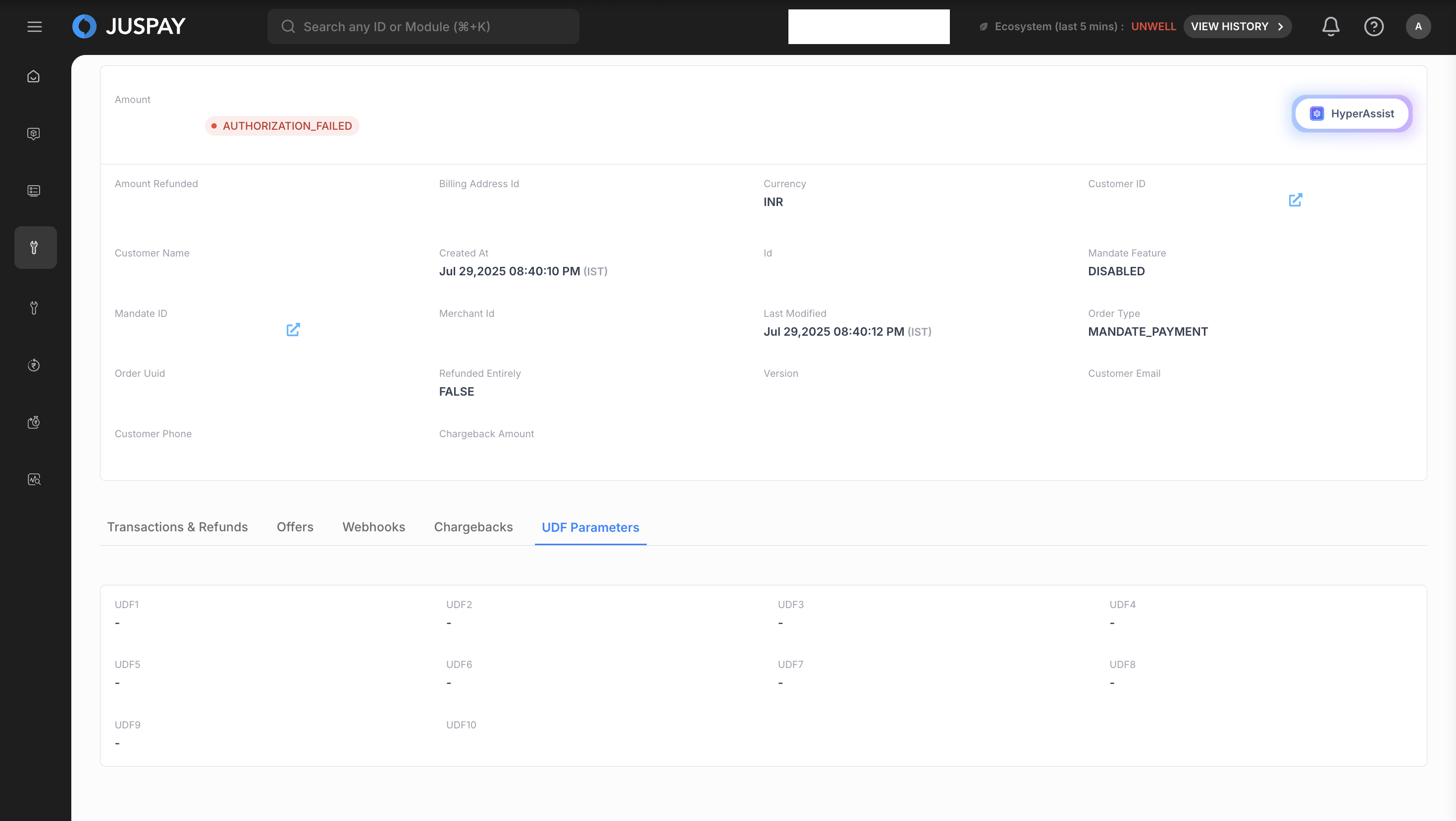
UDF Parameters
The UDF Parameters tab allows you to view any custom data fields that were sent with the order. UDFs (User-Defined Fields) are used to pass additional, non-standard information that is relevant to your business processes.
Key: The name of the custom field (e.g., campaign_id, customer_segment).
Value: The value that was passed for that field (e.g., SUMMER2024, VIP).
Chargebacks
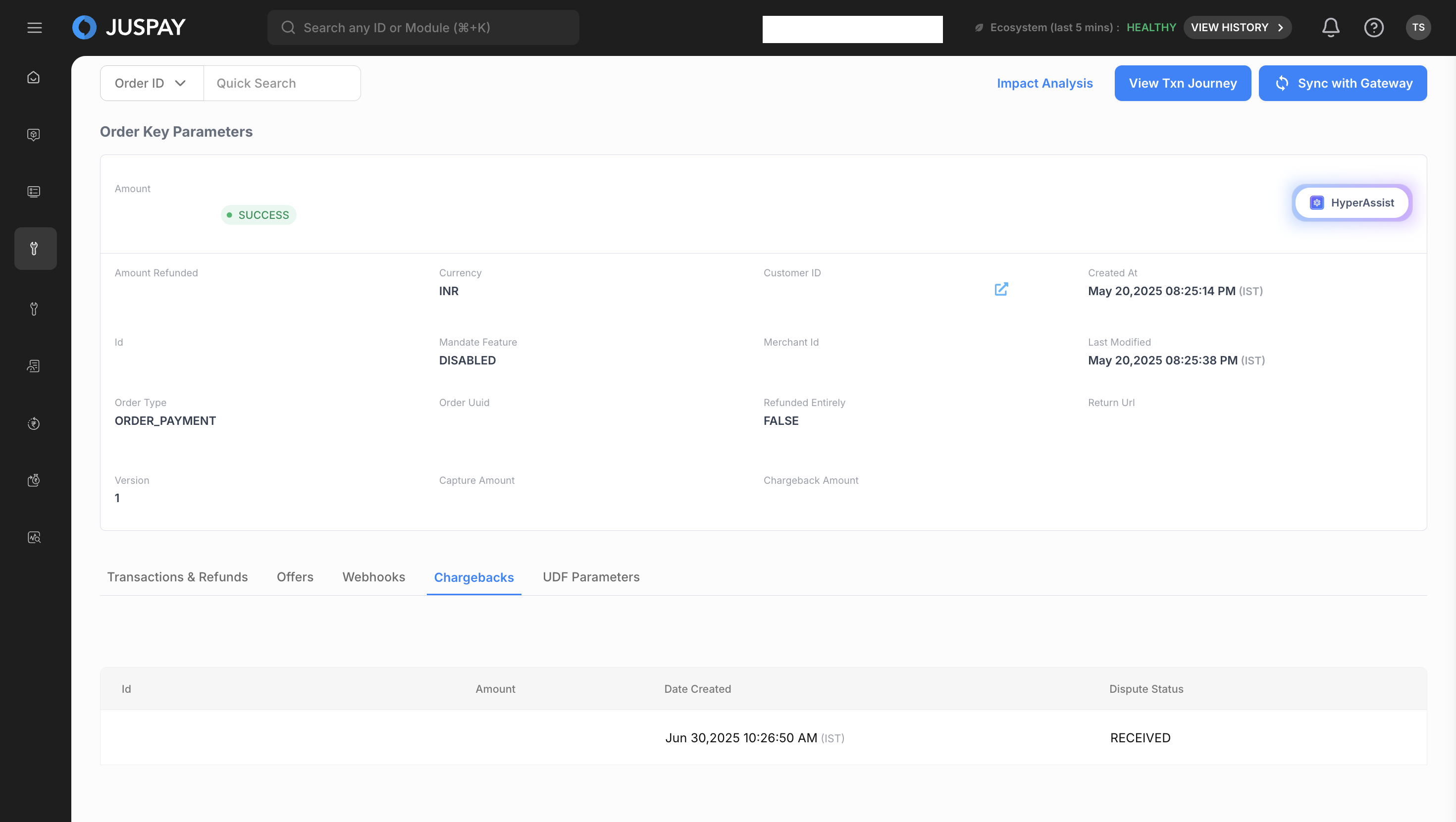
The Chargebacks tab provides a centralized view of all chargeback disputes related to a specific order.
Chargeback ID: The unique identifier for the dispute case.
Amount: The amount being disputed.
Reason: The reason code provided by the bank (e.g., Fraud, Product not received).
Status: The current status of the dispute.
Created Date: When the chargeback was initiated.
Respond By: The deadline to submit evidence.
Updating Chargeback Status
Identify the Chargeback: Locate the chargeback you need to update in the list.
Click to Update Status: For chargebacks with the status RECEIVED, an "Update Status" icon will appear. Click on it to open a modal.
Select the New Status: Choose the appropriate status from the available options:
Save Changes: Confirm the new status. The list will update to reflect the change.
Invoice Metadata
The Invoice Metadata tab shows details related to the invoice associated with the order, if applicable.
Invoice ID: The unique identifier for the invoice.
Invoice Date: The date the invoice was issued.
Due Date: The payment due date for the invoice.
Invoice Status: The current status of the invoice (e.g., PAID, PENDING, OVERDUE).
Link to Invoice: A direct link to view the full invoice.
Payment Form Metadata
The Payment Form Metadata tab displays technical details and metadata related to the payment form that was used for the order. This information is primarily useful for developers and technical support teams for debugging and verifying the configuration of the payment form at the time of the transaction.
Form ID: The unique identifier of the payment form used.
Version: The version of the payment form.
Theme: The visual theme applied to the form.
Language: The language in which the form was displayed to the customer.
Rendered At: The timestamp of when the form was rendered.
Permissions and Roles
Required ACL:
ordersRead-Only Access: Users can view all order details but cannot perform actions like "Sync with Gateway" or initiate refunds.
Read-Write Access: Users have full access to view all details and perform all available actions on the page.