


Settings: Security
Overview
The Security Settings module provides comprehensive management capabilities for various security-related configurations within the Juspay payment platform. This includes managing API keys, RSA keys, JWT keys, AES encryption keys, IP whitelisting, and security key management. The module ensures secure authentication, encryption, and access control for payment processing and API integrations.
Accessing the Feature
To access the Security Settings page, navigate to the following URL:
https://portal.juspay.in/settings/security
From the dashboard homepage, click on the "Settings" tab in the main navigation menu, and then select the "Security" tab.
Key Concepts
API Key: An API key is a unique identifier used to authenticate a user, developer, or calling program to an API. It is used to track and control how the API is being used, for example, to prevent malicious use or abuse of the API.
RSA: RSA is an asymmetric cryptographic algorithm that uses a pair of keys: a public key and a private key.
The public key can be shared with anyone and is used to encrypt data.
The private key is kept secret and is used to decrypt data.
In this dashboard, you will upload your public key, which will be used to verify the signature of your requests. You will use your private key to sign the requests you send to the server.
JWT : JWT is an open standard for securely transmitting information between parties as a JSON object. In the context of this dashboard, JWTs are signed using a private key and verified using a corresponding public key.
When you generate a JWT key pair, you will be given a private key to sign the tokens you create.
You will upload your public key to the dashboard, which will be used to verify the authenticity of the JWTs you send.
Step-by-Step Usage Instructions
API Keys
The API Keys section allows you to manage your API keys, which are used to authenticate API requests.
Create New API Key:
Click the "Create New API Key" button to generate a new API key.
A pop-up will appear asking for confirmation.
Once confirmed, a new API key will be generated and displayed in a pop-up. You will be prompted to download the key as a text file.
Delete API Key:
To delete an API key, click the delete icon next to the key you want to remove.
A confirmation pop-up will appear.
Enable/Disable API Key:
To enable or disable an API key, click the enable/disable icon next to the key.
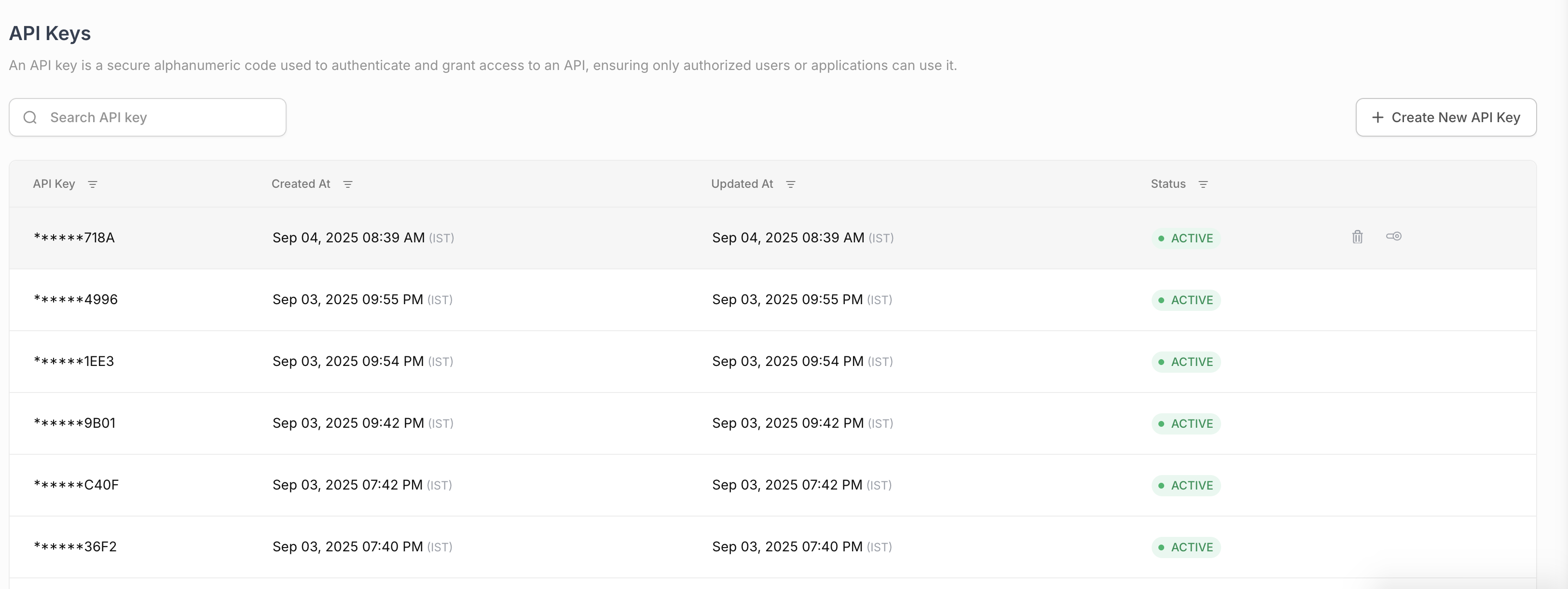
API keys
RSA Keys
The RSA Keys section allows you to manage your RSA public keys, which are used for request signing and response verification.
Upload New RSA Key: Click the "Upload New RSA Key" button to upload a new RSA public key. A modal will appear with two options:
Auto Generate Keys: This option will generate a new RSA key pair for you. The public key will be uploaded to the system, and the private key will be downloaded to your computer.
Manually Upload Public Key: This option allows you to upload an existing RSA public key. You will be prompted to select a
.pemfile from your computer.Delete RSA Key: To delete an RSA key, click the delete icon next to the key you want to remove.
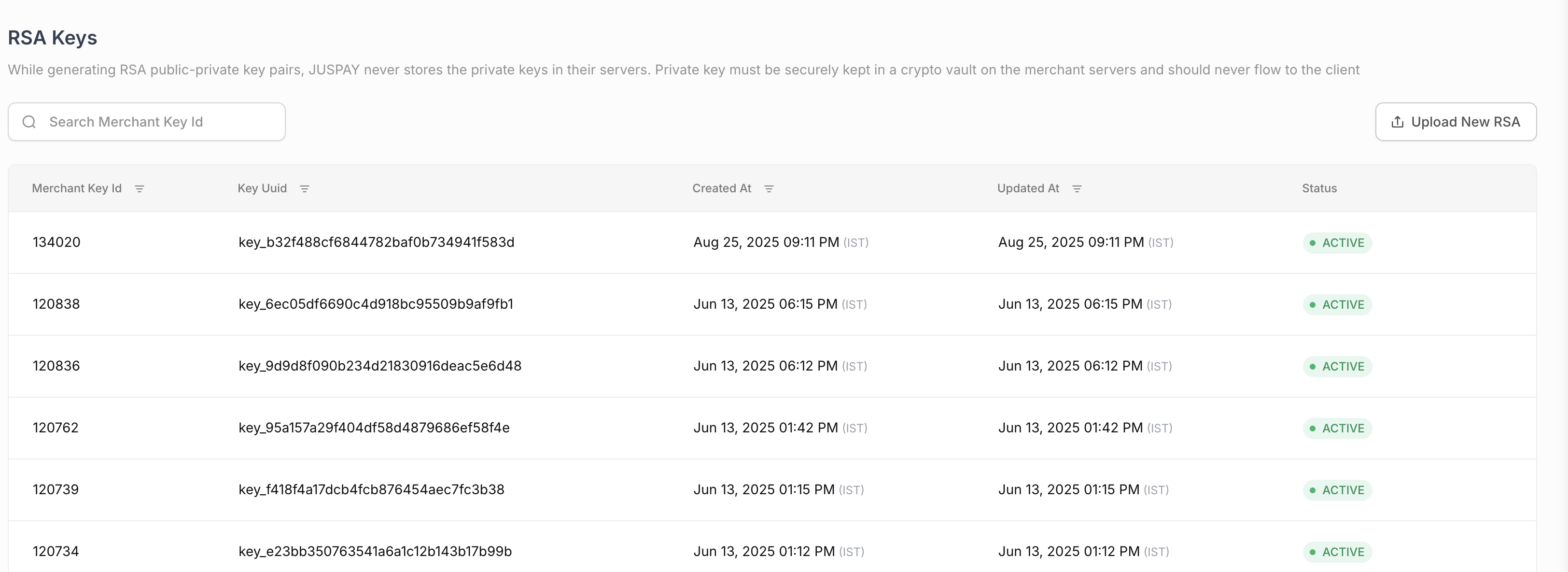
RSA Keys
JWT Keys
The JWT Keys section allows you to manage your JWT public keys, which are used for token validation.
Upload New JWT Key: Click the "Upload New JWT Key" button to upload a new JWT public key. The process is similar to uploading an RSA key.
IP Whitelisting
The IP Whitelisting section allows you to restrict access to your account to a specific set of IP addresses.
Add New IP:
Click the "Add New IP" button to add a new IP address to the whitelist.
A modal will appear where you can enter the IP address.
The IP address must be a valid IPv4 or IPv6 address.
Delete IP: To delete an IP address from the whitelist, click the delete icon next to the IP address you want to remove.

IP Whitelisting
Security Keys
The Security Keys section displays the Response Key and Card Encoding Key for your account.
Response Key: This key is used to verify the authenticity of the response received from the payment gateway.
Card Encoding Key: This key is used to encrypt card information before sending it to the server.
Update Security Keys: Click the "Update security keys" button to generate new security keys. This action requires confirmation.
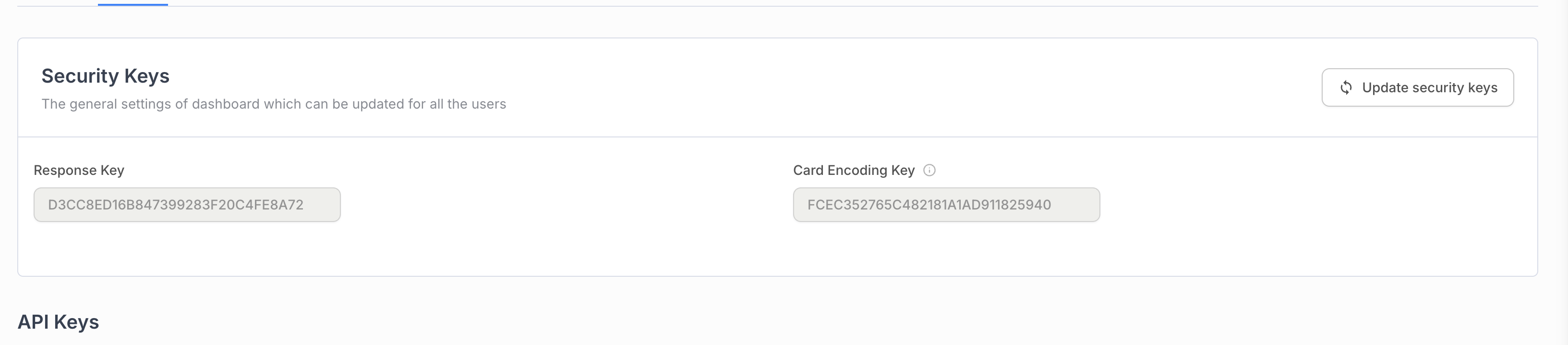
AES Keys Management
Understanding AES Keys
AES (Advanced Encryption Standard) is a symmetric encryption algorithm used for protecting sensitive data through encryption and decryption operations.
AES Key Types
AES 128: 128-bit encryption keys for standard security requirements
AES 256: 256-bit encryption keys for enhanced security (planned feature)
Symmetric Encryption: Same key used for both encryption and decryption
Data Protection: Secures sensitive information during transmission and storage
AES 128 Key Management
AES 128 Key Upload Process
Navigate to the AES Keys section (visible when permissions allow).
Click "Upload New AES 128 Key" button.
Select the .key file using the file picker in the modal.
Click "Upload File" to submit the AES 128 key.
Confirm successful upload and download any provided configuration.
AES 128 Upload Details
File Format: Requires .key file format
Validation: Validates file format and content
Configuration Download: Provides integration configuration when enabled
Security: Key is securely stored and managed
AES 256 Support
AES 256 Current Status
Implementation Status:
Permission System: AES 256 permissions are implemented in the system
UI Implementation: User interface for AES 256 is currently in development
Future Availability: AES 256 functionality is planned for future releases
Permission Check:
settings_security_aes_256ACL controls access
Planned Features:
256-bit Encryption: Enhanced security with longer key lengths
Upload Interface: Similar interface to AES 128 for key management
Configuration Support: Integration configuration for AES 256 keys
Migration Path: Upgrade path from AES 128 to AES 256
Permissions or Roles
To access the Security Settings page, you need the settings_security permission. The following table details the permissions required for each action:
|
First Column
|
Second Column
|
|---|---|
View Security Settings
| settings_security (Read)
|
Create/Upload/Delete Keys
| settings_security (Write)
|
Add/Delete IP Addresses
| settings_security (Write)
|
Update Security Keys
| settings_security (Write)
|