


Feature: Refunds
Overview
The Refunds feature allows you to view and process refunds for a specific transaction. This is essential for managing customer returns, correcting billing errors, and other post-payment scenarios.
Back to Orders Module Overview
Accessing the Feature
Navigate to the Transactions
tab for the relevant order.Expand the transaction you want to inspect.
Inside the expanded view, click on the Refund Details accordion to view existing refunds.
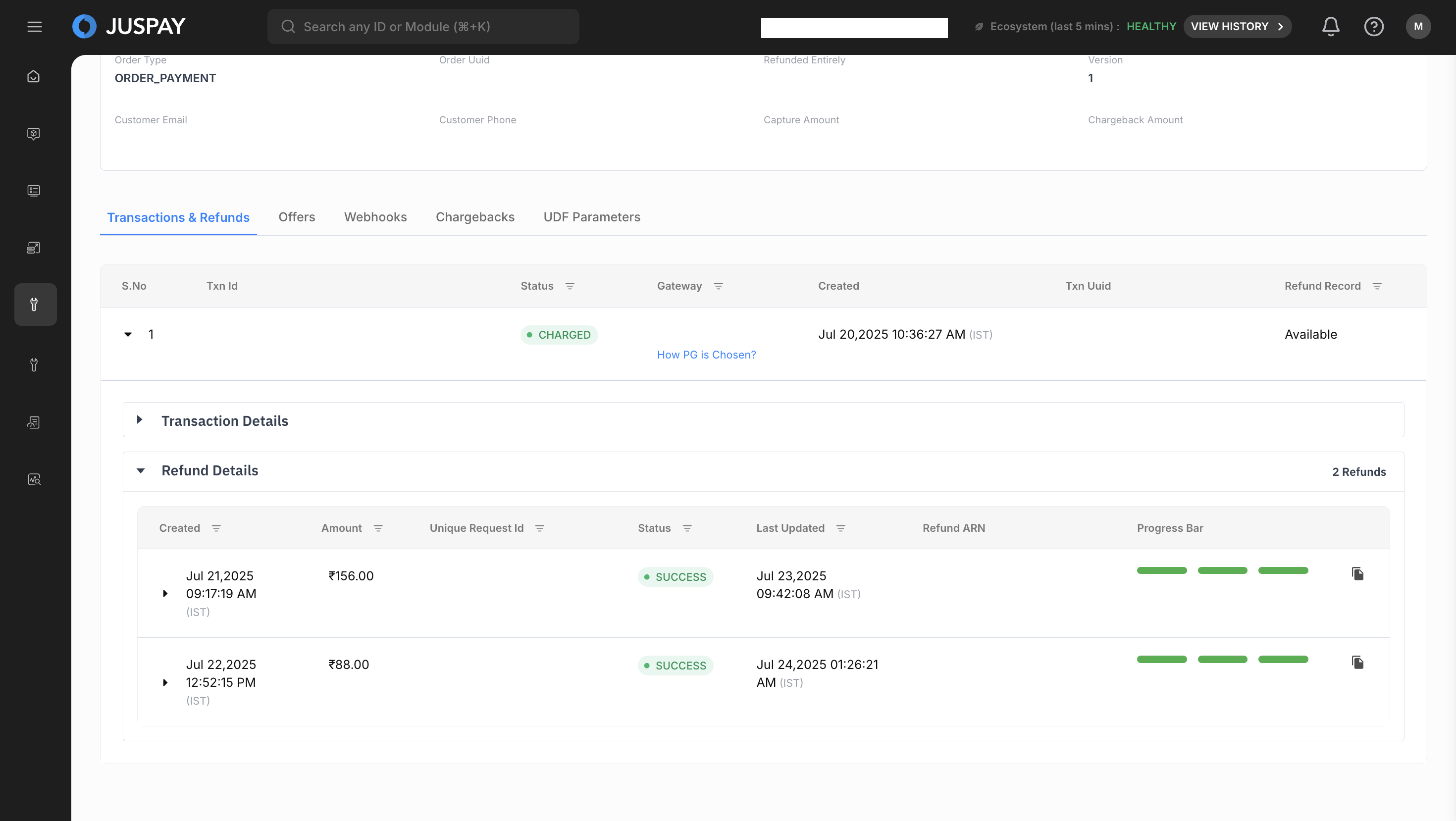
Refunds Section in Orders Module The Refund button to initiate a new refund will be visible next to eligible transactions.
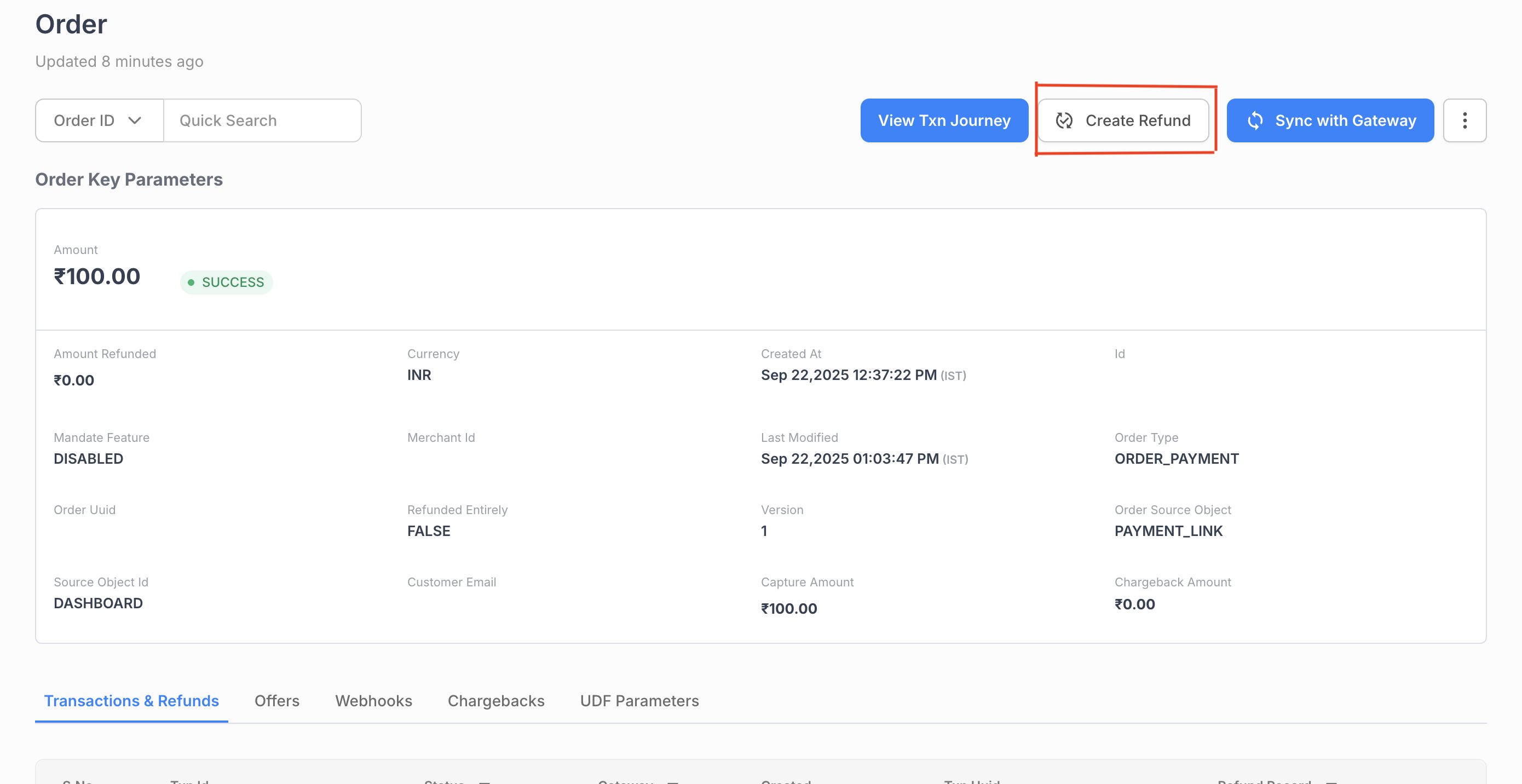
Initiate Refund
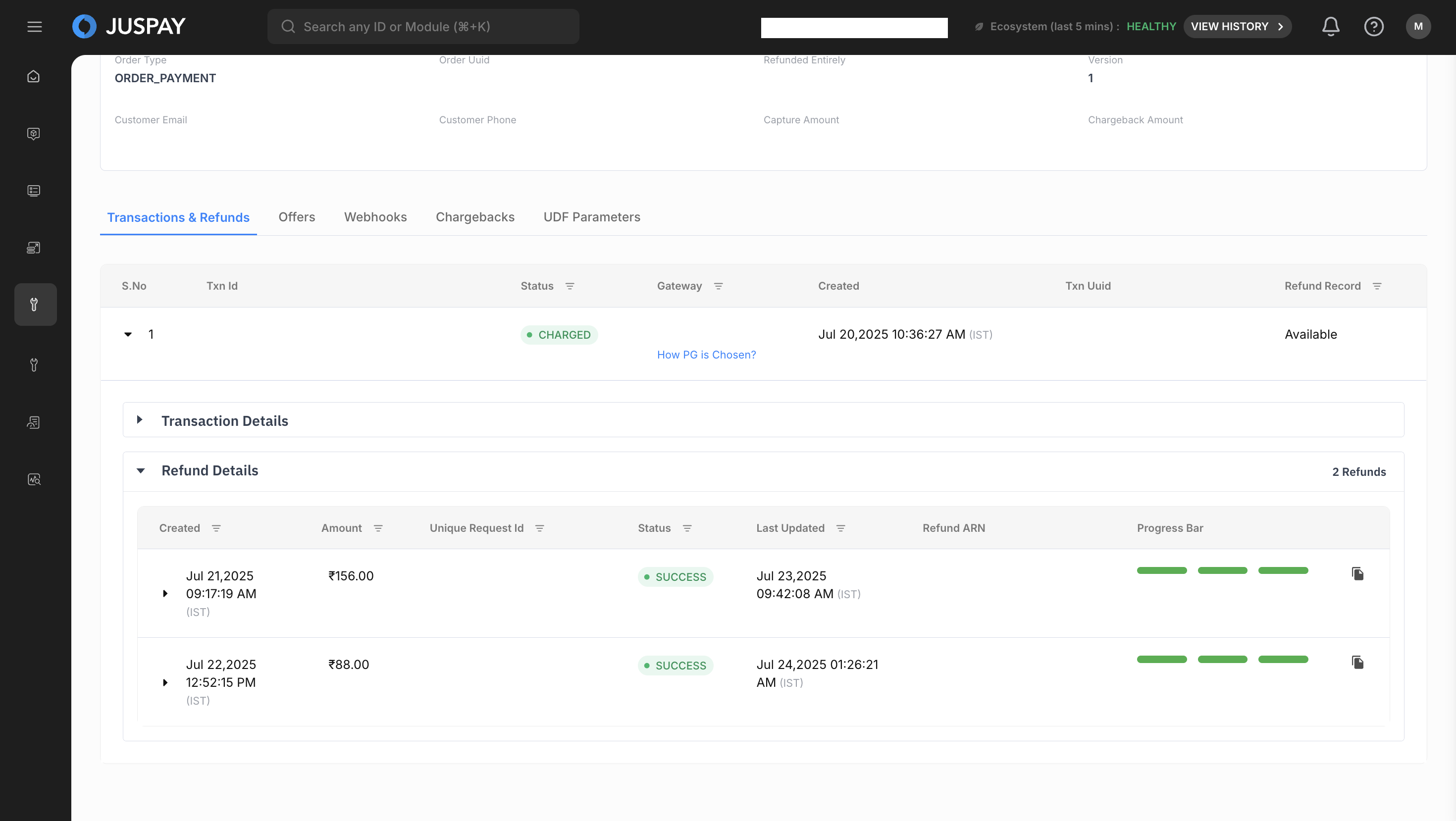
Viewing Refunds
The Refund Details section contains a list of all refund attempts for the selected transaction.
Refund List Fields:
Refund ID: A unique identifier for the refund transaction.
Amount: The amount of the refund.
Status: The current status of the refund (e.g.,
SUCCESS,PENDING,FAILED).Created At: The date and time the refund was initiated.
Error Message: If the refund failed, this field will contain a description of the error.
Viewing Refund Audit Trail
For a more detailed, step-by-step history of a refund, you can view its audit trail.
Click on the Refund ID of the refund you want to investigate.
This will take you to a new page showing the Refund Journey.
This view provides a timeline of all events in the refund's lifecycle, from initiation to completion.
Processing a Refund
Initiating a Refund
Identify the Transaction: In the transaction list, locate the
SALEtransaction with aCHARGEDstatus that you wish to refund.Click the Refund button associated with that transaction.
Complete the Refund Form: A modal window will appear with the following fields:
Refund Amount:
Description: The amount to be refunded to the customer.
Default Value: The full amount of the original transaction.
Usage:
For a full refund, leave the default value as is.
For a partial refund, enter an amount less than the original transaction amount. You can process multiple partial refunds as long as the total refunded amount does not exceed the original transaction amount.
Reason for Refund:
Description: A mandatory field to categorize the reason for the refund.
Usage: Select the most appropriate reason from the dropdown list (e.g.,
Customer Request,Product Not Available,Duplicate Transaction).
Notes:
Description: An optional field for adding internal comments.
Usage: It is highly recommended to add a brief note explaining the circumstances of the refund for future reference.
Confirm and Submit:
Review the details carefully.
Click the Initiate Refund button to submit the request.
Refund Cases and Scenarios
Full Refund: The entire amount of a transaction is returned to the customer. The original transaction status will change to
REFUNDED.Partial Refund: Only a portion of the transaction amount is returned. The original transaction will remain
CHARGED, but its refundable amount will be reduced.Multiple Partial Refunds: You can perform several partial refunds on a single transaction until the total refunded amount equals the original transaction amount.
Permissions and Roles
Required ACL:
ordersRead-Only Access: Users can view all refund details but cannot initiate new refunds.
Read-Write Access: Users can both view refund details and process new refunds.