


Monitoring Boards - User Guide
Overview
The Monitoring Boards feature allows users to create customizable analytics dashboards with various visualization components including charts, tables, and single statistics. This feature enables data visualization across different domains such as transaction data, order data, and refund data. Users can create, share, duplicate, and manage their own monitoring boards for comprehensive business intelligence.
Target Users: Analytics users, business analysts, and administrators who need to visualize payment and transaction data.
Accessing the Feature
Navigation URLs

Navigation Path from Dashboard
1. From the main dashboard homepage
2. Navigate to Analytics section in the sidebar
3. Click on Monitoring Boards
Step-by-Step Usage Instructions
1. Viewing Monitoring Boards List
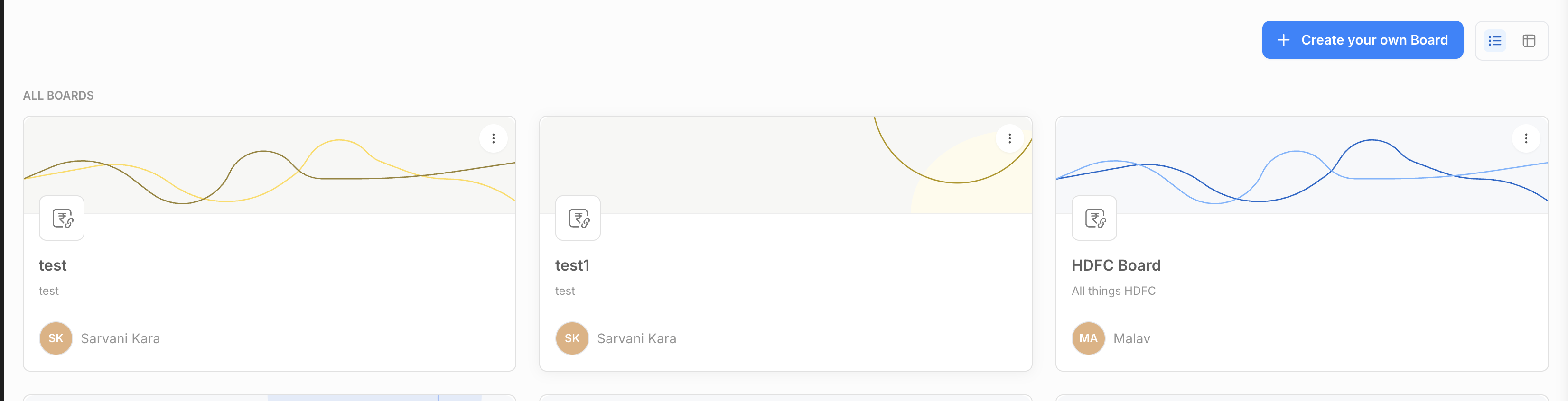
When you access the monitoring boards feature, you'll see:
List View Options:
- Card View: Visual cards showing board thumbnails with board details
- Table View: Tabular format showing board information in columns
Board Information Displayed:
- Board Name
- Description
- Owner Name
- Visibility Status (Read/ReadWrite)
- Date Created
- Last Modified
2. Creating a New Board
Steps:
1. Click "Create your own Board" button (visible only if you have required permissions)
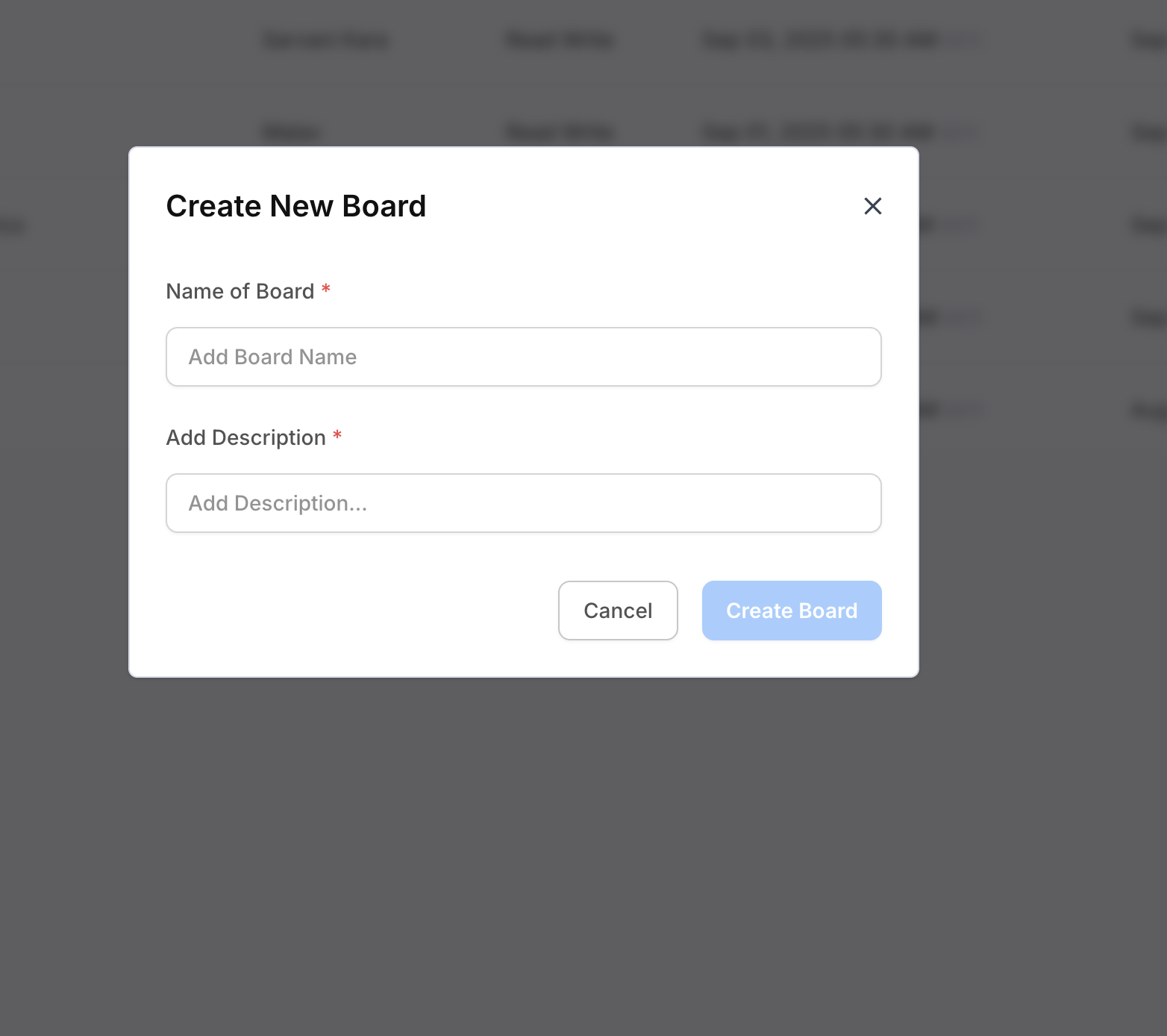
2. Fill in the Board Creation Form:
- Board Name (Required): Enter a descriptive name for your board
- Board Description (Required): Add a detailed description of the board's purpose
3. Click "Create Board" to save
4. You'll be redirected to the newly created board
3. Adding Components to a Board
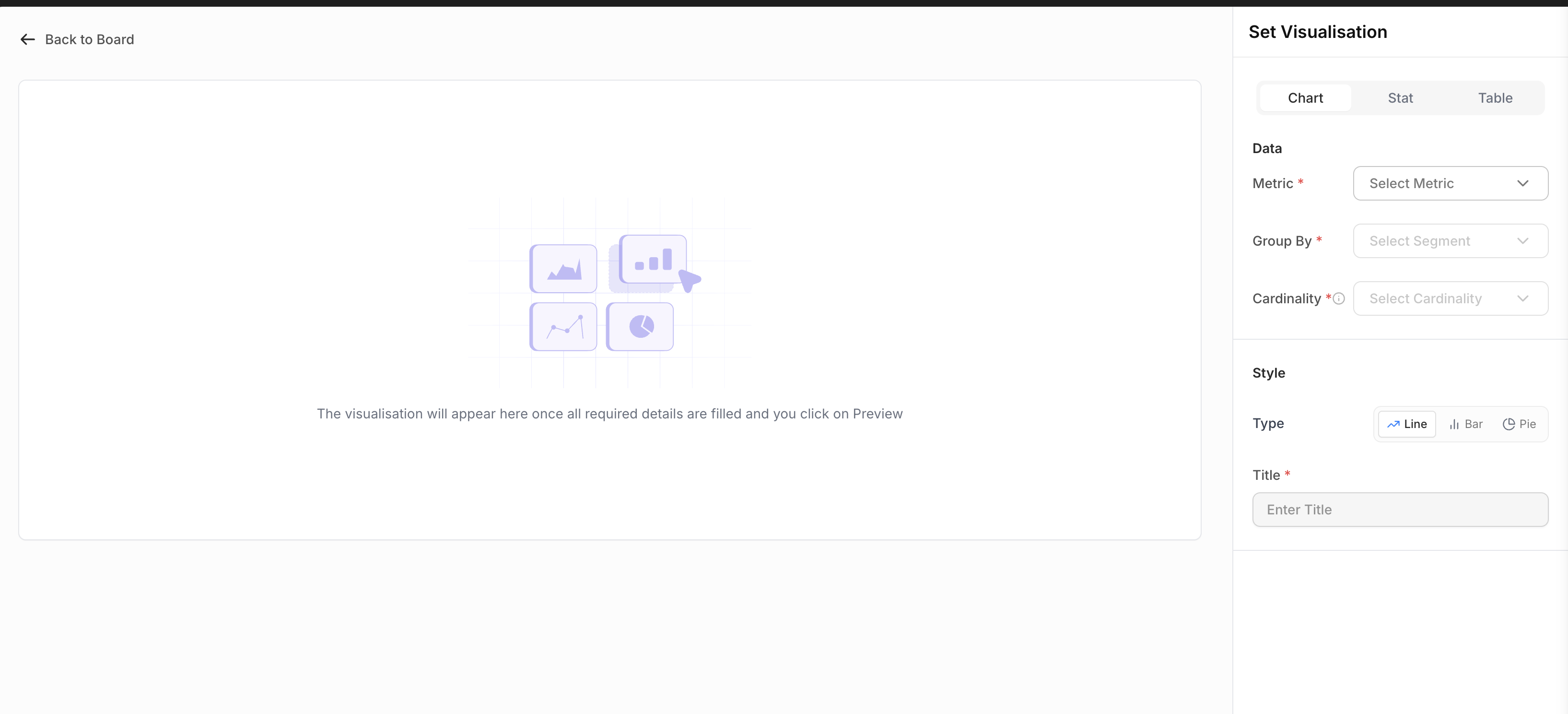
Available Component Types:
- Chart: Line, Bar, or Pie charts for data visualization
- Stat: Single statistic displays with optional delta and time series
- Table: Tabular data display with multiple metrics and segments
Component Creation Process:
Step 1: Select Component Type
Choose from Chart, Stat, or Table using the segmented control
Step 2: Configure Data Source
- Source (Required): Select from available data domains:
- Transaction Data
- Orders Data
- Refunds Data
Step 3: Configure Metrics and Visualization
For Charts:
- Metric (Required): Select the metric to visualize
- Group By (Required): Choose segment for data grouping
- Cardinality (Required): Select Top 5 or Top 10 (based on total volume)
- Type: Choose chart type (Line, Bar, or Pie - Pie only available for Volume metrics)
For Single Stats:
- Metric (Required): Select the metric to display
- Delta: Enable/disable delta comparison (Yes/No)
- Time Series: Enable/disable time series display (Yes/No)
- Threshold: Configure threshold values with colors (if enabled)
For Tables:
- Source (Required): Select data domain
- Metric (Required): Select multiple metrics (multi-select)
- Group By (Required): Select multiple segments (max 3 segments)
- Sort By: Choose metric to sort by
- Sort Column: Select Ascending or Descending order
Step 4: Style Configuration
- Title (Required): Enter component title (auto-populated based on metric/source selection)
Step 5: Advanced Configuration
- Filters: Add domain-specific filters to refine data
- Date Range: Set time range for data (inherited from board global settings)
Step 6: Preview and Save
1. Click "Show Preview" to validate and preview the component
2. Click "Add to Board" to save the component
4. Board Management Operations
Viewing a Board
- Click on any board card or table row to open the board
- Board displays with global date range picker and filters
- All components update based on global date/filter selections
Updating Board Information
Requirements: Must be board owner
1. Click the edit icon next to board name
2. Modify board name or description
3. Save changes
Sharing a Board
Requirements: Must be board owner
1. Click the share icon in board header
2. Configure sharing permissions in the share modal
3. Set visibility and access levels
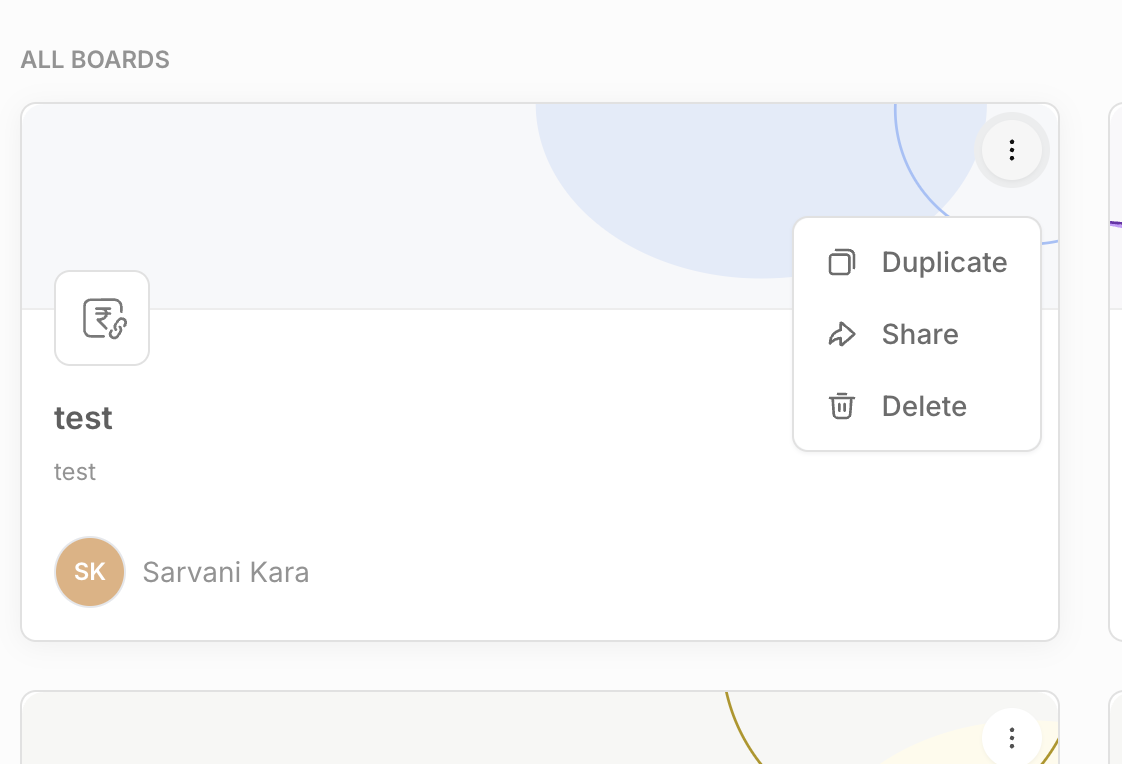
Duplicating a Board
1. Click the three-dot menu on any board card
2. Select "Duplicate"
3. System creates a copy with name "Duplicate of [Original Name]"
4. Auto-generated unique names if duplicates exist
Deleting a Board
Requirements: Must be board owner or admin
1. Click the three-dot menu on board card
2. Select "Delete"
3. Confirm deletion in popup dialog
5. Component Management within Boards
Updating Components
Requirements: Board must have ReadWrite visibility
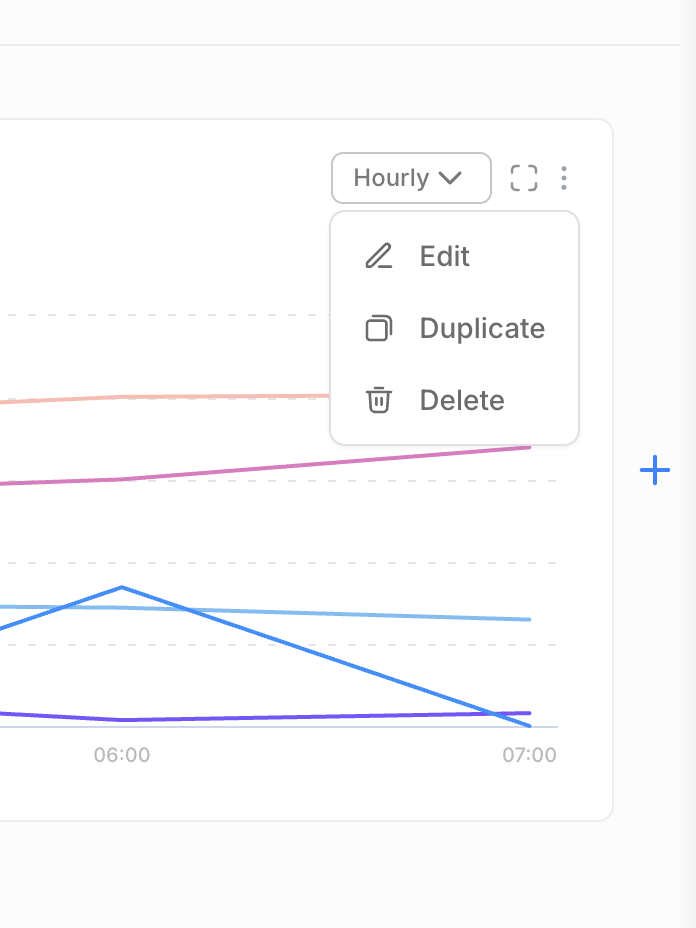
1. Click component menu (three dots) on any component
2. Select "Edit"
3. Modify component configuration
4. Save changes
Cloning Components
1. Click component menu on any component
2. Select "Clone"
3. Component duplicated with same configuration
4. Position in layout automatically managed
Deleting Components
Requirements: Board must have ReadWrite visibility
1. Click component menu on any component
2. Select "Delete"
3. Confirm deletion
6. Global Filters and Date Range
Date Range Selection
- Use the date range picker in board header
- Supports predefined ranges: 30min, 1hr, 6hr, 24hr, Today, Yesterday, 7 days, 30 days, This Month, Last Month
- Custom date range selection available
- Maximum 60-day range limit
- All components update automatically when date range changes
Global Filters
- Available filters depend on data domains used in board components
- Common filters across multiple domains are shown
- Filters apply to all compatible components on the board
- Filter options are dynamically loaded based on selected date range
Permissions and Roles
Required ACLs for Access
Board Access Requirements:
- One of the following ACL permissions:
- transaction_analytics (for transaction data access)
- refund_analytics (for refund data access)
- analytics (general analytics access)
Operation-Level Permissions
Board Creation:
- Must have at least one of the required analytics ACLs
Board Management:
- View: All users with basic analytics access
- Edit: Only board owners
- Delete: Board owners or admin users
- Share: Only board owners
Component Management:
- Add/Edit/Delete Components: Requires board to have ReadWrite visibility
- View Components: Available to all users with board access