


Creating eSign eMandate requests via the Source API endpoint
This guide refers to API endpoints in API Reference (in the Dashboard, go to Developers > API Reference).
The Source endpoint assumes that you already have the full details required to create a mandate. If you don't have all of the details, you'll need to build a form to capture the details from the customer. Alternatively, you can use a white-labelled LotusPay hosted form.
When source is submitted, it creates a mandate. Source has no further use after the mandate is created - all of the relevant details can be retrieved from the mandate.
See Source statuses for more details.
Methods
The eSign eMandate redirect flow can use the Checkout method (a) or the Invitation method (b), depending on your use case.
a) Checkout method
If the customer is in session in your web app or mobile app, you can create an ecommerce-style instant check-out experience for the customer by redirecting them to the url from your web app, or by opening a webview in your mobile app.
In this method, the customer starts in Step 1.
Eligible merchants can build their own custom payment page certified by LotusPay, in which case the customer will not see the LotusPay review page (Step 2) - they will go from Step 1 to Step 3. Contact LotusPay Support for more information.
b) Invitation method
If the customer is not currently online, you can send a fully pre-filled eMandate invitation to a customer for them to authorise in their own time.
In this method, the customer starts in Step 2.
When the customer visits this link, they land on the LotusPay review page.
If you want LotusPay to send the url link to your customer via email, you can include an email address in source and an email will be sent to your customer within a few seconds. The display name of the From email address will be your company's trading name, and your company logo will be displayed.
If your merchant account is enabled for SMS notifications, and you want LotusPay to send the url link to your customer via SMS, you can include their mobile number in source and a short link will be sent (in live mode only) to that mobile number within a few seconds. * Requires Pro Plan upgrade and SMS service upgrade *
Otherwise, you can share the url link independently via your own method such as email/SMS/chat etc.
If you want to terminate the link at any time, you must use the Source Withdraw API endpoint.
Redirect flow
Both methods use the redirect flow. In this graphic, each orange arrow represents an API request, and each linked blue box represents a view.
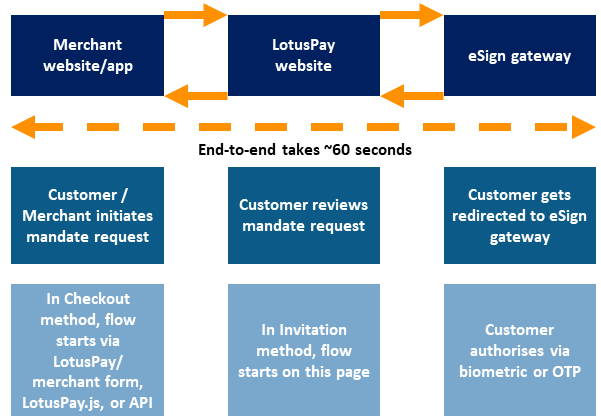
The flow is as follows:
Step 1. [Checkout method only] The customer starts in your web/mobile application. If you need to capture any details from the customer, you can build a form or use our hosted forms. You create source via a server-to-server POST request using the POST Source API with the required arguments. source.status is initially pending. source.mandate and source.redirect.response are initially empty. source.redirect.url contains an authorisation link. The authorisation link remains usable until source.status is submitted or withdrawn. You send the customer to this URL in a browser-to-browser redirect using the GET method. In a mobile app, you would open this page in a webview. LotusPay informs you of the source creation by asynchronously sending server-to-server event POST requests to your webhook url of type source.pending (containing the full source payload).
Step 2. The customer goes to the authorisation link, which shows the LotusPay review page. This page is hosted by LotusPay and is certified by the payment system. It is branded with your logo. The customer reviews the details, accepts the terms and proceeds.
Step 3. The customer gets redirected to the eSign gateway. Here they authenticate themselves via Aadhaar eSign via biometric or OTP. In the OTP auth mode, the OTP is sent to the mobile number registered in their Aadhaar. This displays a status to the customer and sends them back to LotusPay.
Step 4. The customer sees a success/error message on LotusPay.
In the Test environment, each scenario can be simulated from the source authorisation link.
Success scenario: If the customer has completed authorisation successfully:
source.statusmoves topending_submission.source.redirect.responseis populated with the eSign response, including time stamp, in<MndtAccptResp><UndrlygAccptncDtls><OrgnlMsgInf><MndtId>.source.mandateremains empty for the time being.LotusPay informs you of the successful eSign by asynchronously sending server-to-server
eventPOSTrequests to your webhook url oftypesource.pending_submission(containing the fullsourcepayload). If you are not integrating the webhook, see the next step.The authorisation link becomes blocked from further attempts.
Error scenario: If the eSign gateway returns an error for any reason (e.g. customer declined) and the customer returns to LotusPay:
source.statusremainspending.source.redirect.responseis populated with the ONMAGS response, including error in<MndtAccptResp><UndrlygAccptncDtls><AccptncRslt><RjctRsn>.source.mandateremains empty.LotusPay informs you of the error by asynchronously sending a server-to-server
eventPOSTrequest to your webhook url oftypesource.pending(containing the full source payload). You can differentiate this from a creationeventbecause the erroreventcontains a value insource.redirect.response. If you are not integrating the webhook, see the next step.The authorisation link remains active so that the customer can retry. Click here
to see a full list of errors. Checkout method: If you want the customer to retry, you can resend them to the same link. Invitation method: If the customer wants to retry, they can revisit the same link. If you want to block the customer from retrying with the same url, you must use the POST Source Withdraw API endpoint to transitionsource.statustowithdrawn. LotusPay informs you of the withdrawal by asynchronously sending a server-to-servereventPOSTrequest to your webhook url oftypesource.withdrawn(containing the full source payload).
Step 5. If you supplied source.redirect.return_url, the customer gets redirected to your Return URL. If you opened a webview in a mobile app, at this stage you can close the webview and take control back into your app. Returning to your web/mobile app happens regardless of whether authorisation was successful or not. If you are not integrating the webhook, you can call the GET Source API to check its status. If source.status is pending_submission then source.mandate will contain a mandate ID, and you can call the GET Mandate API to see mandate's details. If source.status is still pending it means that the authorisation was not successful, and you can see details in source.redirect.response. If you want to block the customer from retrying with the same url, you must use the POST Source Withdraw API endpoint to transition source.status to withdrawn.
Step 6. LotusPay automatically checks the source data on the same working day if received before the sponsor bank's cutoff time and either submits it to the sponsor bank for onward processing or (very rarely) returns it to you for correction.
In the Test environment, each scenario can be simulated from the individual source page in the dashboard.
Submit scenario: In most cases:
source.statusmoves tosubmitted. LotusPay submits the source to the sponsor bank on the same working day if the source was received an hour before the sponsor bank's cutoff time, else the next working day.LotusPay informs you of the submission by asynchronously sending server-to-server
eventPOSTrequest to your webhook URL oftypesource.submitted(containing the fullsourcepayload). If you are not integrating the webhook, you can use the GET Source API to periodically check the status.
Return scenario: If LotusPay finds any problem in the eSign then we return the source to pending. This is rare.
source.statusreturns topending.source.redirect.responseis populated with the LotusPay response, including error insource.redirect.response.LotusPay informs you of the error by asynchronously sending a server-to-server
eventPOSTrequest to your webhook URL oftypesource.pending(containing the full source payload). You can differentiate this from a creationeventbecause the erroreventcontains a value insource.redirect.response. If you are not integrating the webhook, you can use the GET Source API to periodically check the status. We also send an email to your operations email address.Manually review the source, and decide whether to withdraw or re-process. If the issue is with the eSign and it's possible to rectify, you may use the same source. If the issue is with the data, you should withdraw this source object and create a new one (you can withdraw it via the POST Source Withdraw API endpoint to transition
source.statustowithdrawn).
Step 7. The sponsor bank checks the mandate request data and either sends it onward for processing or denies it. This is usually done on the same working day, else the next working day.
In the Test environment, each scenario can be simulated from the individual source page in the dashboard.
Acknowledged scenario: If the sponsor bank submits the mandate request to NPCI and NPCI acknowledges it by assigning a Unique Mandate Reference Number (UMRN):
mandateis created including the exact set of attributes as were requested insource.nach_debitarguments.mandate.statusisacknowledged.mandate.umrnis populated with the UMRN.mandate.sourceis populated with the ID of the source that originated it.source.mandateis populated with the ID of the newly created mandate.LotusPay informs you of the mandate acknowledgement by asynchronously sending server-to-server
eventPOSTrequest to your webhook URL oftypemandate.acknowledged(containing the fullmandatepayload). If you are not integrating the webhook, you can use the GET Mandate API to periodically check the status.
Not Acknowledged scenario: If the sponsor bank denies the mandate request, or if the sponsor bank submits it to NPCI and NPCI denies to acknowledge it (known as "Ack Reject"), then the source returns to pending submission. Then LotusPay may resubmit it or may return it to pending. This is rare.
source.statusreturns topending_submissionand then possibly topending.source.redirect.responseis populated with the sponsor bank or NPCI response, including error insource.redirect.response.source.mandateremains empty.mandateis not created.LotusPay informs you of the error by asynchronously sending a server-to-server
eventPOSTrequest to your webhook URL oftypesource.pending(containing the full source payload). You can differentiate this from a creationeventbecause the erroreventcontains a reason insource.redirect.response. If you are not integrating the webhook, you can use the GET Source API to periodically check the status.If the issue is with the eSign signature, you may invite the customer to try again for the same source. Otherwise, you should withdraw this source object and create a new one (you can withdraw it via the POST Source Withdraw API endpoint to transition
source.statustowithdrawn).
Step 8. The destination bank checks the mandate within two to 10 days and either accepts it or rejects it.
In the Test environment, each scenario can be simulated from the individual mandate page in the dashboard.
Accept scenario: If the destination bank accepts the mandate:
mandate.statusisactiveandmandate.reason_codeis populated with the valueac01andmandate.reason_descriptionis populated with the descriptionACK Default Accept Reason.LotusPay informs you of the success by asynchronously sending server-to-server
eventPOSTrequest to your webhook URL oftypemandate.active(containing the fullmandatepayload). If you are not integrating the webhook, you can use the GET Mandate API to periodically check the status.
Reject scenario: If the destination bank rejects the mandate:
mandate.statusisfailed,mandate.reason_codeis populated with the rejection reason e.g.M089andmandate.reason_descriptionis populated with the description e.g.Aadhaar number mismatch in X509 certificate and mandate. You may want to create a new source and try again.LotusPay informs you of the rejection by asynchronously sending server-to-server
eventPOSTrequest to your webhook URL oftypemandate.failed(containing the fullmandatepayload). If you are not integrating the webhook, you can use the GET Mandate API to periodically check the status.
Return URL
If you provided source.return_url, LotusPay concatenates the following GET parameters to your return URL when returning your customer to it:
* source_id: A string representing the ID of the source object.
* livemode: Indicates if this is in the live environment, either true or false.
* client_secret: used to confirm that the returning customer is the same one who triggered the creation of the source (source IDs and mandate IDs are not considered secret)
e.g. ?source_id=SC0011AABBCC22&livemode=false&client_secret=src_client_secret_DUeNTTEBn6QG5mU27pQxyQj3
You may include any other GET parameters you may need when specifying return_url. Do not use the above as parameter names yourself as these would be overridden with the values we populate.
Next steps
If mandate was successfully created, you may want to create an ach_debit, payment or a subscription.
Source statuses, mandate statuses and webhooks
See the articles linked below on source statuses and mandate statuses for detailed information.
Your integration needs to use our webhooks to be notified of status changes on source, mandate, payment and ACH debit objects.
Some customers using NACH Debit assume that the authorisation process is complete once they have completed Step 4. This results in customers who close their browser instead of following the redirect and returning to LotusPay, and thereafter to your app or website. For these reasons it is essential that your integration rely on webhooks to determine when source is submitted. Please refer to our webhooks guide for more details.