


BharatX Pay-in-3 (White-labelled Solution for Part Payments)
Gateway Configuration:
Configure the sandbox gateway credentials on your Sandbox environment / Configure and enable Production Credentials on your Production Environment
NoteSandbox URL : https://sandbox.portal.juspay.in

Production URL : https://portal.juspay.inStep 1Configuring a new gateway account for BHARATX on the Juspay Dashboard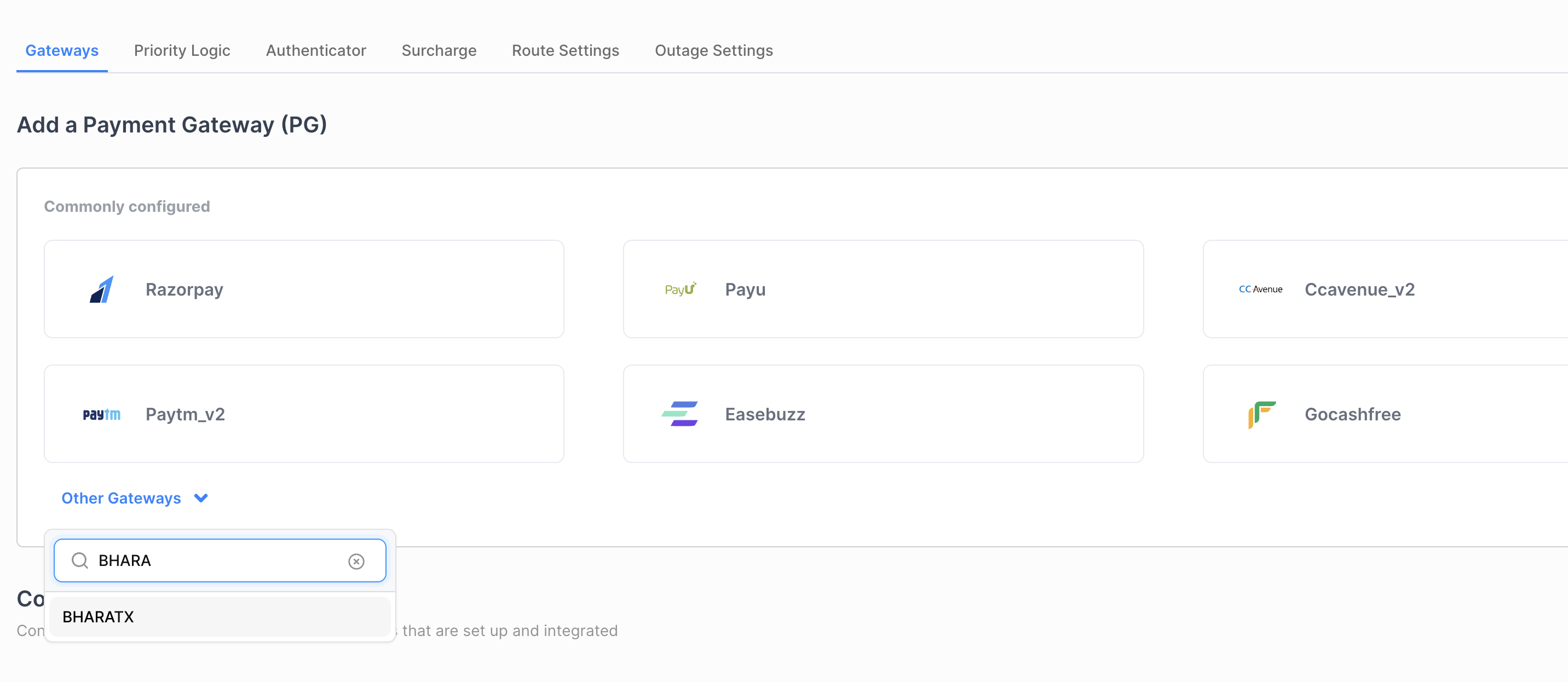
BHARATX GATEWAY Step 2Adding Gateway Credentials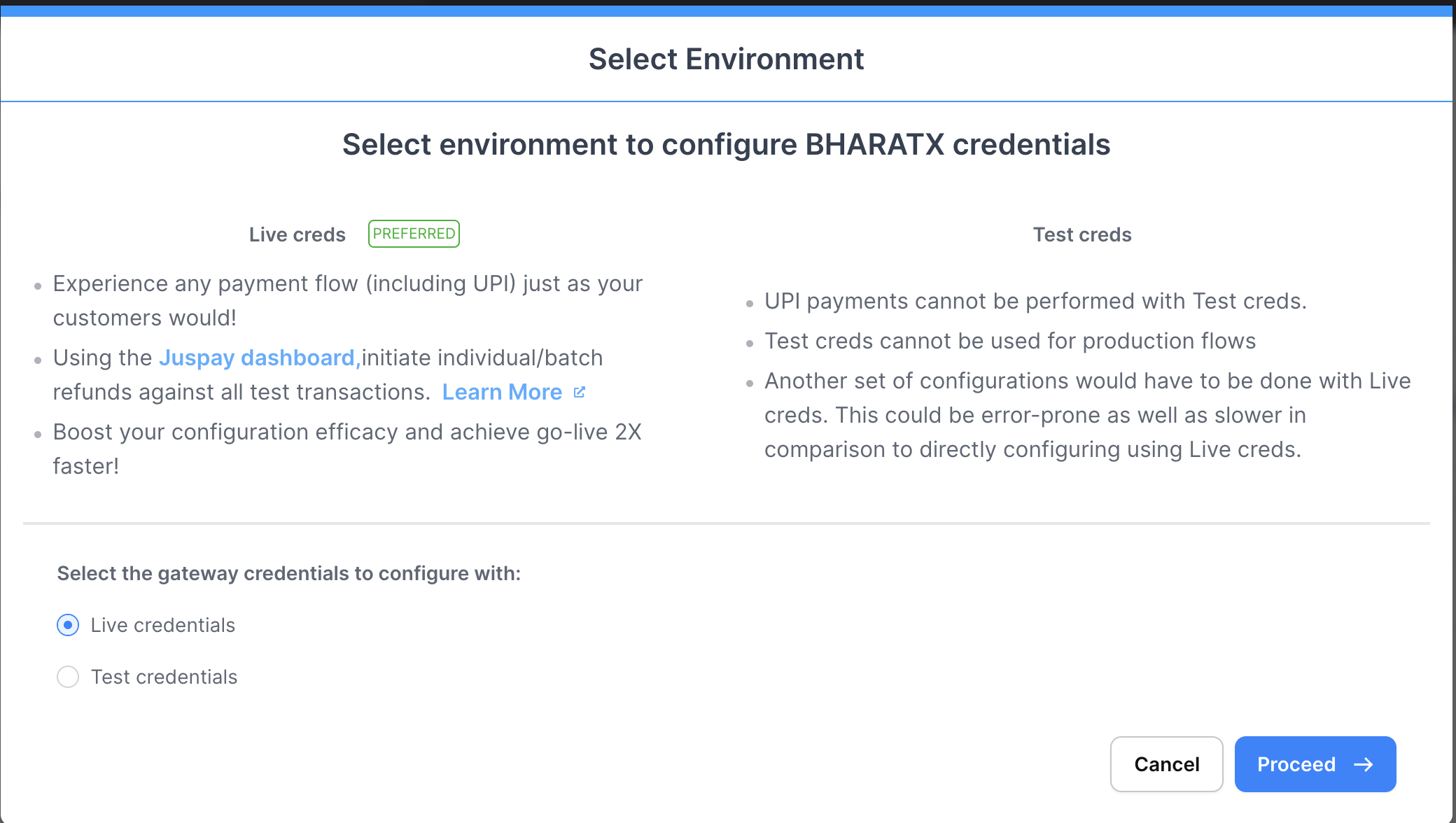
Select environment 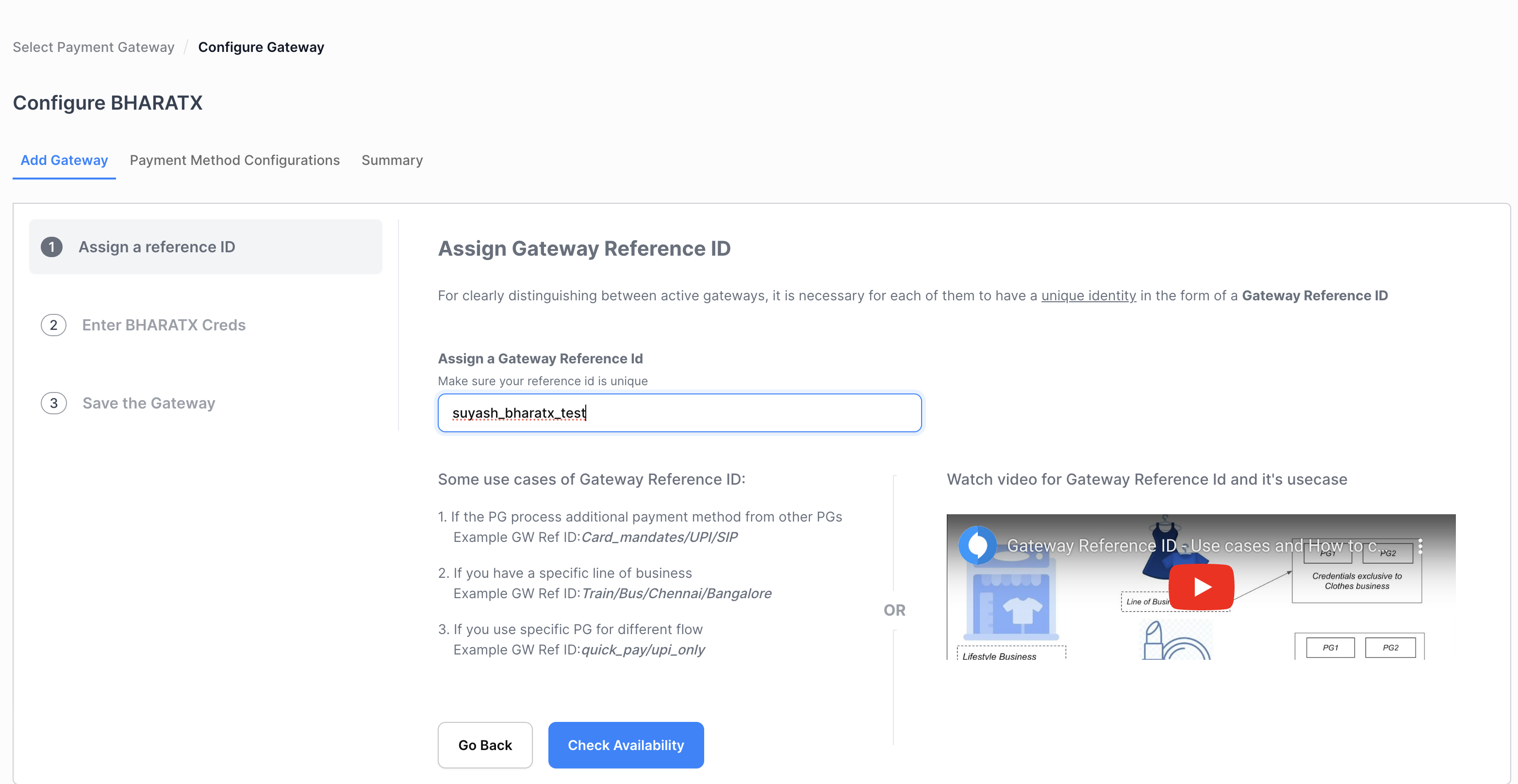
Assigning Gateway Reference Id 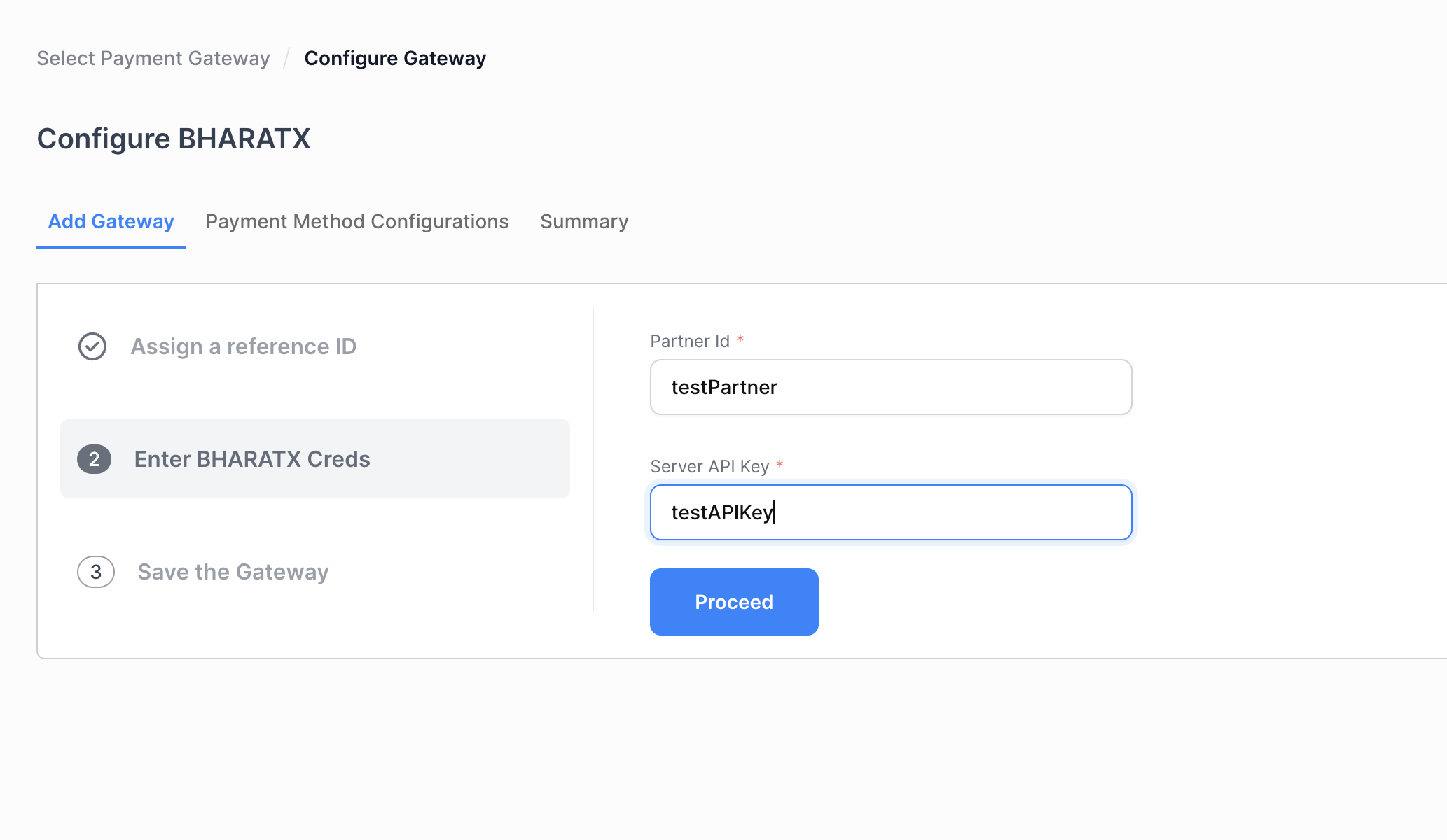
Update Credentials Step 3Saving the gateway credentials and proceeding to add payment method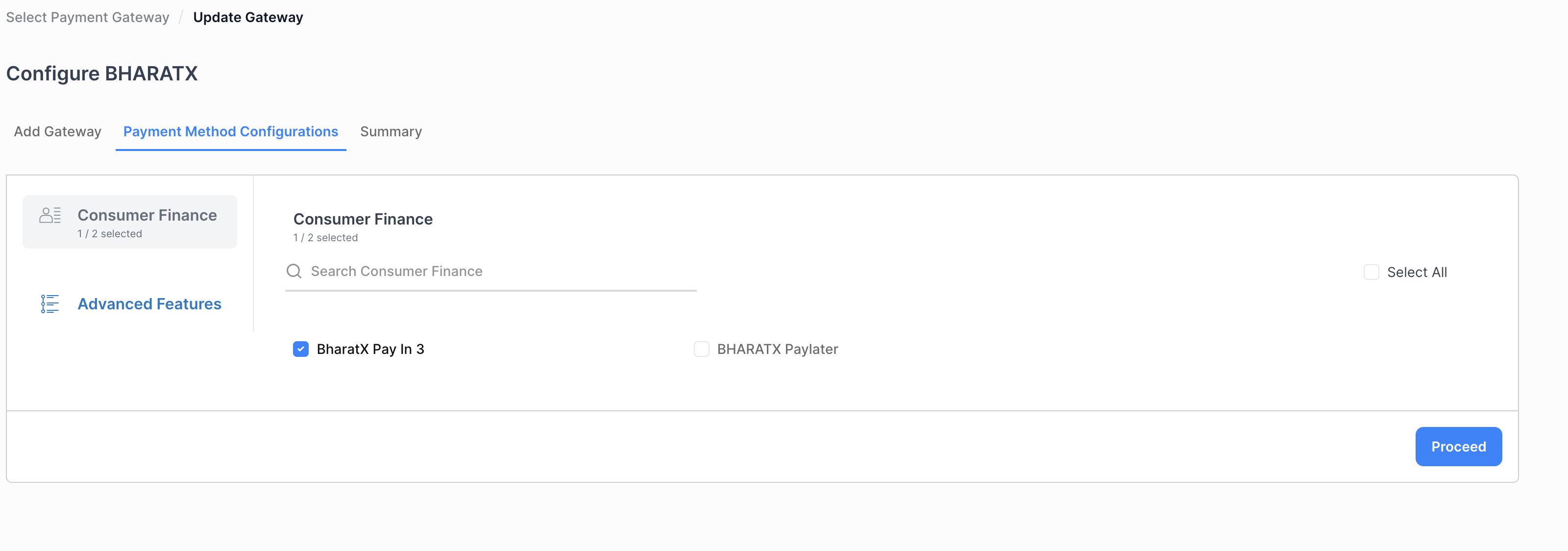
Select BHARATX Pay in 3
Changes to be pushed to CUG (From Juspay)
Requires a config update to be pushed to CUG
Pre-Requisites for the CUG
Icon/Logo to be displayed against this white-labelled payment instrument
Recommended Specifications - 80 × 80 px ; .png file
The Name to be displayed against this white-labelled payment instrument
Sequence of steps for Testing
Sandbox Testing
Gateway Configuration to be completed from Merchant’s end on Juspay Sandbox Dashboard with Test Credentials received from BharatX Team
Icon/Logo and the Instrument Name to be shared by the Merchant with Juspay
Config and/or Bundle update to be pushed from Juspay’s end to CUG
Point your Sandbox app/website to CUG (Guide to CUG
)Complete a set of internal testing on Sandbox environment to understand the flow
Production Testing and Go Live
Gateway Configuration to be completed from Merchant’s end on Juspay Production Dashboard with Production Credentials received from BharatX Team
Point your Production app/website to CUG (Guide to CUG
)Post successful UAT sign-off, merchant to send a request to Juspay for pushing these changes to Production
Juspay Feature Support Team to initiate a staggered release with the CUG changes to be pushed to Production
Minimum Package to be Used:
2.90_<platform>_RC1