


A Configuration Guide
Overview
A surcharge is an extra charge, tax, or fee added to the base cost of a product or service, such as service, handling, or processing fees based on specific business requirements.
For example: A service fee could be imposed by a merchant for using a specific credit card brand, or a minor surcharge might be applied to cash-on-delivery orders as a way to discourage that payment method.
How Juspay Handles Surcharge
With Juspay Surcharge, merchants can define flexible business rules to automatically apply additional charges to an order based on the payment method, transaction type, or other.
The surcharge amount is clearly displayed on the payment page and seamlessly added to the total payable amount, ensuring full transparency for customers and reducing checkout drop-offs.
Target Users
Operations Teams: Configure and manage surcharge rules to optimize processing costs.
Finance Teams: Define fee structures, tax compliance, and cost recovery policies.
Business Teams: Implement surcharge strategies aligned with commercial goals and pricing models.
Key Features
Intelligent Rule Engine: Configure surcharge logic with multiple criteria and conditions.
Fee Management: Define fixed or percentage-based surcharges per payment method.
Tax Compliance: Set tax rates for local regulatory alignment.
Cost Recovery: Apply surcharges to recover payment processing expenses.
Conditional Pricing: Configure surcharges based on transaction characteristics.
Real-time Configuration: Dynamically apply surcharges based on live transaction context.
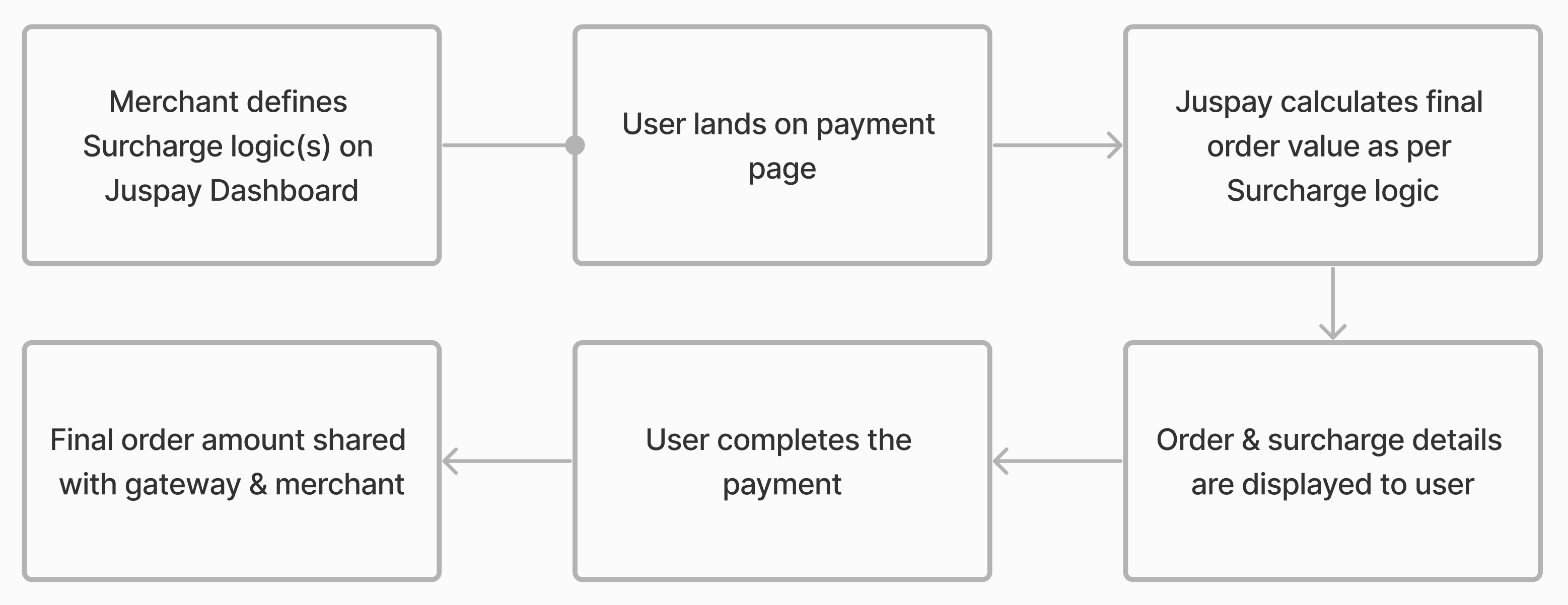
Accessing the Surcharge Dashboard
To open the Surcharge Logic Dashboard:
Juspay Dashboard → Payments → PG Control Center → SurchargeOr navigate directly to:
https://portal.juspay.in/gateways/surcharge
1. Dashboard Overview
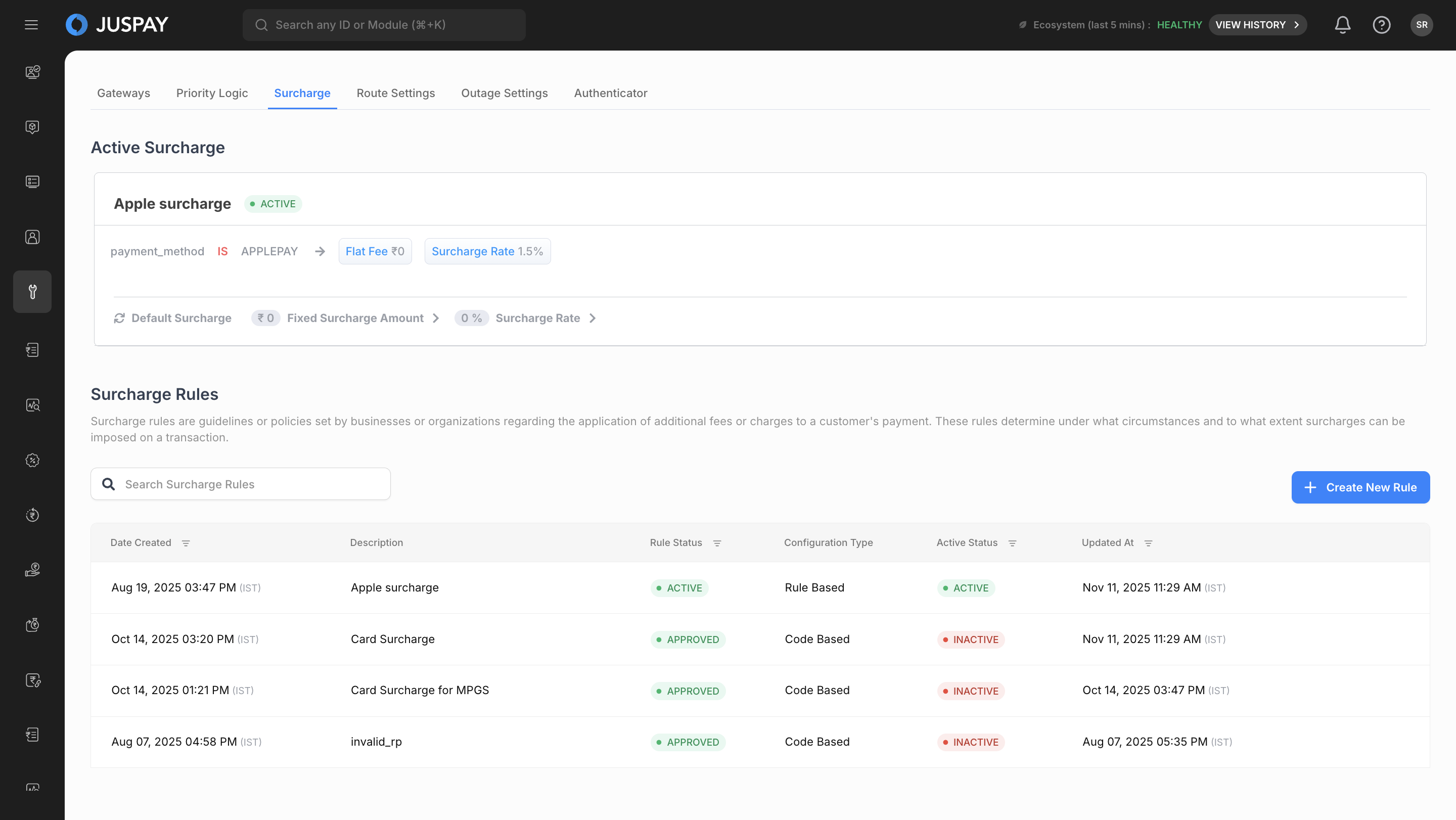
1.1 Active Surcharge Section
Displays real-time information about the currently active surcharge rule:
Active Rule Preview: Shows configuration details of the active rule.
Rule Status: Indicates if a surcharge rule is active or inactive.
Configuration Summary: Highlights rates, conditions, and rule parameters.
1.2 Surcharge Rules Management
Manage and organize all surcharge configurations through:
Rules List: Displays all surcharge rules with name, status, and creation details.
Add New Rule: Button to initiate new surcharge configurations.
Rule Actions: Edit, copy, delete, or activate/deactivate rules.
Search & Filter: Quickly locate rules by name, type, or condition.
2. Creating New Surcharge Rule
You can create two types of Surcharge Rule configurations based on your business requirements:
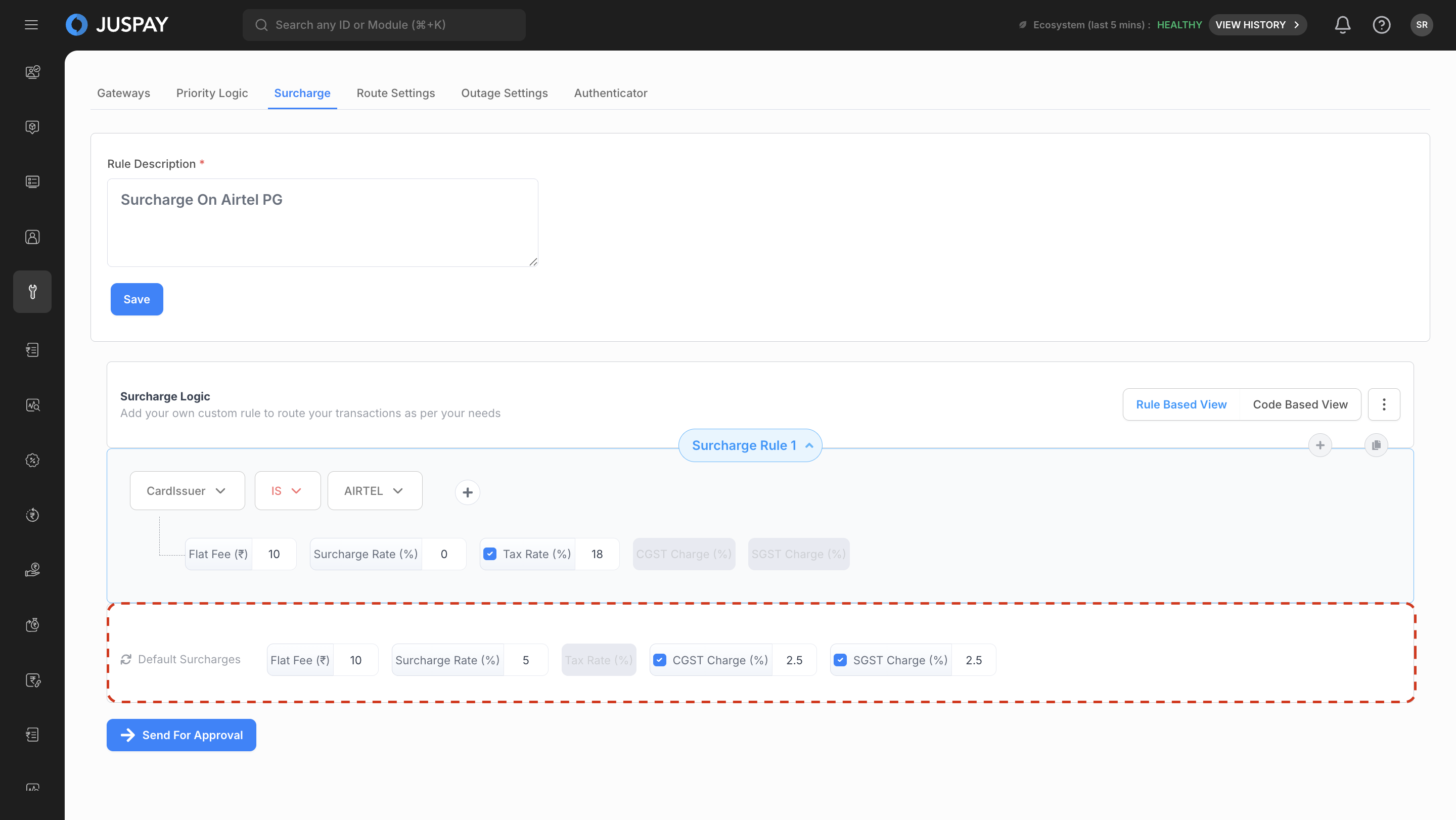
Rule-Based: For visual, condition-driven surcharge setup.
Code-Based: For logic-driven, JavaScript code based surcharge setup.
2.1. Rule-Based Surcharge Configuration
The Rule-Based View provides a simple, no-code visual interface to define surcharge logic. You can create one or more rules that determine when and how a surcharge should be applied based on transaction fields such as Card Type, Payment Method, or Transaction Amount and more. Follow the steps below to configure a new Rule-Based Surcharge
2.2 Code-Based Surcharge Configuration
The Code-Based Configuration provides a developer-centric interface where surcharge logic is defined using JavaScript. This method allows merchants to create complex, dynamic, or data-driven surcharge models that go beyond standard rule-based conditions.
You define a JavaScript function that determines the surcharge dynamically based on transaction attributes.
3. Configuration Validation & Activation
3.1 Validation & Review
Juspay automatically validates your rule logic as soon as it’s created. The system checks for calculation errors, conflicting conditions, and missing values. Before submitting for approval, review the summary and make sure:
There are no validation warnings or rule conflicts.
All surcharge and tax values are accurate.
The default fallback logic is correctly defined.
3.2 Testing
Before going live, test your rule with different transaction scenarios to confirm that surcharges apply as expected.
You can:
Simulate payments with different amounts or methods.
Check how taxes are applied for each case.
Verify that no incorrect surcharge appears during checkout.
3.3 Approval & Activation
If Maker-Checker is enabled, submit your rule for approval once testing is complete. Add any business notes or justification if required.
After approval, choose your activation mode:
Immediate Activation: The rule goes live right away, ideal for urgent updates.
Manual Activation: Keep the rule approved but inactive until you’re ready.
Only approved and active rules will be applied to live transactions.