


GooglePay Integration
Pre-Requisites
The merchant needs to have a working VPA and UPI credentials from a bank or payment gateway partner enabled at Juspay
The merchant needs to get on-boarded on GooglePay as a merchant. Refer https://developers.google.com/pay/india/api/otherapis/omnichannel/prerequisites

Merchant to enable GooglePay from Juspay Ops Sandbox | Production dashboard. Refer Dashboard
Brand guidelines https://developers.google.com/pay/api/android/guides/brand-guidelines
GooglePay UPI intent - in app payments flow
The Googlepay in-app flow is currently supported in the Android SDK.
GooglePay SDK flow
User Experience
When a user taps the Google Pay payment option on the merchant checkout page, they’ll see a payment sheet that displays the payment methods saved to their Google Account.
Users can then quickly select the bank account for paying and proceed to pay.
The user will be redirected to GooglePay ScreenLock and then asked to enter his UPI PIN for final authentication.
Once GooglePay gives a successful callback, the merchant will do a Status Check with Juspay on redirection and confirm the status to the user.
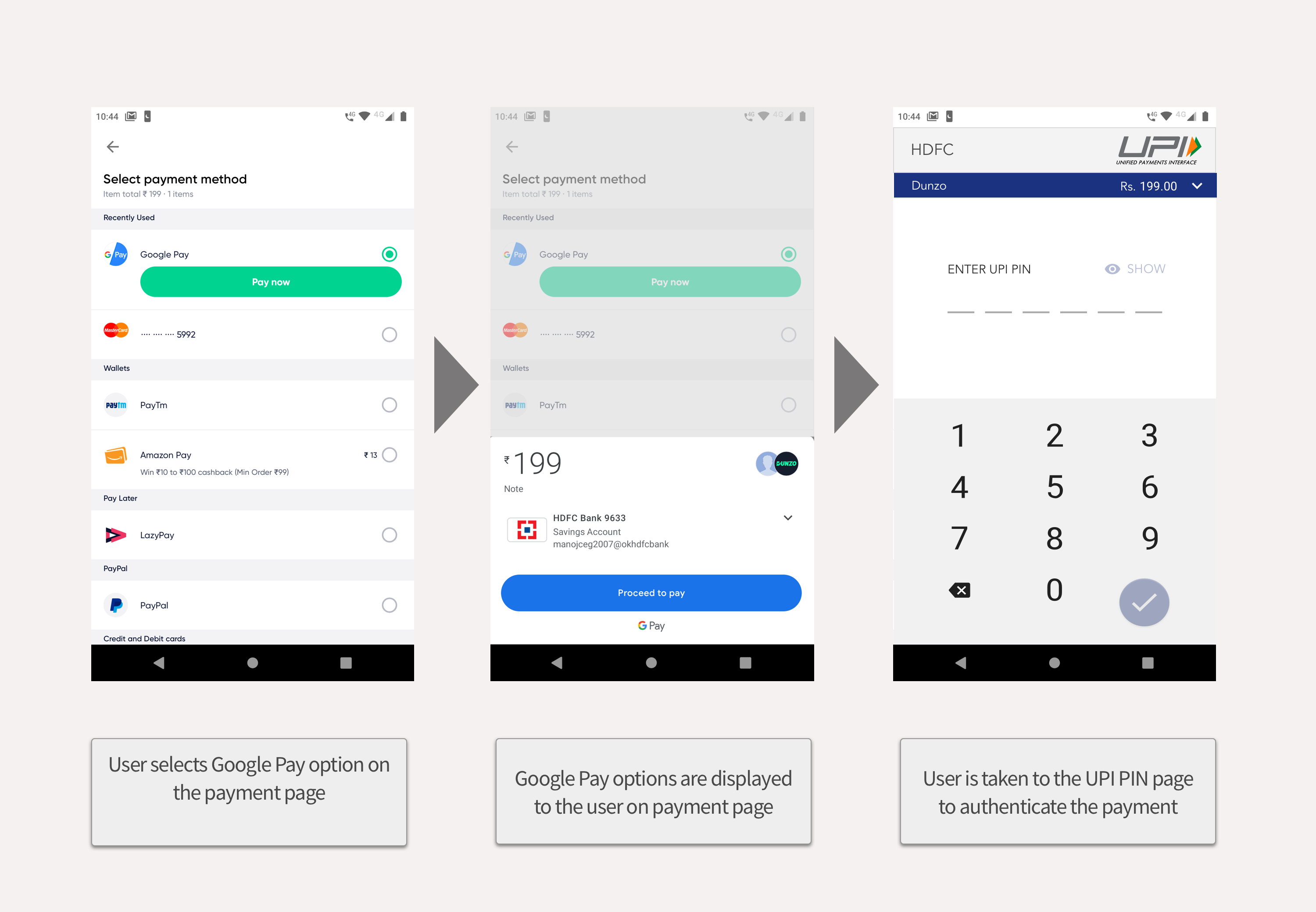
GooglePay flow can be integrated using Juspay's ExpressCheckout SDK.
Marking down the required sections for integrating GooglePay via Express Checkout Headless SDK
Add the below dependencies to the Gradle
Check Device specific App/SDK: Check GooglePay availability for the current device and show GooglePay on UI only if it is present/ready. The response from SDK would be a boolean. Please consider the app/SDK to be present on the Merchant device when the status returns true. For more info Refer- isDeviceReady flow under Displaying Payment Options
.Initiate transaction: Use walletTxn operation to initiate GooglePay.
Merchant can consume the SDK response or call the get order status API and confirm the order.
Omnichannel SDK Flow
Merchants can use the Omnichannel flow to request and accept payments from customers through Google Pay by requesting a single identifier (like a phone number) in their purchase flow. The flow is preferred in iOS
Merchants can pre-populate the user's phone numbers (or ask for input) on their app.
Once the user confirms the populated information, the merchant makes a server call to request payment
The Google Pay app directs the user to complete the payment.
The merchant verifies the payment status with their PSP before proceeding to confirm the purchase.
The User Experience is handled by the merchant when using mobile number based push payments on GooglePay. Please refer to GooglePay brand guidelines before implementing them.
Step 1: User selects GooglePay as the preferred Payment Option
Step 2: User is asked to enter the Mobile Number linked to GooglePay on the payment page. Merchants can choose to autofill this field.
Step 3: User clicks on “PAY”. The "walletTxn" is called on click. The sample code for transaction initiation via SDK is given below.
Step 4: This triggers a request to the GooglePay account linked to the mobile Number passed. As soon as the user confirms the payment on GooglePay, the browser will redirect to the merchant redirection page.
Step5. Merchant can consume the SDK response or call the get order status API and confirm the order.
|
Platform
|
sdkPresent value
|
|---|---|
Android
| ANDROID_GOOGLEPAY
|
iOS
| IOS_GOOGLEPAY
|