


Welcome to GUI editor!
GPAY_IMF Merchant Onboarding Steps
Gateway Configuration from Merchant Dashboard
STEP 1: Login to your merchant dashboard account and go to PG Control Centre (EC Operations >> PG Control Centre).
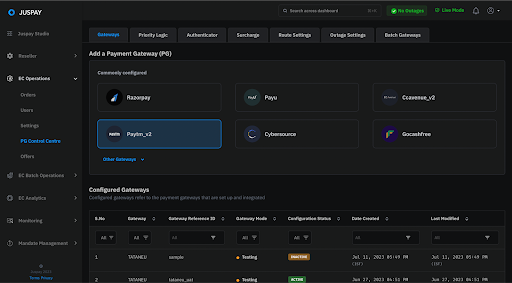
STEP 2: Click on the Other Gateways drop down button, search for GPAY_IMF, and select GPAY_IMF.
STEP 3: Select Live credentials / Test credentials to set up the Prod / UAT account of GPAY_IMF, and click on the Proceed button.
STEP 4: Assign a gateway reference ID, check its availability and click on the Proceed button.
STEP 5: Fill the required credentials/fields from the Google Service Account and click on the Proceed button. Once you click on the Proceed button you will be moved to the confirmation page, where you need to verify the configuration details. Once all the details are verified, please click on the Confirm and save button. Then proceed to add the required payment methods.
NOTE: For the field Webhook Project ID, Please do not enter Project ID from the Google Service Account. This is a merchant specific unique value for webhook validation. To get this value Webhook Project ID, you should contact the Google Team representative.
STEP 6: Select the required payment methods. Please select UPI Intent option.
STEP 7: After adding the payment methods, please proceed to the next page and click on the Yes, Enable it button to start using the gateway.
Priority Logic Configuration from Merchant Dashboard
STEP 1: Login to your merchant dashboard account and go to Priority Logic (EC Operations >> Priority Logic).
/
STEP 2: Select Advanced Configuration from below right side, and then click on New Configuration
STEP 3: Assign a Configuration name and Description and click on Next.
STEP 4: Select Category on the basis of which you wish to configure GPAY_IMF, here we will be showing an example to configure Payment Method is UPI.
STEP 5: Select the Value, here we are selecting as UPI as GPAY_IMF supports UPI.
STEP 6: Select GPAY_IMF from the list of gateways.
STEP 7: Select Distribute to enter the percentage of transactions you wish to have the above configuration. Here we have given that 5% of the transactions with Payment Method=UPI will go via GPAY_IMF. Select the default gateways which you choose to have for above kind of transaction, and click on Review Changes.
STEP 8: Click on Validate
STEP 9: Click on Next Step
STEP 10: Click on Submit