


Refunds
Refunds can be initiated only for transactions that are CHARGED. The refunded amount will be settled to the same payment method that the customer used for making the payment.
Initiating Refunds
Refund using Integration Kit -
Please follow the steps given below initiate a refund :
Please add the code snippet for refund functionality in your refunds api file (code snippet given below)
Please ensure that SmartGateway environment has been setup
Please provide the following inputs
Scroll inside to view moreParameterTypeDescriptionorder_idMandatoryOrder Id of the order for which you want to proceed with refund Example:- 1418394476amountMandatoryAmount that has to be refunded. Amount has to be less than or equal to the amount of the order that is not yet refunded. If this parameter is not passed, then the order is refunded entirelyunique_request_idMandatoryRequest ID that uniquely identifies this request. You cannot reuse the value for two different refund requests. This is to avoid processing duplicate refund requests.The length of the unique_request_id should be less than 21 charactersRun the project
Refund Status Mapping
|
Refund Status
|
Description
|
|---|---|
Pending
| SmartGateway has marked refund and sent a refund request to underlying PG.
|
Success
| Refund has been successfully executed by underlying PG.
|
Failure
| Refund is failed.
|
Manual Review
| Refunds that are pending more than 10 days goes into manual review.
|
Updating Refund Status
Order Status Function: You need to poll this function and fetch refund details from the refunds block in the function response(Sample Response
 ). Refer Handle Payment Response Section to know in detail.
 Webhook: Consume ORDER_REFUNDED and ORDER_REFUND_FAILED and REFUND_MANUAL_REVIEW_NEEDED webhooks to update the refund status real time. Refer Transaction Status
Section to know in detail.
Auto Refund
In payment ecosystem when a transaction traverses from your website to payment gateway and to bank page there are possibilities that customer might get charged for a transaction, however the transaction status might not get updated in realtime due delayed response from the payment provider or the bank's digital infrastructure that is supporting the transaction. These transactions will stay in pending state and move to success once the PG gets response from the processing bank or when the PG complete the reconciliation with the processing bank, this causes delayed success of transaction. Your business policy might have a predefined order timeouts (a specified duration post which payments will not be accepted against the order). This may range from few minutes to a few days depending on the type of product/ service offered by your business
Auto refund feature can be used to automatically refund -
1. Conflicted Transactions
2. Multiple Charged Transaction
Conflicted transaction
For merchants rendering realtime services, they can set a threshold time as per their order fulfilment window on dashboard. If transaction goes into pending state and we receive success response from PG post the threshold time limit set by you, then we consider that transaction as conflicted transaction.
Here the order fulfilment window means a specified duration in which payments will be accepted against an order.
The auto refund of conflicted transactions threshold time will be calculated from the time of transaction initiation and not order creation.
Steps to enable Auto Refunds for Conflicted transactions -
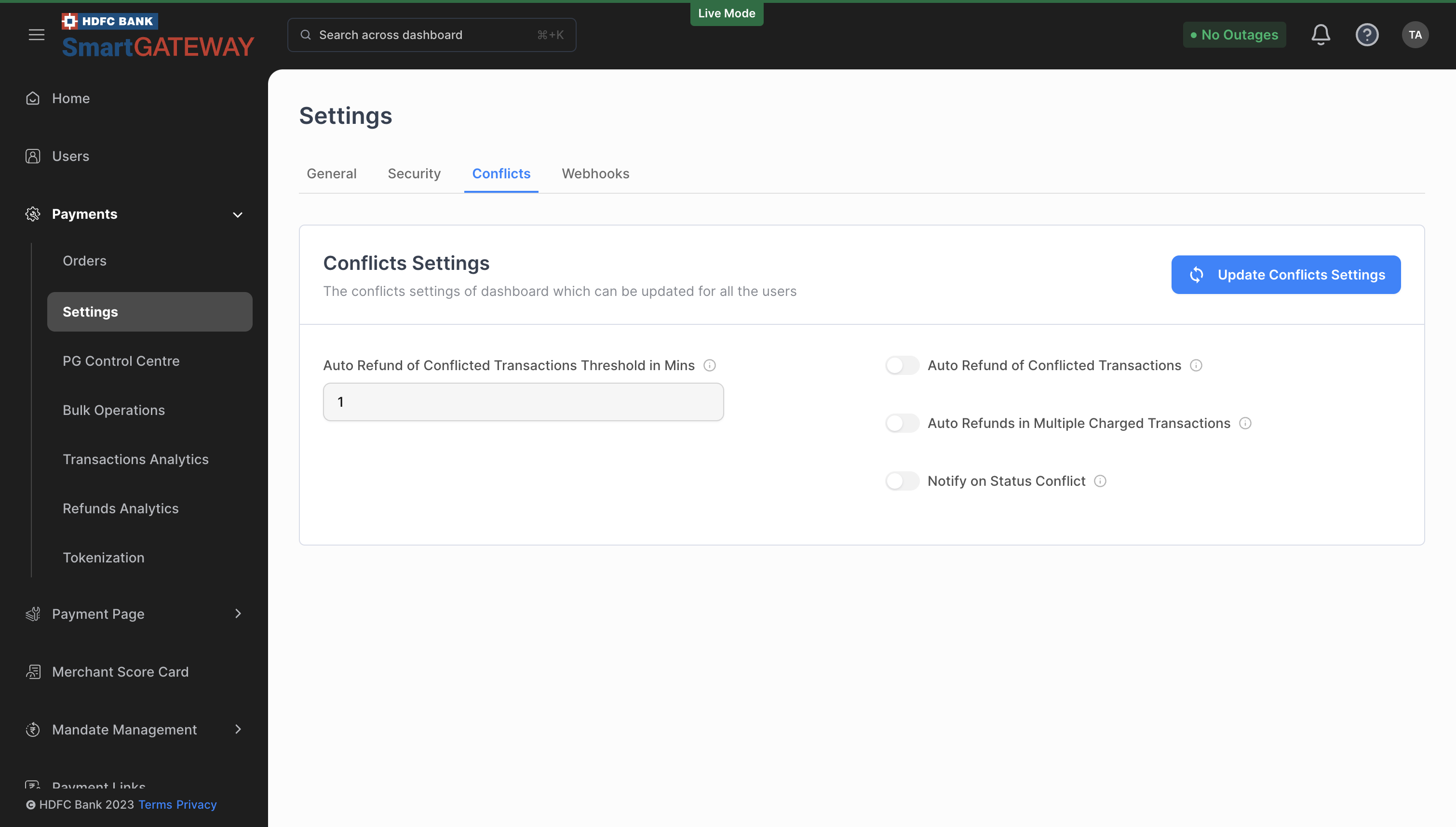
Go to your Dashboard > Payments > Settings > Conflict > Enable the toggle of Auto refund of Conflicted transactions.
Set the Auto Refund of Conflicted Transactions Threshold in Mins (This is the field where you need to put the time limit after that when we will receive SUCCESS then that will be auto_refuded, by default it is 10 mins)
[Optional] You can also Enable the toggle of Notify on status conflict and if this is enabled then the you needs to put email id under Conflict Status Email field.
Multiple Charged transactions
Multiple charged transactions are those in which two or more transactions got charged against a same order. When customer attempts multiple transactions against an order ID where for the first transaction the amount is debited from customer’s account however transaction goes into pending state, customer attempts another transaction which gets successful and later the first transaction also gets successful, leading to more than one successful transaction against an Order ID.
If auto-refund for multiple charged transactions is enabled then expect for the first successful transaction all other transactions would be refunded against an Order.
Steps to enable Auto Refunds for Multiple Charged transactions -
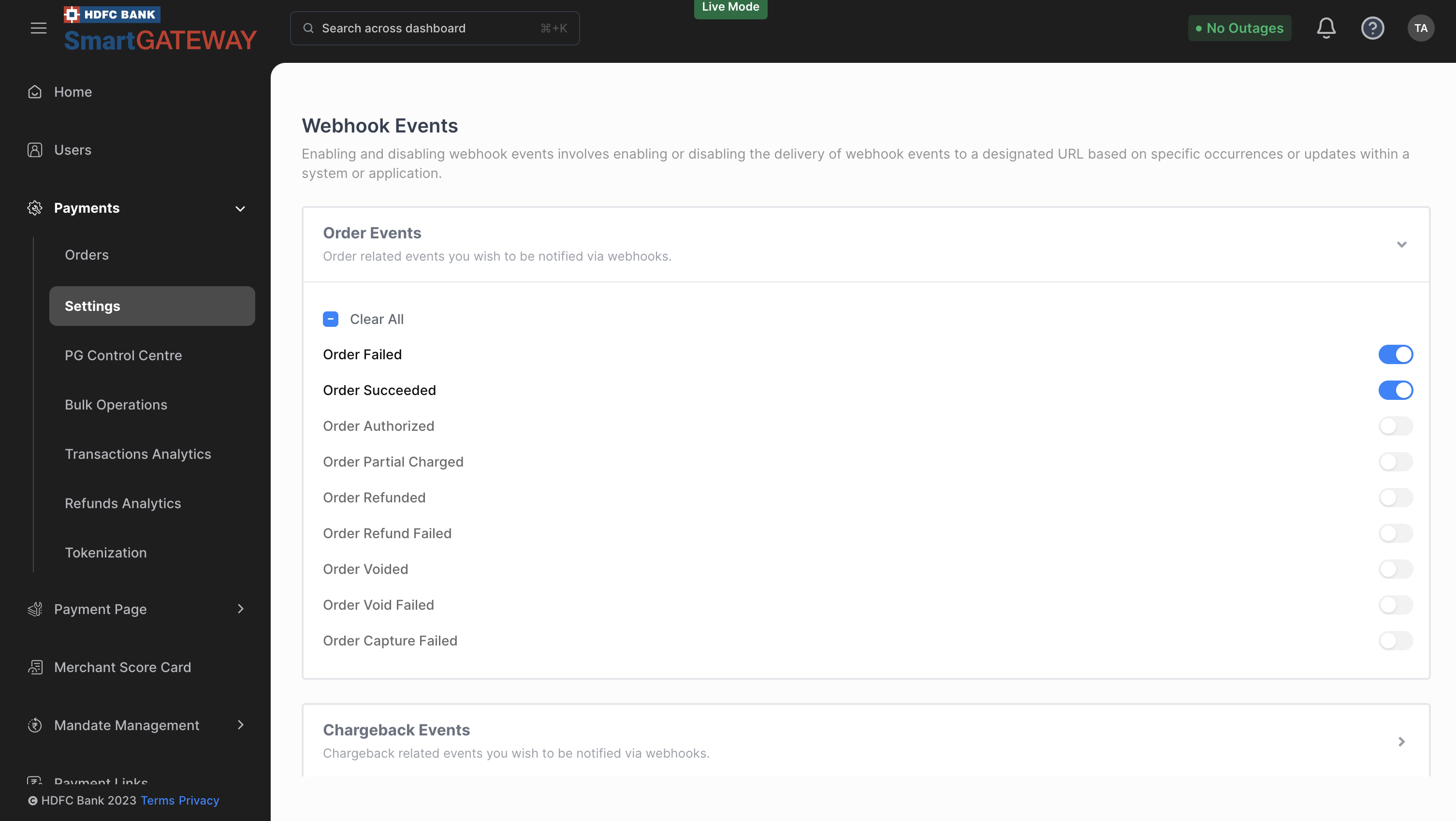
Go to your Dashboard > Payments > Settings > Conflict > Enable the toggle of Multiple charged Transactions.
Updating Refund Status for Auto-refunded transaction
Order Status Function: You need to poll the order status function and fetch refund details from the refunds block in the response, the order status of auto-refunded transaction would be AUTO_REFUNDED. Refer Handle Payment Response
Section to know in detail.Webhook: Please consume the below webhooks to update the refund status for auto refunded transaction.
AUTO_REFUND_INITIATED: Generated when a transaction an auto refund entry for that transaction is created at SmartGateway
AUTO_REFUND_SUCCEEDED: Generated when the transaction is auto refunded and refund is success.
AUTO_REFUND_FAILED: Generated when the transaction is auto refunded and refund has failed.