


Access Existing Forms
How to access an existing Payment Form?
Login to Sandbox/Production dashboard.
From the Navigation bar, select Payment Forms tab.
List View
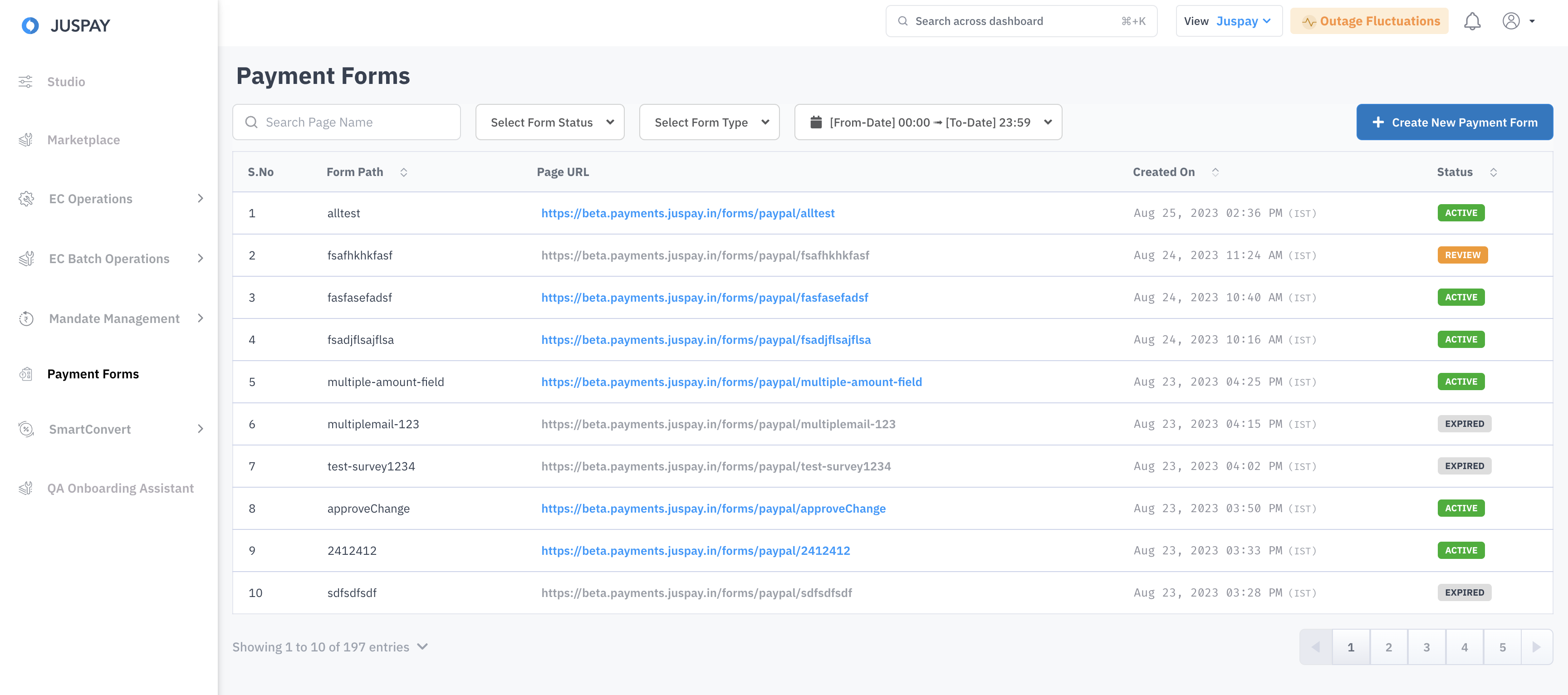
This is the landing page once a user presses on the Payment forms tab. Following information can be seen:
payment form URL (which is clickable)
form creation date-time and
status (DRAFT, REVIEW, ACTIVE, INACTIVE, EXPIRED)
If there are a large number of forms, the listing is paginated with 10 rows per page. Sorting of forms based on status and creation date-time is possible. Filter is allowed on 2 parameters: form creation date-time range & form status.
Details View
On clicking on any of the existing payment form, some additional details about that form can be seen such as:
Payment Page ID - unique ID for each payment form
Page URL - this is the webpage for the payment form where user will land.
Return URL - this is the webpage where the user will be redirected to post completion of his/her payment journey
Created by - Merchant user who created the form
Email ID - Email of the merchant user who created the form
Expiry Date - Payment form expiry date if any date is set while configuring the Payment form
Survey Form - Denotes if the form created is payment form or survey form.
On this view, the user has an option to deactivate/delete a form. This comes with a warning prompt though to prevent inadvertent deletion/deactivation. Moreover, users can clone this form which can serve as base for a new form.