


Refunds
Refunds can be initiated only for transactions that are CHARGED. The refunded amount will be settled to the same payment method that the customer used for making the payment.
Initiating Refunds
There are 2 ways to initiate refunds:
Using Juspay Dashboard
Individual Order Refund (Manual Refund)
Manual refund can be created for individual transactions by following below steps:
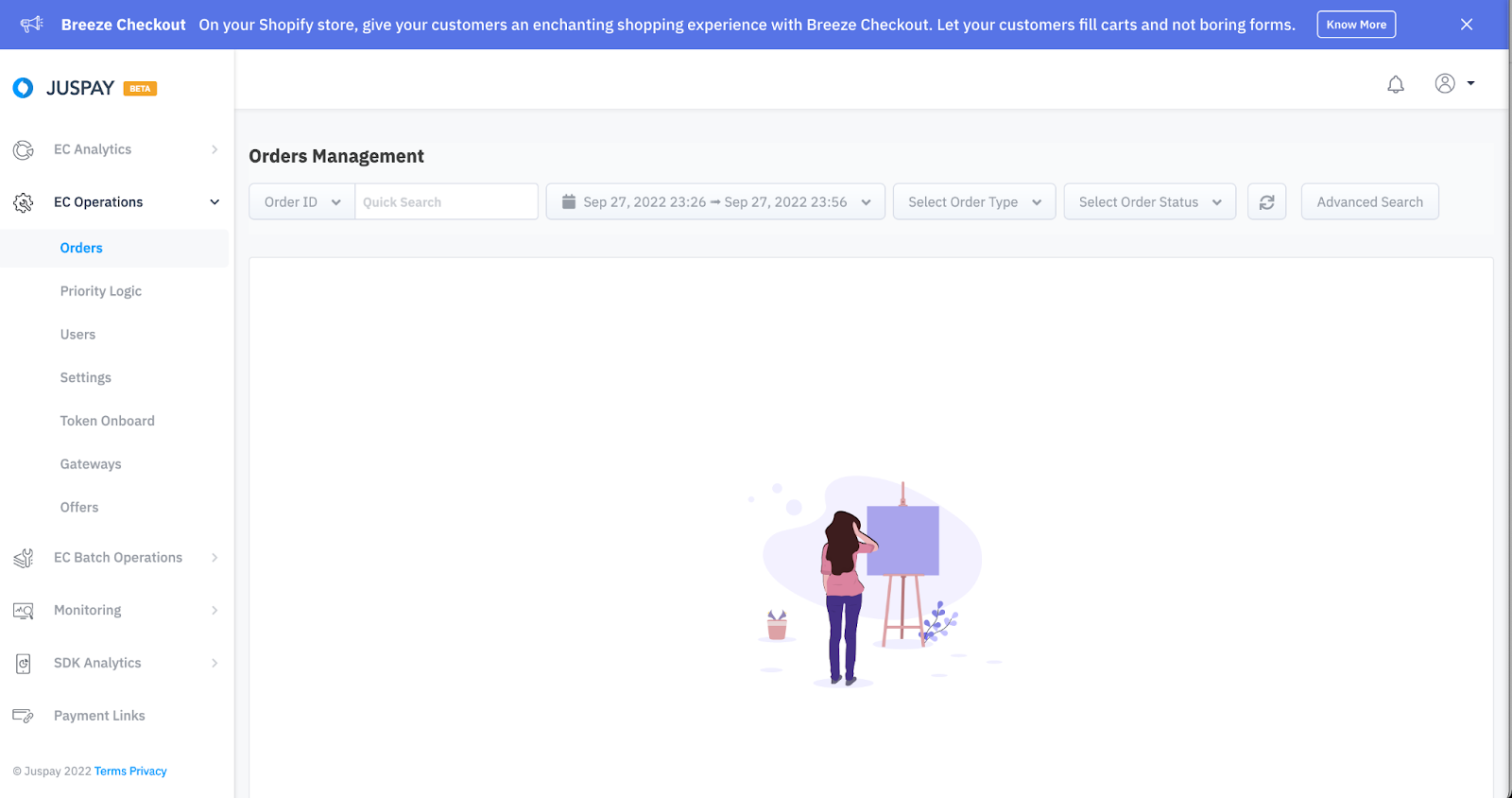
Login to Juspay Analytics Dashboard and Navigate to Orders under EC Operations.
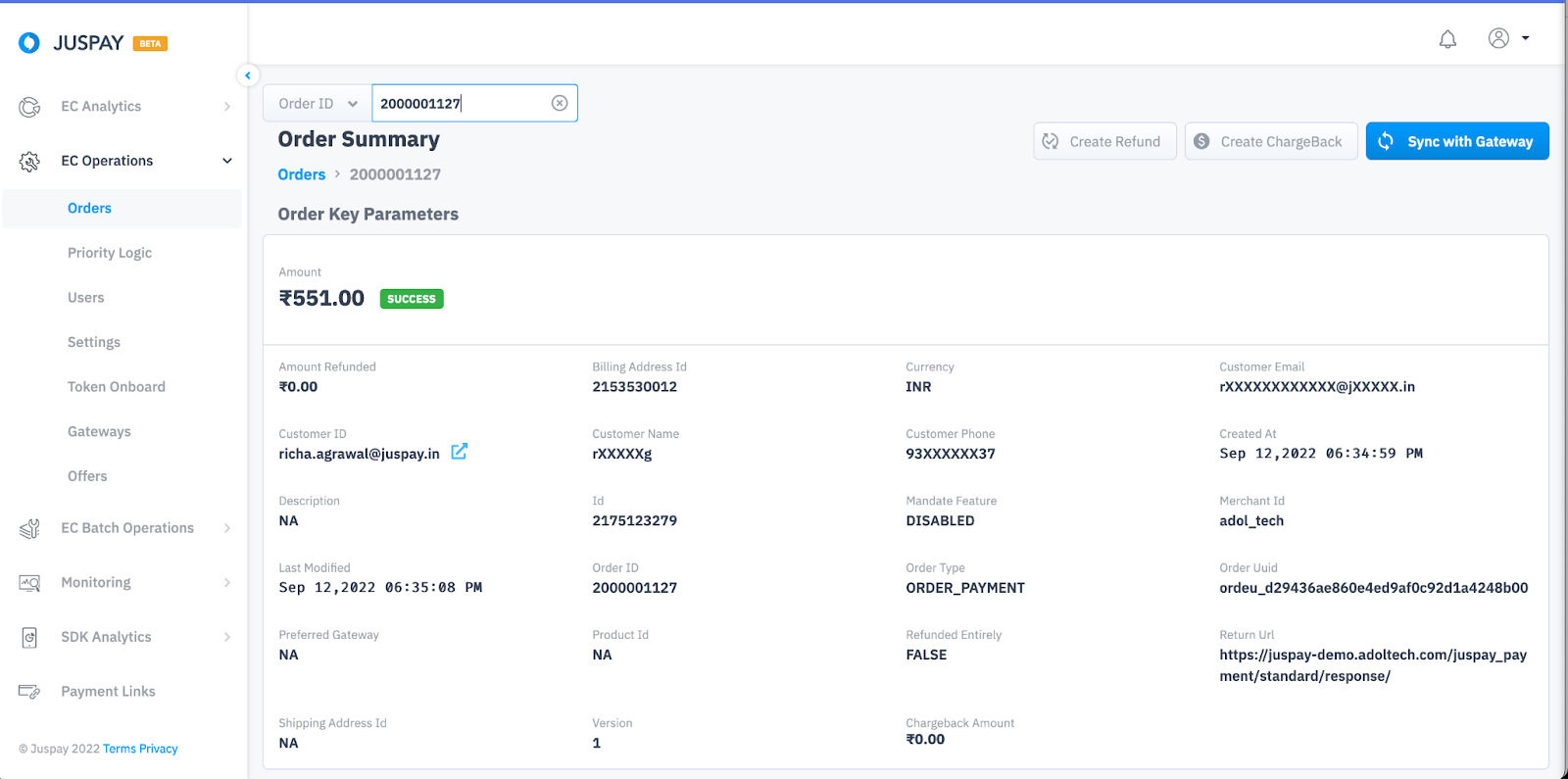
Navigate to the order for which you need to create refund and click on Create Refund.
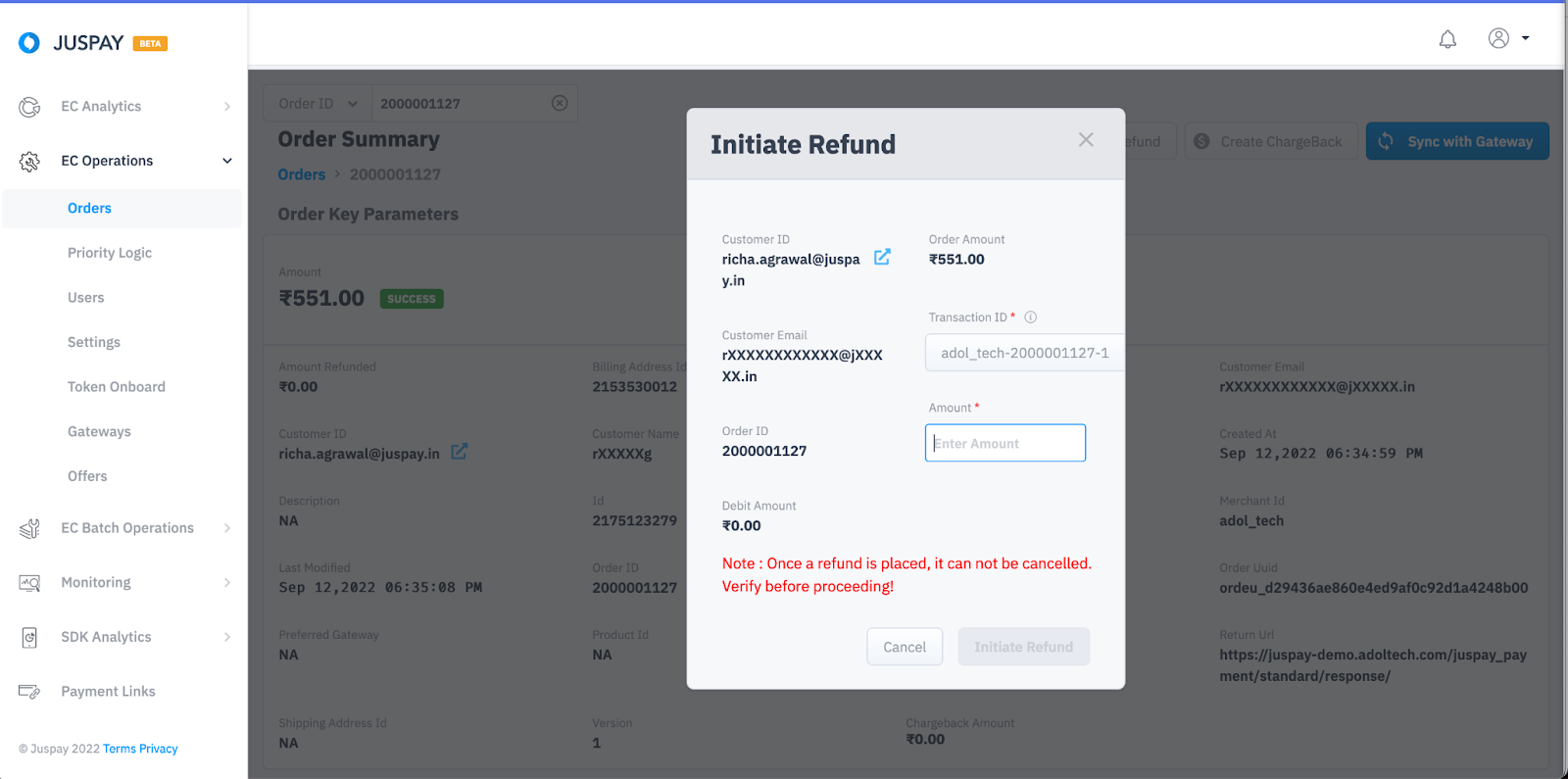
You will get a popup with all the order information. Enter the amount and click on Initiate Refund.
Batch Refund
Users can mark multiple refunds by uploading a single file by selecting Batch Refund in Juspay Dashboard. Follow steps mentioned below:
Login to Juspay Analytics Dashboard and Navigate to Refunds under EC Batch Operations.
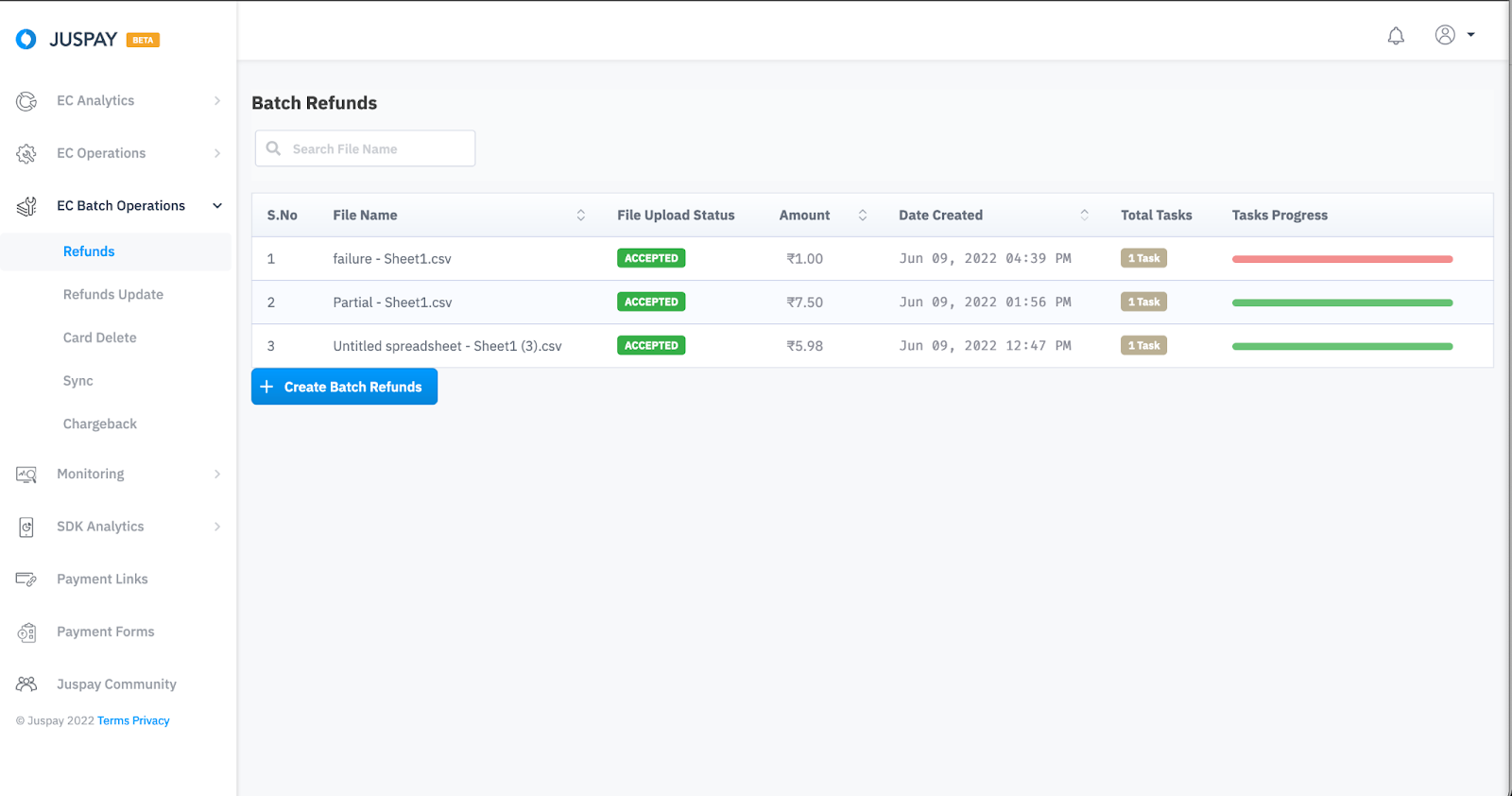
Click on Create Batch Refund and Download the sample CSV file to check the details and the format in which you need to upload the file.
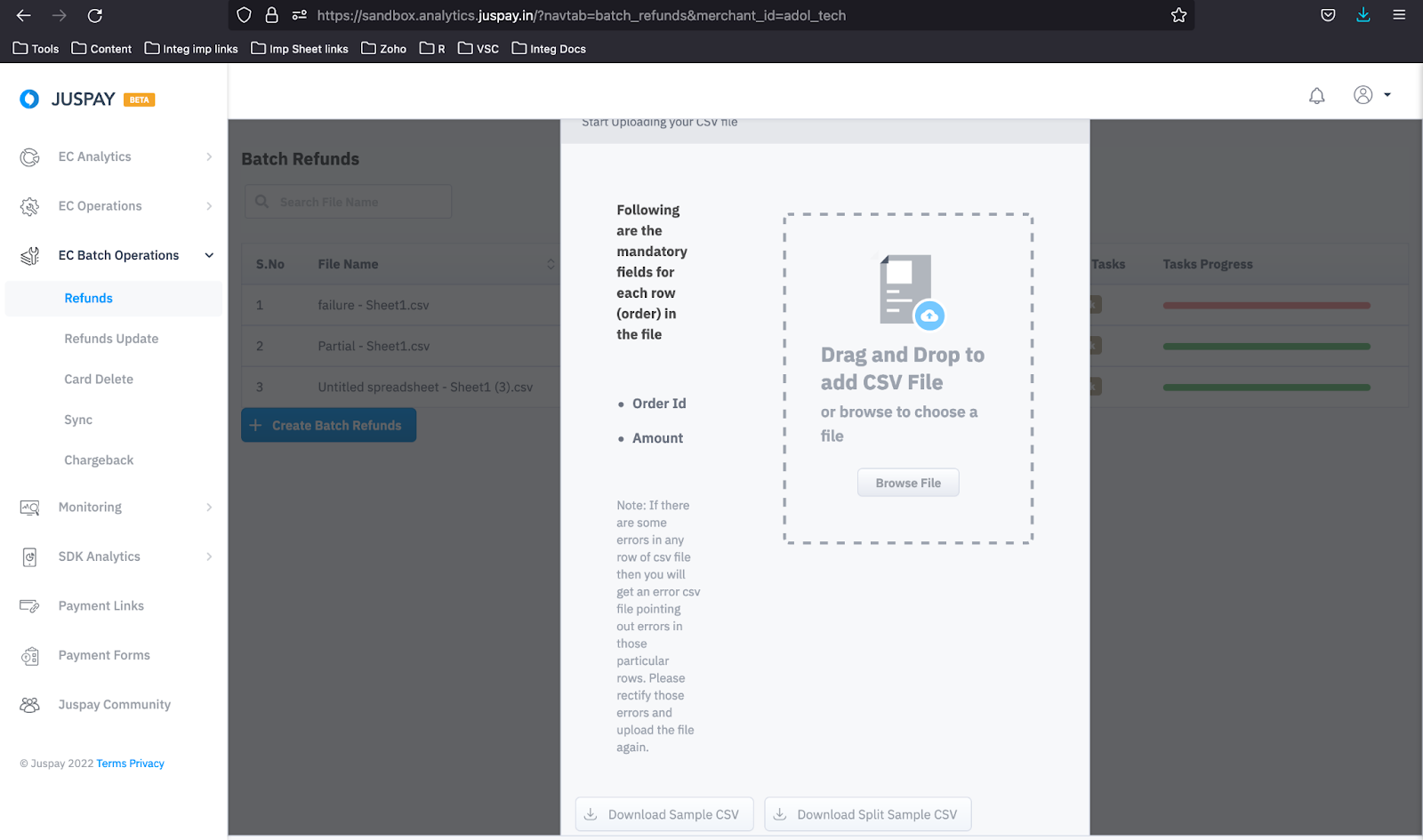
Once your batch refund CSV file is ready, Upload.
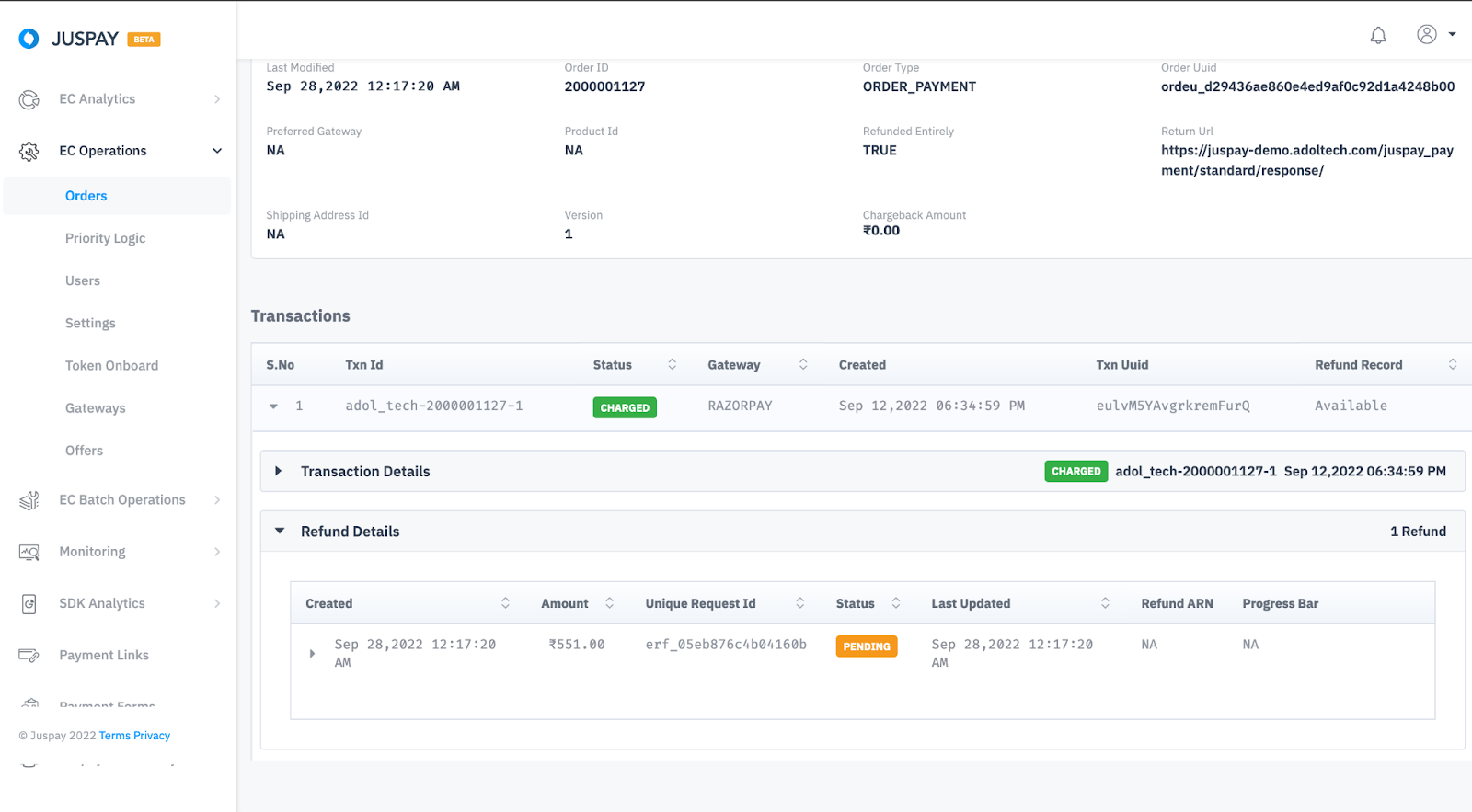
Refund Status
|
Refund Status
|
Description
|
|---|---|
Pending
| Juspay has marked refund and sent a refund request to underlying PG.
|
Success
| Refund has been successfully executed by underlying PG.
|
Failure
| Refund is failed.
|
Manual Review
| Refunds that are pending more than 10 days goes into manual review.
|
Auto Refund
Auto refund is used to automatically refund the conflicted transactions and multiple charged transactions.
Conflicted transaction: Conflicted transactions are those transactions where we receive late success/charged response from gateway, for these cases an auto refund will be initiated automatically if you have enabled the same at Juspay dashboard.
Multiple Charged transactions: Multiple charged transactions are those in which two or more transactions got charged against the particular order and in that case if some transaction got charged later on then an auto_refund will be triggered against the latest charged transactions.
Steps to enable Auto Refunds for Conflicted transactions -
Go to your Juspay Dashboard > EC Operation > Settings > Conflict > Enable the toggle of Auto refund of Conflicted transactions.
Set the Auto Refund of Conflicted Transactions Threshold in Mins (This is the field where you need to put the time limit after that when we will receive SUCCESS then that will be auto_refuded, by default it is 10 mins)
You can also Enable the toggle of Notify on status conflict (optional) and if this is enabled then the you needs to put email id under Conflict Status Email field.
.gif)
Steps to enable Auto Refunds for Multiple Charged transactions -
Go to your Juspay Dashboard > EC Operation > Settings > Conflict > Enable the toggle of Multiple charged Transactions.
.gif)
Auto refunds are transaction level refunds in which all transactions which breach the auto refund threshold would be auto refunded.
It is recommended to enable auto refund webhooks from the Juspay dashboard.
You should be able capture the order status as AUTO_REFUNDED at your end.
The Auto Refund of Conflicted Transactions Threshold time will be calculated from the time of transaction initiation not order creation.
Updating Refund Status
Order Status API: You need to poll this API and fetch refund details from the refunds block in the API response. Refer Order Status API
 Section to know in detail.
Webhook: Consume ORDER_REFUNDED and ORDER_REFUND_FAILED and REFUND_MANUAL_REVIEW_NEEDED webhooks to update the refund status real time. Refer Transaction Status
Section to know in detail.
If you are using Auto refund feature please consume the below webhooks to update the refund status.
AUTO_REFUND_INITIATED: Generated when we receive SUCCESS response from PG for a transaction after conflicted transaction threshold is breached, and an auto refund entry for that transaction is created at Juspay.
AUTO_REFUND_SUCCEEDED: Generated when the transaction is auto refunded and refund is success.
AUTO_REFUND_FAILED: Generated when the transaction is auto refunded and refund has failed.